# Spotifast — Full Documentation
> Documentation for a native Spotify client for Linux, macOS, and Windows. It covers local playback, library access, and Spotify Connect.
---
# Spotifast
Canonical URL: https://spotifast.rocks/
## It turns into Winamp
Load a classic `.wsz` skin from the
[Winamp Skin Museum](https://skins.webamp.org). The mini player includes
animated sound displays, an equalizer to adjust your sound, and a playlist.
Roll it up into a thin bar or enlarge it while keeping the classic pixels
sharp. [See the mini player in detail](/winamp/).
## MilkDrop with more than 10,000 presets
On first use, Spotifast automatically downloads the original MilkDrop 2
presets and projectM's Cream of the Crop collection. These visual designs
react to music playing on your computer, in a resizable window or full screen.
[See the controls and preset details](/milkdrop/).
## WhatsApp, just as fast
**Want WhatsApp just as fast and native?** [ZapFast](https://zapfast.rocks) is
Spotifast's sibling: the same native interface, for WhatsApp. Both are built on [fastframe](https://fastframe.dev), the shared
foundation for native Rust apps built with [egui](https://www.egui.rs).
---
# What is Spotifast?
Canonical URL: https://spotifast.rocks/what-is-spotifast/
## Why Spotifast
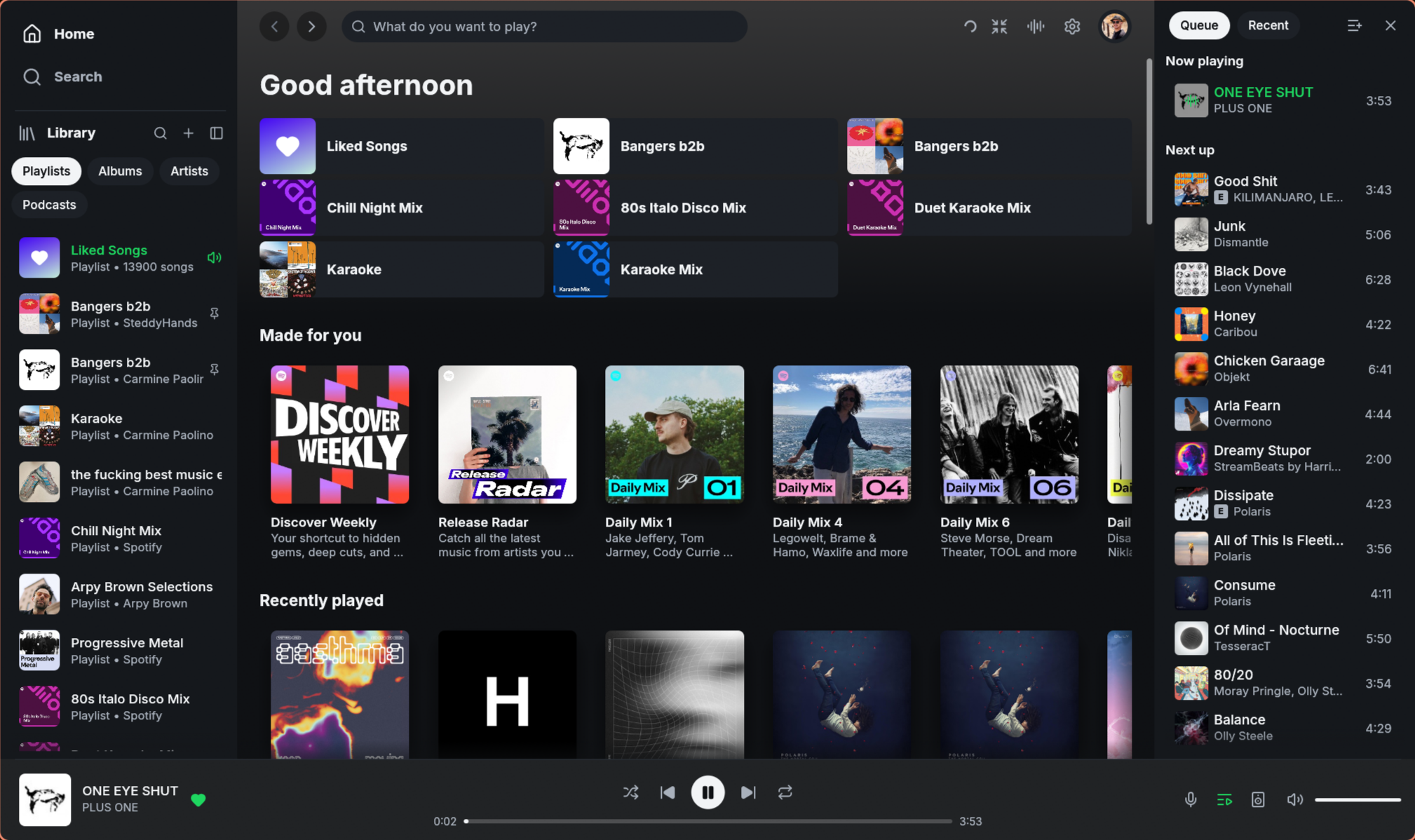
**Spotify, native and fast.** Spotifast is a lightweight Spotify app for
Linux, macOS, and Windows. It opens in well under a second and typically uses
100–250 MB of memory, while Spotify's desktop app often uses 600 MB to over 1 GB.
Your Spotify playlists stay on your account.
**Playback needs Spotify Premium.** Free accounts can browse and search, but
cannot play music through Spotifast on this computer or another device.
## What it does
- **Plays music on this computer.** Spotifast appears as a Spotify Connect
device. Select it from your phone or play music in the app. Playback has
no added gaps between songs and supports up to 320 kbps. Optional settings
keep songs at a similar loudness and reduce repeat downloads by keeping
recently played audio.
- **Controls other devices.** Move playback to a speaker, a phone, or
another computer from the device picker, and keep controlling it: play,
pause, skip, seek, shuffle, repeat, volume. The picker expands upward to
show several devices at once, fitting the window; longer lists scroll.
- **Library.** Browse playlists, Liked Songs, saved albums, followed artists,
podcasts, and saved episodes. Create, edit, and reorder your playlists.
- **Search** across songs, artists, albums, playlists, podcasts, and
episodes, with artist pages, discographies, and related artists. When Spotify
provides an artist profile, select its name on a song, including the top
result, to open that page.
- **Background playback.** Closing the window keeps the music playing from
the system tray. Use your keyboard's media keys to play, pause, and skip.
- **Themes.** Choose light, dark, or your own colours. On Omarchy, Spotifast
can follow your desktop theme automatically. Pages can also take a colour
from album art.
## Will my Spotify account get banned?
**We're not aware of any confirmed account bans caused by normal Premium
listening through Spotifast or other players using the same playback
software, [librespot](https://github.com/librespot-org/librespot).**
Spotifast plays music using your Spotify Premium subscription. It does not
unlock Premium for Free accounts, remove ads, export songs, or bypass
Spotify's copy protection. You sign in on Spotify's own website, and
Spotifast never receives your Spotify password.
Spotifast is independent of Spotify, so we cannot guarantee Spotify's future
decisions. Changes at Spotify can also temporarily interrupt playback until
the app is updated.
## What it does not do
Spotifast has a limited scope:
- **Playing needs Spotify Premium**, both on this computer and when
controlling another device. Free accounts can browse and search.
- Setup asks for two Spotify approvals: one to access your library, another
to play music on this computer. [How it connects](/how-it-connects/)
explains why.
- **Spotify Lossless is not available.** Playback supports up to 320 kbps.
The playback software Spotifast uses, librespot, cannot play Spotify's
protected lossless audio. Spotifast will reconsider this if
[librespot adds lawful support](https://github.com/librespot-org/librespot/issues/1583).
- No video podcasts or social features.
- Spotifast is an **unofficial** app. Changes at Spotify can temporarily
break features until Spotifast is updated.
Bug reports should include `spotifast.log`, `panic.log` after a crash, and
steps to reproduce the problem. See the
[issue form](https://github.com/crmne/spotifast/issues/new/choose).
Development builds after 0.8.0 also record the app version, operating system,
and graphics details in the log. If the window fails to open, the log can
help explain why, even when you started the app from your desktop.
## Prior art
Spotifast is written in Rust, with [egui](https://www.egui.rs) and
[fastframe](https://fastframe.dev) for its interface and
[librespot](https://github.com/librespot-org/librespot) for Spotify playback.
fastframe is the shared foundation of a family of native apps, including
Spotifast's sibling [ZapFast](https://zapfast.rocks), a native client for
WhatsApp. Spotifast takes inspiration from
[spotify-tui](https://github.com/Rigellute/spotify-tui),
[spotify-player](https://github.com/aome510/spotify-player),
[ncspot](https://github.com/hrkfdn/ncspot), and
[Omarchy Spotify](https://github.com/stappmus/Omarchy-Spotify).
Spotifast is an independent project, not affiliated with or endorsed by
Spotify AB. Spotify is a trademark of Spotify AB.
---
# Download
Canonical URL: https://spotifast.rocks/download/
The current version is **v0.14.1**. You can use the
[download checksums](https://github.com/crmne/spotifast/releases/download/v0.14.1/checksums.txt) to check that a file has not
been damaged or changed. Older versions are on the
[releases page](https://github.com/crmne/spotifast/releases).
## macOS
One download for both Apple Silicon and Intel:
- [Download for Mac](https://github.com/crmne/spotifast/releases/download/v0.14.1/spotifast-v0.14.1-macos-universal.dmg)
Open the downloaded file and drag **Spotifast** to **Applications**.
If you use [Homebrew](https://brew.sh), you can install it with:
```sh
brew install --cask crmne/tap/spotifast
```
### First open on macOS
Open **Spotifast** from Applications. If your Mac asks whether you want to
open an app downloaded from the internet, choose **Open**.
Starting with 0.8.0, the Mac download passes Apple's security checks. You do
not need to change security settings or run commands in Terminal to open it.
Quit the old app before opening Spotifast. Your saved settings and sign-ins
carry over. If an older version reports that its update helper exited before
it was ready, install the DMG above manually once. The helper changes take
effect for updates started from 0.9.1 onward.
## Windows
Download and run the installer. It adds Spotifast to the Start menu and does
not need an administrator password. Choose the first download for most PCs,
or the ARM version if your PC uses an ARM processor:
- [Windows installer (most PCs)](https://github.com/crmne/spotifast/releases/download/v0.14.1/spotifast-v0.14.1-x86_64-pc-windows-msvc.msi)
- [Windows installer (ARM PCs)](https://github.com/crmne/spotifast/releases/download/v0.14.1/spotifast-v0.14.1-aarch64-pc-windows-msvc.msi)
The installer is a Windows Installer package (`.msi`). Spotifast installed
with the earlier setup program (`-setup.exe`) moves to it through its own
updates, or right away when you run the new installer, and keeps its settings,
its folder and its Start menu entry. Windows then lists one Spotifast under
installed apps.
To run Spotifast without an installer, download a ZIP file, extract it, and
open `spotifast.exe`. Since 0.13.4, it keeps its settings, state and caches
in a `spotifast-data` folder next to it, so the folder carries everything
(see [portable copies](/settings-and-files/#portable-copies)).
- [Windows ZIP (most PCs)](https://github.com/crmne/spotifast/releases/download/v0.14.1/spotifast-v0.14.1-x86_64-pc-windows-msvc.zip)
- [Windows ZIP (ARM PCs)](https://github.com/crmne/spotifast/releases/download/v0.14.1/spotifast-v0.14.1-aarch64-pc-windows-msvc.zip)
Either way, SmartScreen may warn about an unknown publisher on first run;
choose **More info**, then **Run anyway**. The Windows files are not signed
with a publisher certificate, so Windows has no publisher name to show.
Spotifast needs OpenGL 2.0 or newer, which every current Windows graphics
driver provides. In a virtual machine or remote session that only has the
Microsoft Basic Display Adapter, it cannot open its window and says so in a
message that links to this page; install the machine's graphics driver, or
enable GPU acceleration for the virtual machine.
To choose which app opens Spotify links, use **Settings → Apps → Default apps**
in Windows.
Uninstalling while Spotifast runs removes nothing until it is closed. The
installer offers to close it for you; closing it that way ends it at once.
### Check a Windows download
To check a file against the [published checksums](https://github.com/crmne/spotifast/releases/download/v0.14.1/checksums.txt),
print its SHA-256 hash in PowerShell and compare it with that file's line,
ignoring letter case:
```powershell
Get-FileHash "$HOME\Downloads\spotifast-v0.14.1-*-pc-windows-msvc*"
```
If Windows Security flags a download, open **Windows Security → Virus &
threat protection → Protection history** and note the threat name. Include it,
and the file's hash, when you
[report the problem](https://github.com/crmne/spotifast/issues/new?template=bug.yml).
To ask Microsoft to review the file, send it through
[Submit a file for malware analysis](https://www.microsoft.com/en-us/wdsi/filesubmission)
as incorrectly detected.
## Linux
### Arch Linux
Spotifast is in the AUR, Arch's community package collection. Installing it
also adds it to your app launcher:
```sh
yay -S spotifast-bin # the released build, ready made
yay -S spotifast # the release, built from source
yay -S spotifast-git # built from the latest commit
```
### Flatpak
Download the [Spotifast Flatpak](https://github.com/crmne/spotifast/releases/download/v0.14.1/spotifast-v0.14.1-x86_64.flatpak?flatpak-id=rocks.spotifast.Spotifast).
It requires Flatpak and the Freedesktop 25.08 runtime, a set of shared
components used by Flatpak apps:
```sh
flatpak install --user ~/Downloads/spotifast-v0.14.1-x86_64.flatpak
flatpak run rocks.spotifast.Spotifast
```
The application ID is **`rocks.spotifast.Spotifast`**.
To update this Flatpak installation, download and install the new release.
Flathub support is planned.
Packages from other stores are maintained by their publishers. Report
problems specific to those packages to their maintainers.
### AppImage
- [AppImage (Intel and AMD, 64-bit)](https://github.com/crmne/spotifast/releases/download/v0.14.1/spotifast-0.14.1-x86_64.AppImage)
- [AppImage (ARM, 64-bit)](https://github.com/crmne/spotifast/releases/download/v0.14.1/spotifast-0.14.1-aarch64.AppImage)
One file, no installation: make it executable and run it.
```sh
chmod +x ~/Downloads/spotifast-0.14.1-x86_64.AppImage
~/Downloads/spotifast-0.14.1-x86_64.AppImage
```
The AppImage bundles no libraries: like the DEB and RPM, it needs glibc 2.39
or newer and your desktop's own libraries. Running it needs FUSE; without
FUSE, start it with `--appimage-extract-and-run`.
From the release after 0.13.3, the AppImage updates itself like the portable
downloads, as long as it sits in a folder of your own, such as
`~/Applications`: Spotifast replaces the file in place and restarts it. It
also carries update information, so AppImageUpdate, AppImageLauncher, AM and
Gear Lever can update it too, downloading only what changed. Copies of 0.13.3
and earlier need one more manual download.
### Other distributions
- [Linux archive (Intel and AMD, 64-bit)](https://github.com/crmne/spotifast/releases/download/v0.14.1/spotifast-v0.14.1-x86_64-unknown-linux-gnu.tar.gz)
- [Linux archive (ARM, 64-bit)](https://github.com/crmne/spotifast/releases/download/v0.14.1/spotifast-v0.14.1-aarch64-unknown-linux-gnu.tar.gz)
Unpack, put `spotifast` on your PATH, and copy the desktop entry and icon
from the bundled `packaging/` directory if you want it in your launcher and
handling `spotify:` links.
The binary needs the ALSA and PipeWire libraries, and Wayland or X11. It plays
through PipeWire, a PulseAudio server, or ALSA, whichever is running.
Or build from source: see the [build instructions](/getting-started/#build-from-source).
## Nix
Add the repository [flake](https://github.com/crmne/spotifast) to your
inputs:
```nix
inputs.spotifast.url = "github:crmne/spotifast";
```
On NixOS, install the default package:
```nix
environment.systemPackages = [
inputs.spotifast.packages."${pkgs.stdenv.hostPlatform.system}".default
];
```
### nix-darwin
On macOS, use the same `spotifast` package to install Spotifast as a Mac app:
```nix
environment.systemPackages = [
inputs.spotifast.packages."${pkgs.stdenv.hostPlatform.system}".spotifast
];
environment.pathsToLink = [ "/Applications" ];
```
The bundle appears in `/Applications/Nix Apps`. With Home Manager,
`home.packages` is enough; its darwin support links app bundles into
`~/Applications`:
```nix
home.packages = [
inputs.spotifast.packages."${pkgs.stdenv.hostPlatform.system}".spotifast
];
```
---
# Getting Started
Canonical URL: https://spotifast.rocks/getting-started/
## Install
Choose your system on the [Download page](/download/) and follow its
installation steps. Then open **Spotifast**.
## Sign in
Press **Sign in with Spotify**. Your browser opens Spotify's sign-in page.
Approve access there, then return to Spotifast to see your library.
Spotifast never sees your Spotify password.
Spotifast remembers your sign-in using your computer's protected storage,
so you normally do not need to sign in each time you open the app.
## Enable playback on this computer
**Playing music requires Spotify Premium.** To listen on this computer,
open the device menu in the bottom player bar and select **Set up playback
here**, or find the same option in Settings.
Spotify asks you to approve playback separately from library access. Follow
the browser prompt once; Spotifast remembers this approval too.
[Read more about the two sign-ins](/how-it-connects/).
The computer then appears as a Spotify Connect device named **Spotifast**.
You can rename it in Settings.
## Basics
- **Closing the window does not stop the music.** Spotifast keeps playing
from the system tray; reopen it from the tray icon and quit from the tray
menu or Ctrl+Q. On macOS you can also reopen it from the Dock. Settings can
turn this off, and on macOS can keep Spotifast out of the Dock, in the menu
bar only. On Linux, including Flatpak, a desktop with a working system
tray is required for this behavior.
- **The tray icon can match your panel.** On Linux and Windows, **Settings >
Playback on this computer > Tray icon** shows it in colour, white or black.
The macOS menu bar already draws it black or white to match itself.
- **Spotifast can start with your computer.** Under **Settings > Playback on
this computer**, **Start with your computer** opens it when you log in,
**With the window** or quietly **In the tray**.
- **Play and Pause fade.** With the default audio settings, music played on
this computer fades in or out to avoid a hard cut.
- **Play buttons show progress.** The button spins until Spotify responds.
- **Pages keep their shape while they load.** Until Spotify answers, grey
rows and cards in the shape of the songs, albums and playlists to come
stand in for them. A list that is loading more at its end still shows
**Loading…**.
- **Artist names are links.** Click a credited artist in the player bar to
open their page, even while the rest of the song's details are loading.
- **Common actions have shortcuts.** Space plays and pauses, Ctrl+F or `/`
searches, and `Q` opens the queue. Ctrl+/ shows the full list.
- **Right-click for more actions.** Right-click a song, playlist, album,
artist, or podcast to see its menu. These menus are available in Home,
Search, Library, and artist pages. Your own playlists include **Edit details**
and **Delete**. Opening a menu does not start playback.
In **Add to playlist**, type a playlist name to find it, or choose
**New playlist**. Typing chooses the first match, so `Enter` adds to it;
the up and down arrows choose another. You can add one song or a selection.
If the playlist already contains the song, Spotifast asks before adding
another copy.
- **The heart likes, then adds to a playlist.** In the player bar, the heart
saves the playing song to Liked Songs. Once it is liked, the heart opens
**Add to playlist** instead, as in Spotify, with **Remove from Liked Songs**
below the playlists.
- **Spotify links open in Spotifast.** A `spotify:` link shared from another
app opens its page, starting Spotifast if it is not running. Links to
`open.spotify.com` go through the browser first, which hands them over the
same way. `spotifast ` does the same from a terminal.
## Match your desktop theme
Open **Settings → Appearance → Theme** and choose **Light**, **Dark**, or
**Follow system**. Follow system matches your desktop's appearance.
With Follow system, **Light mode theme** and **Dark mode theme** below it
pick the theme for each: for example Catppuccin Latte while your computer is
light and Catppuccin while it is dark. Spotifast switches between them as
your computer does, without interrupting the music.
On Omarchy, Spotifast matches your desktop theme from the first time you open
it; the AUR package also installs the theme hook. Choose **Follow system** or **Omarchy**, then change your
desktop theme: Spotifast's colours follow while the music keeps playing.
New installations already use Follow system. Updating keeps your previous
theme choice.
For your own colours or a manual installation, see
[custom themes and Omarchy setup](/settings-and-files/#custom-themes).
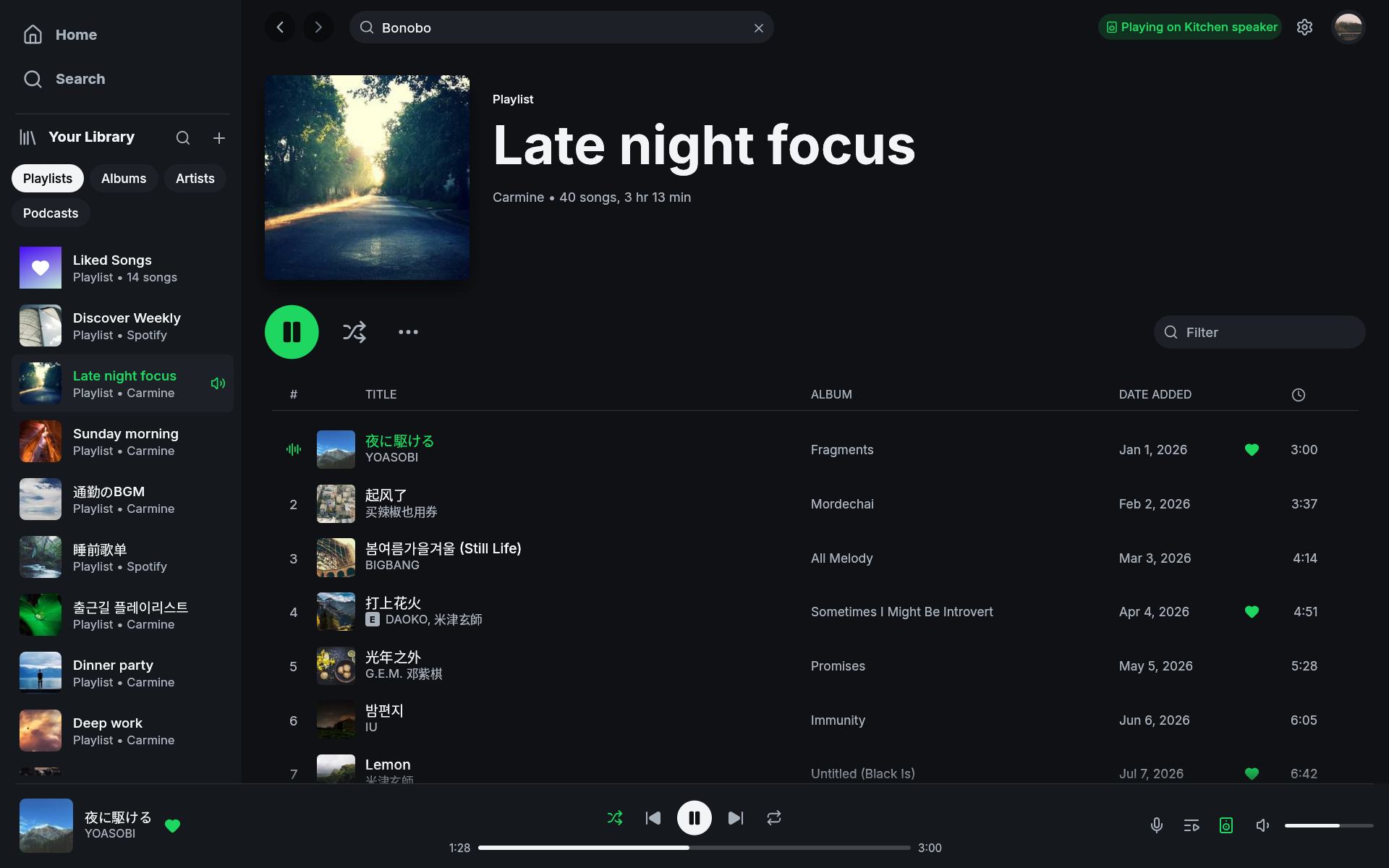
## If song titles show empty boxes
Spotifast uses your computer's fonts to display titles in different languages.
macOS and Windows already include fonts for most languages. On Linux,
install `noto-fonts` and `noto-fonts-cjk` (Arch) or `fonts-noto` and
`fonts-noto-cjk` (Debian or Ubuntu) if letters are missing.
For colour emoji, install the desktop's colour emoji font
(`noto-fonts-emoji` on Arch, `fonts-noto-color-emoji` on Debian or Ubuntu).
Titles can mix languages, including those written from right to left.
Long titles are shortened with dots to fit the available space.
## Choosing the interface language
Spotifast uses your computer's language when it has a translation for it, and
English otherwise. To pick another language, open **Settings → Appearance →
Language**. Each language is listed under its own name, and the change applies
at once. Choose **System** to follow the computer again. Spanish, Turkish and
Ukrainian are complete; other translations are in progress, and anything not yet
translated appears in English. See [Translating Spotifast](/translating/) to help.
## Choosing which app opens Spotify links
On macOS, opening Spotifast makes it available for Spotify links. If Spotify's
own app is installed too, macOS uses whichever app last registered for them.
On Windows, choose the app in **Settings → Apps → Default apps**.
On Linux, after installing the current app launcher:
```sh
xdg-mime default spotifast.desktop x-scheme-handler/spotify
```
## If your network needs a proxy
**In development, not included in 0.8.0:** you can configure a proxy, a server
your network uses to reach the internet, on the sign-in screen or in
**Settings → Proxy**. Enter the address, port, and any login details supplied
by your network administrator. Spotifast protects the saved proxy password.
If it cannot save the password, it tells you and uses it only until you quit.
Playing music on this computer supports only HTTP proxies without a login.
With other proxy types, music connects directly to Spotify even though
browsing uses the proxy. Your browser has separate proxy settings, which may
also need configuring for sign-in.
See [proxy options and limits](/how-it-connects/#proxy).
## Build from source
Build the single binary with Rust 1.98 or newer:
```bash
cargo install --git https://github.com/crmne/spotifast --locked
```
MilkDrop uses libprojectM, which is built from source. This needs CMake, a C++
compiler, and libclang. To build without MilkDrop or those tools, add
`--no-default-features`. On Linux, you also need the development packages for
ALSA and PipeWire, and the windowing libraries. On Arch:
```bash
sudo pacman -S --needed alsa-lib pipewire libxkbcommon wayland cmake clang
```
On Debian or Ubuntu:
```bash
sudo apt install libasound2-dev libpipewire-0.3-dev libxkbcommon-dev libwayland-dev \
cmake clang libclang-dev
```
On Fedora:
```bash
sudo dnf install alsa-lib-devel pipewire-devel libxkbcommon-devel \
wayland-devel cmake clang clang-devel
```
On Windows, libprojectM is built with Visual Studio 2022, CMake, LLVM, and
vcpkg (`vcpkg install glew:x64-windows-static`, with
`VCPKG_INSTALLATION_ROOT` pointing at the vcpkg folder).
With [Nix](https://nixos.org), `nix develop` in a checkout provides all of it,
along with the exact toolchain `rust-toolchain.toml` pins.
---
# Everyday Use
Canonical URL: https://spotifast.rocks/using-spotifast/
## Middle-click autoscroll
On Windows, since 0.8.0, and on Linux once turned on, middle-click anywhere
in a scrolling list, then move the pointer away from the starting point. That
list follows the pointer, faster as the distance grows, and the pointer shows
the direction it is scrolling. Speed and dead zone match Chromium's
autoscroll. Moving across another pane keeps the original list in control.
A small dead zone prevents an ordinary middle-click from moving the view.
You can also hold the middle button while moving and release it to stop.
Otherwise click again, press Esc, turn the wheel, or switch to another window
to stop.
Text fields keep middle-click paste, and sliders and scroll bars keep their
own dragging.
This works automatically on Windows, with no setting to enable. On Linux, turn
on **Middle-click autoscroll** under **Settings > Appearance**. It is off by
default, because Linux desktops usually paste the primary selection on middle
click. macOS retains its existing middle-click behavior.
## Scrolling shelves
The tiles at the top of Home show what you played most recently, as
Spotify's Home does: the playlists, albums, artists and podcasts you played
from, Liked Songs, and songs you played on their own, newest first. A tile
opens its page, and its play button starts it again; a song's tile plays the
song and opens its album. Until Spotify's play history arrives, or when it
holds fewer than eight, Liked Songs and the first playlists in your Library
fill the rest.
**Made for you** shows the personalized playlist cards Spotify returns for
your account, in Spotify's order, when local playback and a current Web API
Home grant for that playback account are available. If local playback is
unavailable, the session read fails, or the grant check fails, the same shelf
shows approximate matches found through the shared Web API. Shared access can
be rate-limited. If a refresh fails, cards already on screen remain available;
**Retry** is shown when the first load fails. Spotify DJ is left out because
Spotifast cannot play its special context.
**Your top mixes** follows Made for you with the artist, genre and decade
mixes Spotify builds from your listening, in Spotify's order. It comes from
the same personalized read and has no fallback: the shelf appears once
local playback has read it, and stays hidden for accounts Spotify gives no
top mixes. If a refresh fails, the mixes already on screen remain.
**New releases** shows the latest albums, EPs and singles from the artists
you follow, newest first. A card opens its release. The shelf's title opens
the **New releases** page, which lists every song of those releases, newest
release first, with Play and Shuffle as on a playlist. The releases come
from the feed behind the bell in Spotify's own apps when local playback is
set up; reading it there does not mark anything as seen in Spotify. Without
local playback, or when that feed cannot be read, the shelf asks the Web API
for the newest albums and singles of up to 50 of the artists you follow
instead. The shelf stays hidden when there are no releases.
In Discover Weekly and Spotify's other playlists, a song's menu offers
**Hide in this playlist**, as Spotify's apps do. A hidden song stays in the
list, greyed out, and is skipped when the playlist plays; **Show in this
playlist** brings it back. Spotify keeps the choice, so it carries over to
its other apps. This needs local playback.
Point at a horizontal shelf, such as Made for you or Recently played on
Home, and hold `Shift` while turning the mouse wheel. The shelf moves while
the surrounding page stays put. Release `Shift` to scroll the page normally.
## Podcasts on Home
Since 0.10.0, Home has a **Your podcasts** shelf below Recently
played. It lists episodes you have started and not finished, with the time
left, followed by each podcast's newest episode if it came out in the last 30
days and you have not started it, marked **New**. It covers the eight podcasts
you saved most recently and the five newest episodes of each. Audiobooks are
left out. The shelf is hidden when there is nothing to show. Click a card to
open the podcast, or use its play button to play the episode. An episode you
have started continues from where you left it. The same is true of Play on a
podcast page, a saved episode, or a search result.
## Dragging beyond the visible list
Since 0.8.0, hold a dragged song near the top or
bottom of an editable playlist's visible area to scroll. Scrolling gets faster
closer to the edge and stops when you move away or release the mouse. This
lets you move a song from the end to the beginning without dropping it along
the way. Clear filters and sorting before reordering playlist songs.
Since 0.8.0, drag a song from the player bar, the queue, or another
list into an open editable playlist. The line between rows marks its insertion
position. Dropping below the last row appends; the blank area of an empty
playlist accepts its first song. The source song stays in its list or queue,
and playback continues unchanged. Dragging a row within the same playlist
still moves that row.
Since 0.8.0, select several songs with `Ctrl`-click (`Cmd`-click
on macOS) or `Shift`-click, then drag any selected row. The whole selection
travels together in its displayed order, even if you selected the rows in
a different order. The preview names the first song and counts the rest.
Drop it on a sidebar playlist to append, between rows of another editable
playlist to insert, or on Liked Songs to save every selected song.
Selected rows have a translucent neutral highlight. Keyboard focus uses
the row highlight without an extra outline.
Dragging an unselected row copies just that song. Reordering within a
playlist still moves one song at a time. Several selected songs dropped back
between the rows of their own open playlist stay where they are. Dropped on
that playlist in the sidebar, they ask before being added again.
## Copying and pasting songs
Since 0.10.0, press `Ctrl+A` (`Cmd+A` on macOS) in a playlist,
album or Liked Songs to select every song the list shows. A
filter narrows the selection to the matching songs. In a long playlist that
is still loading, it selects the songs loaded so far.
`Ctrl+C` (`Cmd+C`) copies the selected songs' `open.spotify.com` links, one
per line, ready to paste into another playlist, a message, or Spotify's own
apps. `Ctrl+V` (`Cmd+V`) in a playlist you can edit adds every song link on
the clipboard to its end. Links copied from Spotifast add their rows at
once; links from elsewhere appear as soon as Spotify names the songs. Songs
already in the playlist ask before being added twice, and links that are
not songs, such as albums, are skipped.
`Ctrl+X` (`Cmd+X`) in a playlist you can edit copies the selected songs'
links the same way and removes the songs from the playlist, so `Ctrl+V` in
another playlist moves them there.
These keys edit the text instead while a search, filter or other text field
has focus.
Clear any playlist filter or sort before placing songs between rows, so the
visible positions match Spotify's order. A duplicate confirmation keeps the
chosen position when you select **Add anyway**. Dragging near the top or bottom
of the playlist scrolls to positions beyond the visible rows.
The Library sidebar also scrolls near its edges when you drag a song toward a
playlist or reorder its entries. Only the list under the pointer scrolls.
## Starting a playlist and resuming
Since 0.8.0, with Shuffle off and the playlist in its original
order, its **Play** button explicitly starts at the first available song.
The selected song appears in the player immediately, including while local
playback reconnects. The full playlist remains the playback source, even
when only its first page is loaded.
Double-click a song to start at that row. Sorting the table plays its chosen
order when Shuffle is off. Shuffle chooses a random starting song unless you
choose a specific row. To resume the current song at its paused position,
use **Play** in the bottom player bar or press `Space`.
To hear a song immediately after the current one, right-click it and choose
**Play next**. A selection of songs is inserted in displayed order, ahead of
the songs already queued. This works while playing or paused on this computer;
the option is disabled when controlling another device. **Add to queue** puts
songs after those already queued. See [The Queue's Rules](/queue/).
The **Shuffle** button beside **Play** selects the playback order without
starting the playlist. Select Shuffle first, then press **Play**.
When you start a song from a sorted playlist or Liked Songs, it appears in
the player bar straight away while playback connects. Sorting changes the
order you hear without rearranging the playlist saved on Spotify.
Sorted and filtered views omit unavailable songs and local files from playback.
The rows stay visible, and selecting a repeated song starts that occurrence. Filtering a playlist or Liked Songs plays only the matching songs,
including repeated entries. Play is disabled when the view has no playable
songs; it never falls back to the unfiltered playlist in that case. Clearing
the filter restores the original view. Existing Shuffle behavior is unchanged.
Right-clicking a song in an editable playlist offers **Remove from this
playlist** even when the list is sorted or filtered, since removal does not
depend on position. **Move up**, **Move down**, and drag-reorder stay on the
default order, where the rows on screen match the order saved on Spotify.
Right-clicking the playing song in the player bar offers the same removal
while it plays from a playlist you can edit.
## Viewing cover artwork
Click the cover at the top of a playlist, album, artist, or podcast page to
see it enlarged, at the largest size Spotify has. Click anywhere or press
`Esc` to return to the page.
## Refreshing a playlist
Since 0.8.0, choose **Refresh** in a playlist's **…** menu to reload
its details and songs, including changes made in another Spotify client. The
menu item reads **Refreshing…** and is disabled while loading. Current songs,
filtering and sorting stay visible. Spotifast finishes saving your edits before
loading changes from Spotify. If loading fails, your songs stay visible and
you can choose **Retry**.
A podcast's **…** menu has the same **Refresh**. It asks Spotify for the
podcast again instead of reusing the episodes loaded earlier, so new
episodes appear without restarting Spotifast. The episodes already shown
stay until the new list arrives.
## Playing from the sidebar
Double-click a playlist, Liked Songs, album, artist, or podcast row in the
Library sidebar to start playing it. A single click still opens the row's page.
Pointing at a row's cover art also shows a play button, but only when the
sidebar is not in compact mode.
## Playing a song from search
A song picked from the search results plays on its own, and, with Autoplay on,
Spotify continues with songs it suggests after it, as in the Spotify apps. The other results are
not queued after it.
## Search from a launcher
**In development, not included in 0.8.0:** a Spotify search link opens Search
and fills the box without starting playback. To try it in a development build,
set a launcher or keyboard shortcut to run:
```sh
spotifast 'https://open.spotify.com/search/here%20comes%20the%20sun'
```
This starts the app if needed or opens its existing window. When signed out,
the latest search link waits for sign-in. Use `https://open.spotify.com/search`
without a query to open an empty, focused search box.
On Linux, `playerctl --player=spotifast open` accepts the same search link
when the app is running. Links to songs, albums, and playlists still start
playback as before.
## Finding a setting
The Settings page has its own search field under the title. Type to narrow
the page to matching rows; sections without matches disappear. Clear the
field to see everything again.
## Keyboard and screen readers
Right-click a search, filter, settings or playlist-editing text field for
**Cut**, **Copy**, **Paste** and **Select all**. Cut and Copy require a text
selection. The usual keyboard shortcuts, including Undo, still work.
Since 0.8.0, Ctrl, Cmd and Alt arrow keys move the caret while
a text field has focus. Playback and navigation shortcuts on those keys
remain available from song rows and other controls.
The main window provides screen-reader names for playback controls, library
and song rows, menus, sliders, and settings switches. `Tab` and `Shift+Tab`
move keyboard focus, shown by an outline. `Enter` activates the
focused control; on a song row, it plays that song. The row's **More** button
opens its menu from the keyboard too.
In a playlist, album or Liked Songs, focus a song row and use the up and down
arrows to move between whole rows in the displayed order. Rows scroll into
view as you move; Enter plays the focused song. Tab still reaches artist
links and each row's Like and More controls.
Arrow navigation selects only the destination song. Hold `Shift` with up or
down to extend or shrink the selection from its anchor. Press `Delete` to
remove selected songs from a playlist you can edit, just like **Remove from
this playlist**. On macOS, both `Delete` and `Fn+Delete` work. Text fields,
dialogs and open menus keep Delete from acting on the list.
Press and hold the player bar's volume slider to update local volume without
moving the pointer. Remote volume is sent on release. The seek slider previews
on press and seeks on release.
The default local output smooths volume and mute changes over 30 ms. Explicit
track changes and play/pause/stop use nominal 50 ms fades. Stopping can shorten
the fade to the queued audio. Natural track transitions remain gapless.
Left and right arrows adjust a focused volume slider by five percentage
points, or the seek slider by one percent of the song. Screen readers can
also read and set these sliders' values. `Ctrl+F` (`Cmd+F` on macOS) focuses
search. Since 0.9.0, `Space` plays or pauses the current song even
when a song row or control has focus. Text fields keep Space for typing.
Unmodified letter shortcuts still yield to the focused control.
This is the first part of screen-reader support. Windows testing with NVDA
remains tracked in [#262](https://github.com/crmne/spotifast/issues/262).
Winamp skins do not yet have equivalent accessibility coverage.
## Keyboard shortcuts
| Shortcut | What it does |
| --- | --- |
| `Space` | Play or pause |
| `Ctrl+←` / `Ctrl+→` | Previous or next |
| `Shift+←` / `Shift+→` | Seek 10 seconds |
| `Ctrl+↑` / `Ctrl+↓` | Volume |
| `M` | Mute |
| `B` | Like or unlike the playing song |
| `S` / `R` | Shuffle / cycle repeat |
| `Q` | Queue panel, or the queue column in full screen |
| `F` | Enter or leave full screen lyrics |
| `Ctrl+F` or `/` | Search |
| `Ctrl+B` | Show or hide the sidebar |
| `Alt+←` / `Alt+→` | Back or forward |
| `Ctrl+H` / `Ctrl+L` | Home / Liked Songs |
| `Ctrl+Shift+A` / `Ctrl+Shift+B` | Playing artist / album |
| `Ctrl+A` | Select every song in a playlist, album or Liked Songs |
| `Ctrl+C` / `Ctrl+V` | Copy the selected songs' links / add copied song links to your playlist |
| `Ctrl+X` | Copy the selected songs' links and remove the songs from your playlist |
| `Ctrl+M` | Winamp mini player |
| `Ctrl+Shift+K` | MilkDrop |
| `Ctrl+,` | Settings |
| `Ctrl+/` or `?` | All shortcuts |
| `Ctrl+Q` | Quit |
On macOS, `Cmd` replaces `Ctrl`. A focused text field keeps its usual keys
for its own text.
## Controlling it from the command line
The `spotifast` command controls the copy already running, on every
platform. Each verb prints nothing on success:
```
spotifast play-pause spotifast volume 40
spotifast play spotifast volume-up [percent]
spotifast pause spotifast volume-down [percent]
spotifast next spotifast mute
spotifast previous spotifast shuffle [on|off]
spotifast seek 15 spotifast repeat [off|context|track]
spotifast seek -- -15 spotifast like
spotifast seek-to 90 spotifast play-uri spotify:playlist:37i9…
spotifast show spotifast transfer
spotifast now-playing [--raw] spotifast devices [--raw]
spotifast play-search spotifast play-search --kind artist
```
`shuffle` and `repeat` toggle when used without an argument. Pass a state to
set it directly. `like` adds or removes the playing track from your library.
`play-search` searches Spotify and plays the best match: a song, or with
`--kind album`, `artist`, or `playlist`, one of those from the start. It shows
a message instead when nothing matches.
`now-playing` prints one readable line. `--raw` prints tab-separated fields:
state, title, artists, album, position_ms, duration_ms, volume, shuffle,
repeat, art_url, saved, and device. `saved` is `yes`, `no`, or `unknown` while
loading. New fields are appended to keep older scripts working.
`devices` lists Spotify Connect devices with the ID first and the active one
marked with `*`. `--raw` prints JSON. The command refreshes the device list,
so the first call after startup may be empty. Run it again if needed.
A verb exits non-zero when Spotifast is not running.
`spotifast ` opens a Spotify link, a `spotify:` URI or an
`open.spotify.com` address, in the running app, or starts the app on it.
This is what the desktop runs when a link is clicked. On Linux, Spotifast is
also an MPRIS player, so `playerctl --player=spotifast play-pause` and media
keys work too.
Launchers such as Raycast or Alfred, and the Stream Deck plugin, can use
these commands. They reach Spotifast through a private channel only your user
can open (on Windows, a loopback port that answers only requests carrying a
random token). Use the command rather than the channel itself.
## Updates
The Windows installer, Mac app, AppImage, and portable Windows and Linux
downloads update from inside Spotifast. Click the green update button to download a
release, then choose when to restart and install it. Settings can enable
automatic background downloads; restarting always waits for your click.
Closing the update window keeps a download running. You can also check for a
new release from Settings, or on macOS from the application menu.
**Release notes** in **Settings > About** opens the GitHub release page of
the version you are running, to read what changed.
Spotifast checks each download before installing it. An interrupted or damaged
download leaves the running app alone, and a failed startup restores the
previous installation. Updates keep your settings and sign-ins. On macOS,
move Spotifast to Applications before updating it.
Package-managed installations update through their package manager,
including Homebrew, Flatpak, apt, dnf, pacman, Nix, and Cargo. Other
installations use the [Download page](/download/). Portable archives
identify themselves with `spotifast-portable.txt`. On Windows, a portable
copy keeps its settings, state and caches in the `spotifast-data` folder
next to it, which updates leave as it is (see
[portable copies](/settings-and-files/#portable-copies)). The AppImage
updates itself when you own it and can write to its folder, such as
`~/Applications`; one in a system folder or someone else's says so and
links to the release instead. AppImage updaters such as AppImageUpdate and
Gear Lever work as well, from the update information inside it.
## Library order
Select **By You** under Playlists to show only playlists owned by your signed-in
account, alongside Liked Songs. Followed playlists and collaborative playlists
owned by someone else are hidden, including pinned ones. Search and the selected
sort still apply. Matching playlists appear in a flat list, including those in
collapsed folders. Turn By You off to restore the full list and folder view.
The choice is remembered on this computer and only affects the Playlists shelf.
It uses the ownership information already loaded with your library and makes no
additional Spotify requests.
Since 0.8.0, the menu below the Library filters selects an order
for each section. **Name** and **Recently played** are available throughout.
Albums and podcasts also offer **Recently added**, using their actual save
dates. Spotify does not supply equivalent dates for followed playlists or
artists, so those sections do not offer that choice. Entries with missing save
dates come last.
**Name** keeps your Spotify playlist folders, as Spotify does: playlists sort
by name inside each folder, and folders sort by name among the playlists
beside them. A search or **By You** still lists matching playlists flat.
**Spotify custom order** follows your playlist order and folders from Spotify.
Set up playback on this computer to load that order. Your playlists stay
visible while it loads, and Spotifast remembers the last order for your account.
When you rearrange your library in another Spotify app, Spotifast picks up the
new order when you switch back to it.
Items you pin in Spotifast remain at the top, including items from a closed
folder. Sorting or dragging Library items changes their order only in
Spotifast; it does not rearrange your Spotify library.
Drag playlists to choose **Local custom order**. New playlists appear below the
pinned group. Selecting **Name**, **Recently played** or **Spotify custom order**
keeps the saved arrangement, so selecting **Local custom order** restores it.
The playlist context menu's **Sort by recently played** also preserves it.
Upgrading keeps the previous default: a saved local playlist arrangement wins;
otherwise available Spotify folders keep their order, and a flat playlist list
uses recent plays. Other sections keep their supplied Library order until you
select a sort. Choosing a sort loads the rest of that Library section in the
background. If loading fails, choose the order again to retry.
Liked Songs starts pinned at the top. Drag it between pins to choose its
position, or below the pin block to unpin it and put it in **Local custom
order**. Other pins can sit above it. Its right-click menu also offers **Unpin**
and **Pin to top**; pinning adds it after your existing pins. The arrangement
survives restarting Spotifast and switching sort choices.
When unpinned, Liked Songs follows **Name** or **Recently played** like the other
rows. In **Spotify custom order**, it appears after the playlists because it
has no place in Spotify's playlist tree. Returning to **Local custom order**
restores its saved position. Dragging a song onto Liked Songs still saves that
song, wherever the row sits.
**Player bar visualizer** in **Settings > Appearance** shows the song moving
behind the player bar's controls: **Spectrum** draws glowing bars from bass
to treble with peaks that hang and fall, and **Waveform** draws the sound's
wave as a glowing line. With **Colour from album art** on, both sweep from
bass to treble across up to four colours read from the cover, its hues first
and its greys after, so a black and white cover moves in grey; with it off,
they take the accent colour. It follows the equalizer, not the volume, and moves only while the
song plays on this computer. It is off by default. Clicking the player
bar's empty space switches it, as Winamp's visualizer did: off, then
Spectrum, then Waveform, then off again. **Frame rate** in **Settings >
Appearance** sets how often it and the mini player's analyser draw: 30, 60
(the default), the rate of the screen showing the window, or Uncapped,
which follows the display. They draw at half that rate while Spotifast's
window is out of focus, at most 30 frames a second while the system saves
energy, and not at all while nobody can see the window: minimised, in the
tray, with the display off or the screen locked. MilkDrop has its own frame
rate. Disable **Click player bar to change
visualizer** in **Settings > Appearance** to prevent accidental changes.
Spotifast follows the system when it asks for less motion: **Animation
effects** turned off in Windows, **Reduce motion** on macOS, or GNOME's
**Animations** turned off. Its animations then show where they end at once:
the player bar's colour changes without fading, lyrics jump to the sung line,
and a new theme replaces the old one without the reveal. Spinners still turn.
In **Settings > Appearance**, **Compact track list** puts each song on one
line. In narrow lists, the added date follows the artist credits with a spaced
bullet; each artist name remains a separate link.
## Starting with your computer
**Settings > Playback on this computer > Start with your computer** opens
Spotifast when you log in. **With the window** opens it as you would;
**In the tray** starts it without a window, ready for media keys and the tray
icon. **Off** leaves your login alone.
The setting is your system's own list of what starts at login, read back each
time Settings opens, so turning Spotifast off there (System Settings on macOS,
Task Manager's Startup apps on Windows, your desktop's autostart settings on
Linux) shows here too.
- **In the tray** needs **Keep music playing when the window closes**: without
it nothing could bring a hidden window back, so the window opens instead and
the row says so. The window also opens when no panel shows the tray icon
within 30 seconds of logging in.
- **macOS** asks you to allow it in **System Settings > General > Login
Items** when it holds the item for approval; the row says so until then.
It needs macOS 13 or later and the app from the disk image or Homebrew.
- **Flatpak** asks the desktop's background portal, which may ask you first.
A change made later in the desktop's own settings is not seen by Spotifast.
- If Spotifast is already running when the login entry runs, nothing happens:
it stays where it is.
## Windows taskbar controls
Since 0.8.0, hovering Spotifast's taskbar button offers **Previous**,
**Play/Pause**, and **Next** beneath its window preview. They control the same
playing device as the player bar, update immediately, and are disabled when
there is no song or the device refuses controls. The icons follow the system
appearance and display scaling.
Since 0.8.0, clicking or double-clicking the Windows tray icon shows
and raises Spotifast. Use **Show or hide Spotifast** in the tray menu to hide
it again.
Closing to the tray removes the window and its preview. Reopening the main
window or switching to the Winamp window creates its controls again. Media
keys and the system's now-playing controls continue working while the window
is closed.
For the Winamp mini player, turn off **Show in taskbar** under
**Settings > Winamp skins**, or **Show in taskbar** in its options menu.
The choice survives restarts. The mini player stays visible; the tray icon,
**Ctrl+M**, the skin logo, and launching Spotifast again remain ways to reach
the app. Returning to the main window always restores its taskbar button.
Changing the option while the mini player is open replaces that window while
playback continues. This setting is available on Windows and in Linux X11
sessions, where it hides the mini player from panels and task switchers that
follow the window manager's skip-taskbar state. Wayland has no standard way
for an app to leave the taskbar, so the option is not offered there; use your
desktop's window rules instead. It does not change the macOS Dock.
A window saved on a display that is no longer connected opens on the
primary display instead: on Windows and X11 it moves to the middle of the
primary monitor as it opens, and on macOS a position whose title bar would be
on no screen is not used. Positions on connected secondary displays still
restore. Reinstalling preserves settings; it is not needed to recover a
position left on an unplugged display.
## macOS menu bar and Dock menu
Click Spotifast's menu-bar icon to open its menu. From there you can show or
hide the window, control playback, or quit Spotifast. The menu opens from
either a primary or secondary click, as other macOS menu-bar items do.
It stays available with the main window open, with the Winamp mini player,
and after closing the window to the menu bar.
Spotifast also shows its Dock icon when run directly through Cargo, without
an installed app bundle.
Right-click or Control-click Spotifast's Dock icon for **Play** (or **Pause**
while music plays), **Next**, and **Previous**, above the standard Dock items.
They control the same playing device as the player bar and keep working while
the window is closed to the menu bar.
### Menu bar only
Turn off **Show in Dock** under **Settings > Playback on this computer** to
run Spotifast from the menu bar alone. The Dock icon goes at once, without a
restart, and the window stays open in front. Spotifast then also leaves the
Cmd+Tab switcher and shows no menu bar of its own while you use it, as other
menu-bar apps do. Its keyboard shortcuts, including Cmd+Q, Cmd+comma and
copy and paste, keep working in the window.
The menu-bar icon stays: it is how you show the window again after closing
it, and how you quit while the window is closed. Opening Spotifast again from
Finder or Launchpad also brings the window back. Turn the setting on to put
Spotifast back in the Dock. The choice survives restarts, and Spotifast
starts without the Dock icon; the Dock may show it for a moment as the app
launches. This option is only on macOS.
## Keeping the mini player above other windows
**Always on top** works on Windows, macOS and X11. On Wayland the app's
controls are unavailable, because your desktop manages which windows stay above
others.
Use your desktop's window rule or shortcut instead. In KDE Plasma, configure
**Keep Window Above Others** under **Settings > Keyboard > Shortcuts >
Window Management**. Your saved preference remains available when you use
Spotifast on Windows, macOS, or X11 again.
Since 0.8.0, the top bar reserves room for the device and update
badges beside Search. In narrow windows those badges show only their icons.
The bar stays above the page. Library, Queue and Lyrics keep their full height.
When the window narrows, Library, Queue and Lyrics give up width before the
top bar runs out of room, and return to the widths you chose once it widens.
With Queue or Lyrics open, the window cannot be made narrower than the room
they need beside the page.
Hover to read the device name or available version; click to open the device
picker or update window.
## MacBook notch widget
On macOS machines equipped with a display notch, Spotifast displays an
interactive Now Playing floating island under the notch when the main
window is minimized, in the background, or closed to the tray.
Hovering over the notch expands the widget with album artwork, title,
artist, elapsed and remaining time, a seek bar matching the player bar,
and playback controls (shuffle, previous, play/pause disc, next, repeat,
save to library, and Spotify Connect device). Scrubbing the seek bar seeks
within the playing track.
When music is paused, hovering still reveals the controls so you can
resume playback directly from the notch.
To turn on the notch overlay, check **MacBook notch widget** in
Settings under **Playback on this computer**.
## Recent
The queue panel's second tab combines Spotify's history with tracks played
through Spotifast, which Spotify does not record.
Since 0.8.0, choosing any Recent row starts that song on its own,
and the player bar shows the selection immediately while playback starts.
A song is added after about 30 seconds, or halfway through a shorter song.
Paused time and seeking do not count.
Since 0.8.0, each repeat remains a separate play, including songs
shorter than a minute. A newly loaded local repeat earns its own listening
time; pausing or seeking the current play does not create another entry.
The same play reported both locally and by Spotify appears once.
The local list is stored in `history.json` and is never uploaded. Settings →
Storage shows its location and has a **Clear history** button.
On Windows, the main window's minimize, maximize, and close buttons share the
top bar with Spotifast's controls. Drag an empty part of that bar to move or
snap the window, and drag a window edge or corner to resize it.
## When Spotify won't play a song here {#audio-key}
Sometimes you press play, the song shows up as usual, and then nothing
plays. Spotifast puts up a banner saying Spotify won't let this computer play
this song right now.
Here's what's going on. Spotify sends songs locked, and every song needs a
key to unlock the audio. Spotifast plays music through librespot, and
librespot asks Spotify for that key each time. Signing in works and your
library looks normal, but Spotify says no to the key. Without it, there's
nothing Spotifast can turn into sound.
Changing audio settings, clearing the cache or reinstalling won't fix it,
because the problem isn't on your computer. Sometimes it clears up on its
own after a while, so trying again later can work, but there's no promise
it will. Other apps that use librespot run into the same thing, and it's
tracked in
[librespot issue #1649](https://github.com/librespot-org/librespot/issues/1649).
There's no fix yet that Spotifast can pick up: Spotify has to hand out the
keys again, or librespot has to find a supported way to play these songs.
You can still listen in the meantime. **Play on another device** in the
banner opens the device picker, the same one as the devices button in the
player bar. Pick your phone, a speaker, or another computer with Spotify
open, and the music plays there while you keep using Spotifast to pick
songs, skip and change the volume. Those devices get their own audio from
Spotify, so this doesn't stop them.
Close the banner with **×** and it stays away until a song plays on this
computer again. If it happens again before that, you just get a short
message.
## Choosing the audio output
**Audio output**, at the bottom of the device picker, chooses where music
played on this computer goes: the system's default output, or a sound card,
headset, HDMI output, or virtual device such as VoiceMeeter. Click it to list
this computer's outputs, then pick one; local playback restarts on it at the
same place in the song. **System default** follows the system again, and moves
with it when the default output changes. The choice is saved as `audio_device`
in `settings.json`, by the device's own id, so it survives renames and
reordering. While a saved output is unplugged, music plays through the system
default, and the output stays listed so you can see and change the choice.
On Linux, Spotifast plays through PipeWire when it is running, otherwise
through a PulseAudio server, and otherwise straight to ALSA. The picker lists
that sound system's outputs. Spotifast 0.13.3 and earlier saved an output by
its name: a name an output still has is kept, and saved by its id the next
time music plays there. One that no output has any more, such as ALSA's
**PipeWire Sound Server**, plays through the system default until you choose
again.
Volume mixers show the stream as **Spotifast**, with its icon, playing
**Spotify playback**, on PipeWire and PulseAudio. The mixer remembers its
volume for Spotifast alone.
## Listening activity
The people button in the player bar, beside Queue and Lyrics, opens what the
people you follow on Spotify are listening to. It takes the place of the
Queue or Lyrics panel on the right, and they take its place in turn. While
it is open it refreshes every 15 seconds.
A blue dot on the avatar and bars in place of the time mean the person is
listening right now. Pointing at an avatar shows a play button: click it to
play their song, or to pause it when that song is already playing here. The song's title opens its
album, the artist opens their page, and the line below opens the playlist,
album or artist it plays from.
The panel needs playback on this computer, since only that session can read
it. In a very narrow window the people button gives way so the playback
controls keep their room; widen the window to bring it back.
## Sleep while playing
While music plays on this computer, Spotifast keeps it from going to sleep
on its own, so a long playlist is not cut off by the idle timer. The display
still turns off and the screen still locks as usual, and you can still put
the computer to sleep yourself or close the lid. Pausing or stopping, or
playing on another device, lets the computer sleep again. On Linux this asks
the desktop (through the desktop portal, or else systemd-logind), so it
depends on the desktop honouring the request; GNOME and KDE do.
## Google Cast playback
Google Cast speakers and speaker groups appear in the device picker. Enable
local playback first, then select the speaker. Since 0.13.1, Spotifast first
checks that the speaker is a genuine Google Cast device, as Chrome does (0.13.0
did not), then starts Spotify on
it, and the speaker plays like any other Spotify Connect device. A device that
fails the check gets nothing, and Spotifast says it could not prove it is
genuine.
## Radio
Since 0.10.0, **Go to song radio** in a song's menu opens a page
of songs Spotify picks to go with it, without starting playback. Playlist,
album, and artist menus have **Go to playlist radio**, **Go to album radio**,
and **Go to artist radio**.
A song radio starts its list with the song it is based on, once, followed by
the rest of Spotify's mix in its order. Shuffle still decides what plays
first. If Spotify will not provide the seed song, the radio leaves it out.
Spotify mixes a radio afresh each time it is asked, so the page keeps the
songs it shows: **Play**, **Shuffle**, and a double-clicked row play those
songs, and the queue names the radio. Choose **Refresh** in the page's **…**
menu for a new mix. **Save as playlist** creates a private playlist named
after the radio with the songs on the page.
Radio comes from Spotify's playback service, so it needs playback on this
computer to be set up; the page can then play on any device.
## Play counts
Album pages have a **Plays** column, and an artist's popular songs show
how often each was played, as Spotify counts them. The counts come from
Spotify's playback service, so they need playback on this computer to be
set up. Without it, or when Spotify does not answer, the lists leave the
counts out. The column needs a window wide enough for it.
## Upcoming albums
Open a `spotify:prerelease:` URI or an `open.spotify.com/prerelease/` link
with Spotifast to see the artwork, release countdown and track-list preview.
This requires local playback authorization. Pre-save adds the resolved album
to your Spotify library and confirms its saved state. Unavailable preview
tracks cannot start playback.
The browser's **Open in app** action uses the registered `spotify:` handler.
Pasting an HTTPS address into the browser opens Spotify's website; Spotifast
does not take over HTTP or HTTPS associations.
## Playlist covers
**In development, not included in 0.8.0:** open a playlist you own and choose
**Edit details → Change cover**. Select a
JPEG or PNG, check the preview, then choose **Upload cover**. Cancelling the
picker leaves your previous selection intact. An upload error keeps the
preview so you can try again. Uploading the cover is separate from **Save**,
which saves the playlist name, description, and visibility. Spotify doesn't
let apps remove a description, so clearing the field keeps the current one.
You can replace it with other text instead.
If Spotify refuses permission, sign in again and approve image uploads. If you
use a personal Spotify app, reconnect it in Settings as well.
## Lyrics
Choose the microphone button in the player bar, or press **L**, to open lyrics.
A local file from a playlist shows the words in a `.lrc` file of the same name
beside it, or in its own tags, and the cover in its tags; otherwise lyrics come
from LRCLIB by its artist, title, album and length.
Synced lyrics follow the playing line automatically. Scroll to pause following,
choose **Follow** to resume it, or choose a line to jump to that part of the song.
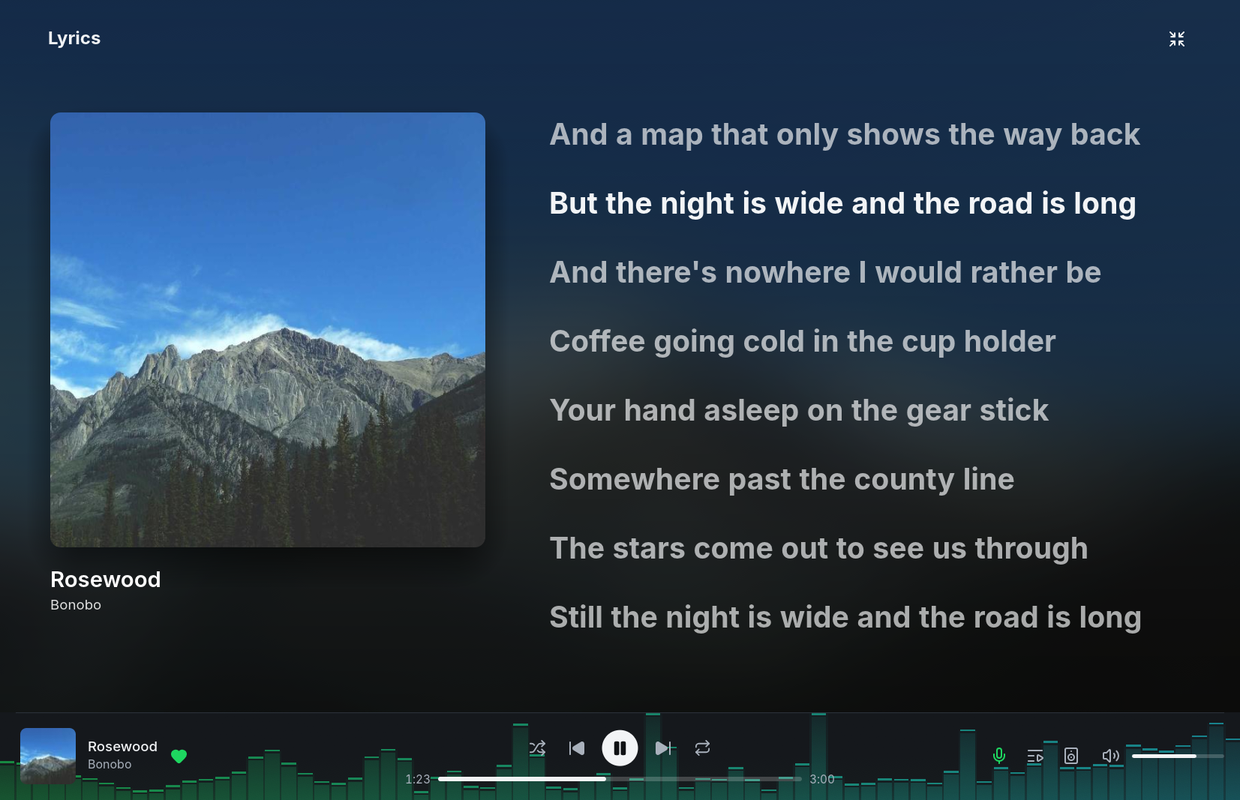
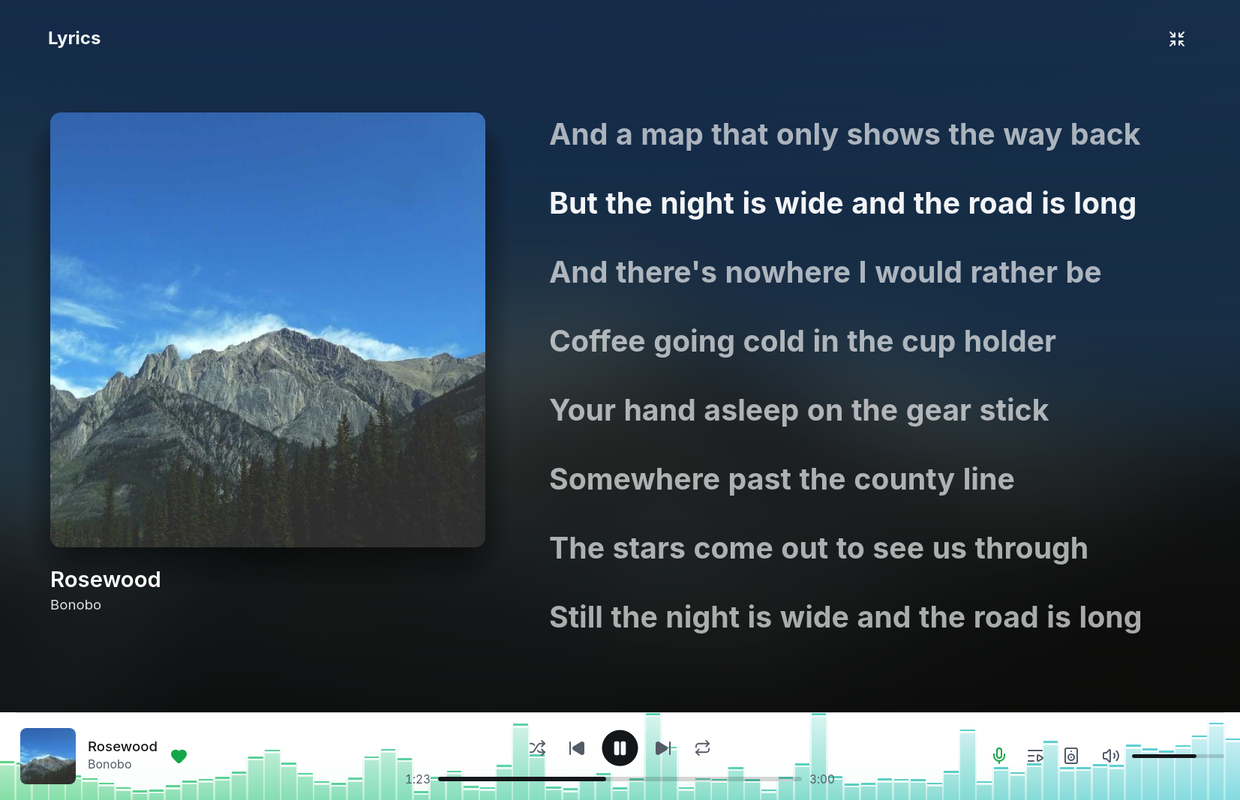
The expand button, or **F** when no text field has focus, opens lyrics in
full screen. Press **F** or **Esc**, or choose the shrink button, to return to
your previous window size. Full-screen lyrics
scroll smoothly and highlight the playing line automatically. Scrolling by
hand pauses following; choose **Follow** to resume. Since 0.11.0, a wide
window shows the song's cover beside the lyrics, the two centred together,
and a song without words, such as an instrumental, shows just its cover in
the middle of the screen.
Since 0.10.0, quitting while lyrics are full screen no longer leaves
the next launch stuck in full screen: the window returns to its previous size.
| Dark theme | Light theme |
| --- | --- |
|  |  |
---
# The Winamp Mini Player
Canonical URL: https://spotifast.rocks/winamp/
Open the mini player with Ctrl+M (Cmd+Shift+M on macOS), the shrink button, or
**Switch to it** in Settings. It supports classic Winamp 2 `.wsz` skins. Find
skins at the [Winamp Skin Museum](https://skins.webamp.org).
Only one player window is open at a time. Click the skin logo or Eject, or use
the shortcut again, to return to the main window.
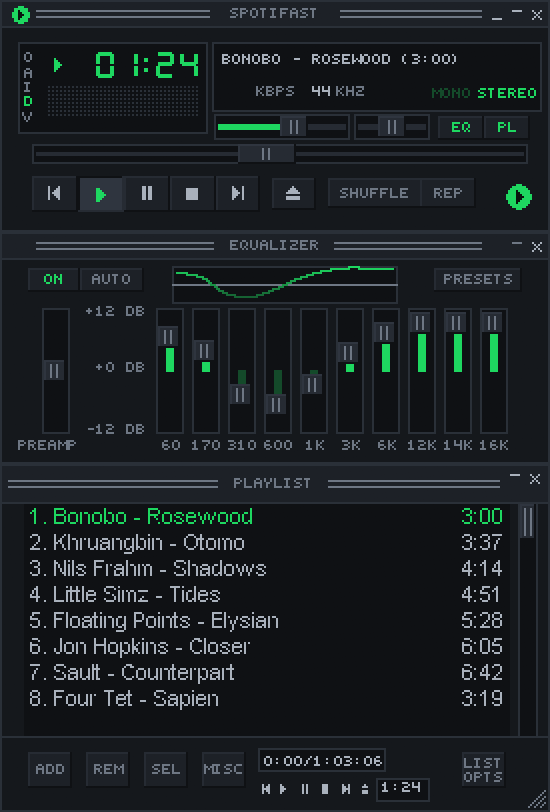
## Skins and window size
Drop a `.wsz` file on either window to install and use it. Settings lists the
installed skins and can open the skins folder.
Choose **Random**, first in that list, to get a different skin each time you
switch to the mini player, never the same one twice in a row. Settings says
which skin it picked, and choosing a skin yourself turns Random off.
You can also use an unpacked skin folder. Spotifast finds skin files inside
its subfolders, up to eight folders deep, so you do not need to move them all
into one folder.
Right-click the title bar, or click **O**, to choose a size from 1x to 4x.
Each size keeps the classic pixels sharp. The same menu can keep the player
above other windows. **D** toggles double size and **A** toggles always-on-top.
Spotifast remembers the window position where your desktop allows it.
Skins can have transparent areas and shapes other than rectangles. Modern
Winamp 3 and 5 skin formats are not supported; choose classic Winamp 2 skins.
## Main controls
Most controls match Winamp. As in Winamp, Play on a song that is already
playing starts it again from the beginning; Pause pauses. These work
differently:
- **Stop** pauses and rewinds.
- **I** opens the playing album in the main window.
- Repeat is either on or off.
- The X button and both logos return to the main window.
Click the time to switch between elapsed and remaining time. The balance and
MONO/STEREO controls affect playback on this computer. Quit from the
right-click menu or with Ctrl+Q.
The shade button, or a double-click on the title bar, rolls the player up. The
playlist and equalizer have their own shade buttons.
Switching to the main window and back keeps the shade modes and restores the
mini player's own position. It does not inherit the main window's fullscreen
or maximized state. On Linux desktops using Wayland, the desktop chooses where
windows appear and may ignore the saved position.
The left display shows bars that react to the sound (a spectrum analyser).
Click it to switch to a moving sound wave (an oscilloscope), then off.
You can also use the **V** menu. Changes to the equalizer affect the picture;
turning down the volume does not, even at zero. The display reacts only to
music playing on this computer.
## Playlist
**PL** opens the playlist below the player. It shows the playing song followed
by the queue. Double-click a song to play it, Ctrl-click to select several, and
drag the lower-right corner to resize the window. Use X or **PL** to close it.
- **ADD** opens search or Liked Songs.
- **SEL** selects rows.
- **MISC** opens song, artist, and album pages.
- **LIST OPTS** starts one of your playlists or saves the queue as a new one.
- **REM → Remove selected** takes the selected songs you queued out of the
queue, and **REM → Remove all** clears every song you queued. Both work when
this computer is playing. Songs from the playing album or playlist stay.
Notices from the main window scroll through the mini player's text display.
## Equalizer
**EQ** opens the ten-band equalizer. It affects playback on this computer, not
other Spotify Connect devices. The preamp ranges from -12 to 12 dB. **AUTO**
resets all bands. The same controls and presets are in Settings.
To keep your own curve, such as a headphone correction, type a name under the
presets in **Settings → Equalizer** and choose **Save preset**. It stores the
preamp and the ten bands, and appears after the built-in presets in Settings
and in the mini player's **PRESETS** menu. Saving under a name you already
used replaces that preset. While a saved preset is in use, **Delete** beside
**Save preset** removes it; the sound stays as it is.
---
# MilkDrop
Canonical URL: https://spotifast.rocks/milkdrop/
MilkDrop shows colourful animations that react to your music. Open it from
the top-bar visualiser button, Ctrl+Shift+K, Settings, or the mini player's
**V** menu. It runs in its own window.
MilkDrop is included on Linux, macOS and Windows, on Intel, AMD and ARM
PCs alike.
## The window
Drag the image to move the window. Double-click or press **F** for fullscreen.
Press **Esc** to leave fullscreen or close the window. Drag the lower-right
corner to resize it.
Like the other visualisers, MilkDrop follows changes you make with the
equalizer. Turning down the volume does not change the picture, even at zero.
It reacts only to music playing on this computer.
MilkDrop stops drawing while its window is minimised, and on macOS and Linux
also while it is covered. While the system saves energy it draws at most 30
frames a second, and one a second while the display is off or the screen is
locked.
## Presets
Each visual design is called a **preset**. They change every ten seconds by
default; choose a different interval in Settings.
On first use, Spotifast automatically downloads the 550 MilkDrop 2 presets
and the 9,800-preset Cream of the Crop pack. You can download either pack
again from Settings. A built-in animation appears while the download starts.
Presets are saved in the `milkdrop` folder alongside your settings; see
[file locations](/settings-and-files/). MilkDrop is powered by
[projectM](https://github.com/projectM-visualizer/projectm) and supports its
`.milk` preset files.
## Controls
- **N** or right arrow: next preset.
- **P** or left arrow: previous preset.
- **H**: switch on the next beat.
- **L**: keep the current preset.
- **R**: switch between random and folder order.
- **T**: show or hide the preset name.
- **D**: show or hide the frame rate.
- **I**: cycle the song display between a change notification, always visible,
and hidden.
- **?** or **F1**: show all shortcuts.
The normal playback shortcuts also work.
---
# Make It Even Faster
Canonical URL: https://spotifast.rocks/make-it-even-faster/
## Scrolling and large libraries
The sidebar is drawn alongside every page, so its sorting work can affect
scrolling elsewhere in the window. Library ordering now looks up each row's
position once per sort instead of repeatedly searching the full saved order.
This reduces the work each frame needs for large libraries while preserving
your chosen sort, pins, and folders.
The main window draws as needed and uses the platform's frame pacing. The
player bar and mini player visualizers draw at the **Frame rate** chosen in
Settings > Appearance, 60 by default; a lower rate uses less power. The
MilkDrop frame-rate setting applies to its separate visualizer window.
## API rate limits
Spotify limits how often apps can ask for information. Spotifast normally
shares this allowance with other listeners and several other music players.
When that shared connection is busy, your library and search results can take
longer to load. The top bar shows a spinner while you wait; hover over it to
see whether Spotifast is updating your library, checking for updates, or
waiting for Spotify. Your playlists and Home show what they showed last time
until the update arrives.
You can reduce those delays by creating a **personal Spotify app**. This is
a connection registered to your account on Spotify's developer website.
You do not need to write code or install another player.
Spotifast offers this setup once after you sign in with Premium. Choose
**Set up personal app** to open Settings, or **Not now** to continue
as you are. You can set it up later in Settings.
If Spotify later tells the shared connection it is getting too many
requests, a banner at the top of the page says Spotify is being slow and
offers the same setup. It appears at most once a day, and after you close it
three times it does not come back.
A personal app gives many of your searches and library requests a separate
allowance. Creating one is free and takes a few minutes, and Spotify requires
a Premium account. If you create several personal apps, they share your
account's allowance, following Spotify's
[July 2026 quota update](https://developer.spotify.com/blog/2026-07-23-web-api-quota-updates).
Some features still use the shared connection, and your personal connection
has limits too.
## Shared coverage stays active
Your personal connection searches songs, artists, albums, podcasts, and
episodes. The shared connection finds playlists and supplies features Spotify
does not make available to personal apps, such as recommendations and related
artists. Search results appear as each part is ready, so a delayed playlist
search does not hold up the songs.
Spotify allows personal apps ten search results at a time for each type,
compared with twenty on the shared connection.
Setting up playback on this computer also helps playlists load faster.
Spotifast can load playlists that would otherwise use the shared allowance
through its music connection instead, and while the shared connection is
busy, your playlist list comes through it too.
[How it connects](/how-it-connects/) explains which connection each feature uses.
## Make a Spotify app
1. Open the [Spotify developer dashboard](https://developer.spotify.com/dashboard)
and sign in with your Spotify account. Spotify asks that it be a
Premium account.
2. Click **Create app**. Any name and description will do; nobody else
sees them.
3. Under **Redirect URIs**, add exactly:
```
http://127.0.0.1:8989/login
```
4. Tick **Web API**, accept the terms, and save.
5. The app's page shows its **Client ID**. Copy it.
## Use it in Spotifast
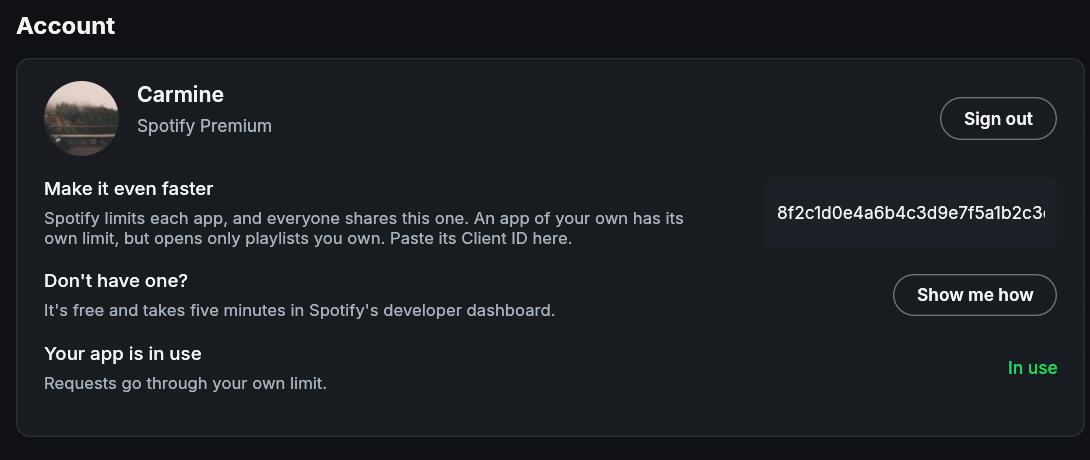
1. Open **Settings**, find **Personal Spotify app**, and paste the
Client ID.
2. Click **Authorize**. Your browser opens Spotify's sign-in for your app.
Spotifast verifies that it belongs to the same Spotify account, then shows
**Personal app ready**.
Your playback setup stays the same. Select **Remove** to stop using your
personal connection and return to shared access.
---
# Settings & Files
Canonical URL: https://spotifast.rocks/settings-and-files/
## Where things live
Linux media controls use `playerctl --player=spotifast`.
Spotifast follows each platform's conventions. On Linux:
| What | Where | Safe to delete? |
| --- | --- | --- |
| Settings | `~/.config/spotifast/settings.json` | Yes, you lose preferences |
| Winamp skins | `~/.config/spotifast/skins/` | Yes, you add them again |
| MilkDrop presets | `~/.config/spotifast/milkdrop/` | Yes, you fetch them again |
| Spotify grants (available since 0.8.0) | System credential store | Use Sign out in Settings |
| Credential revocation markers (available since 0.8.0) | `~/.local/state/spotifast/credential-storage/` | Keep after a failed sign-out deletion |
| Legacy shared Web API grant | `~/.local/state/spotifast/shared_web_api_token.json` | Removed after migration or sign-out |
| Legacy personal Web API grant | `~/.local/state/spotifast/personal_web_api_token.json` | Removed after migration or sign-out |
| Legacy playback credential | `~/.local/state/spotifast/credentials/` | Removed after migration or sign-out |
| Proxy password | System credential store | Clear the password and apply the manual proxy settings |
| Legacy proxy password | `~/.local/state/spotifast/proxy_password` | Removed after protected migration |
| Last session | `~/.local/state/spotifast/session.json` | Yes |
| Play history | `~/.local/state/spotifast/history.json` | Yes |
| Audio cache | `~/.cache/spotifast/audio/` | Always |
| Artwork cache | `~/.cache/spotifast/art/` | Always |
| Lyrics cache | `~/.cache/spotifast/lyrics/` | Always |
| Account-scoped playlist page cache | `~/.cache/spotifast/playlists//` | Always |
| Account-scoped playlist list | `~/.cache/spotifast/library/` | Always |
| Account-scoped Home shelves | `~/.cache/spotifast/home/` | Always |
| Last run's log | `~/.local/state/spotifast/spotifast.log` | Always |
| Crash log | `~/.local/state/spotifast/panic.log` | Always |
Starting with your computer (Settings > Playback on this computer) is kept
where each system keeps it, not in `settings.json`:
| Platform | Where |
| --- | --- |
| Linux | `~/.config/autostart/spotifast.desktop` (`$XDG_CONFIG_HOME/autostart`), which runs `spotifast`, with `--start-hidden` for the tray |
| Flatpak | Registered through the background portal; Spotifast keeps a copy of what it asked for in `~/.var/app/rocks.spotifast.Spotifast/config/autostart/spotifast.desktop` |
| macOS 13 and later | Login Items: Spotifast itself to open with the window, or the `rocks.spotifast.Spotifast.autostart` agent inside the app, which opens it with `--start-hidden` |
| Windows | The `Spotifast` value under `HKEY_CURRENT_USER\Software\Microsoft\Windows\CurrentVersion\Run` |
Deleting the entry turns it off. Uninstalling Spotifast does not remove the
Linux or Windows entry; choose **Off** first.
Clearing caches never signs you out. Sign-out from Settings covers the shared
and personal Web API grants and the independent playback credential. It also
removes the cached library of every account: playlist pages, the playlist
list, Home shelves and Liked Songs metadata. The audio, artwork and lyrics
caches stay, since they belong to no account.
The following credential storage is available since 0.8.0.
Durable grants use **Secret Service on Linux**, **Keychain on macOS**, and
**Credential Manager on Windows**, under the service name
`rocks.spotifast.Spotifast`. Entries are separated by application state
location and grant type; Web grants carry their Client ID and must verify as
the same account. Playback and receiver activation require that account too.
Non-secret settings and session data remain readable JSON. Native credential
protection reduces exposure from copying ordinary application files. It does
not protect a usable session from arbitrary code running as the same user;
Linux protection also depends on the desktop keyring's configuration.
On Linux, enable and unlock a Secret Service provider such as GNOME Keyring or
KWallet to remember a new sign-in. Flatpak is allowed to talk to
`org.freedesktop.secrets` for this purpose. An unavailable or locked store
produces an error without blocking the interface. A new sign-in can still be
used for this session, with no new plaintext fallback file.
On Windows, grants are saved with Enterprise persistence, which survives a
restart. Since 0.13.2, if Credential Manager refuses that, or keeps the grant
only until you sign out of Windows, Spotifast saves it again with Local
persistence, which also survives a restart. Failures are logged with their
Windows error code, never with the grant.
Since 0.13.4, Spotifast on Windows also keeps a copy of each grant in
`credential-storage\` in the data folder, encrypted with the Windows Data
Protection API so that only your Windows account can read it. Every save
writes both, and sign-out deletes both. The copy is read only when Credential
Manager refuses the grant or no longer has it, as on machines where the
entries disappear during a restart. Grants saved by earlier versions gain
their copy the next time Spotifast starts.
On upgrade, each legacy grant is written to the protected store and read back
before its old file is removed. Valid grants migrate without signing in again.
If Spotify rejects a saved refresh grant, only that grant is forgotten so the
next launch cannot keep restoring it. If migration fails, Spotifast reports it and
keeps the original so migration can be retried. That grant can still serve the
current session. A successfully migrated grant is never replaced by a stale
legacy copy. Librespot's reusable grant stays in memory until Spotifast saves
it through this same store. Volume and disposable audio caches are independent.
Sign-out invalidates pending authorization, refresh, and playback connections,
and cancels pending Spotify requests so their results cannot undo a new sign-in.
It records non-secret revocation markers before deleting the protected entries
and all legacy token files, including temporary copies. A locked store or
filesystem failure is reported. Revocation markers prevent a failed protected
entry deletion from restoring the session on restart; keep these markers when
a deletion failed. Removing or changing a personal Client ID clears that app's
old grant.
Version 0.7.1 and earlier use the legacy unencrypted files listed above. Their
Web API writer requests owner-only permissions for newly created Unix files;
Windows uses inherited permissions. Librespot's old writer uses the system's
file defaults. Keep these legacy files, their temporary copies, the
`credentials/` directory, and credential-store exports out of issue attachments
and diagnostic uploads.
Since 0.9.0, proxy passwords use a separate protected entry under the same service name.
They belong to the configured host, port, and username. Editing any of these
fields clears the old password; changing only HTTP/SOCKS5 mode keeps it. Off,
System, and Spotify sign-out retain the saved manual proxy password. Clear the
password and apply the manual settings to forget it. A revocation marker keeps
a failed protected deletion from restoring that password.
Older proxy passwords, whether in `settings.json` or the separate state file,
are migrated and read back before their plaintext copies are removed. If that
fails, the originals remain available for retry. Settings changes stay in
memory until migration succeeds, so a save cannot erase the only password or
associate it with a different proxy address. Spotifast reports this condition.
Newly entered passwords have no plaintext fallback. Settings store the confirmed
proxy mode, host, port, and username, never an unapplied draft or password.
Progress through a playlist is periodically cached as a contiguous prefix.
When the playlist has not changed on Spotify, reopening it resumes from that
prefix instead of requesting the same pages again. Spotifast validates the
cache against Spotify's playlist snapshot and reported song count before
showing it. A cache with a mismatched count is replaced by live rows even if
its snapshot matches, so stale cached songs cannot choose the playback order.
Successful playlist edits keep that loaded prefix and save it under Spotify's
new snapshot after all pending writes have succeeded. Pending edits remain
visible immediately, but are not saved as confirmed playlist rows. A failed
write reloads the playlist to reconcile the edit.
In 0.8.0, playlist checkpoints began streaming their JSON to a temporary
file on a background file worker. Saving a large playlist no longer needed a
second complete JSON buffer in memory. That update kept the cache format and
checkpoint order unchanged, and a failed write left the previous cache in place.
Since 0.9.0, reading a playlist cache also uses
a small buffer on a background file worker. The full JSON file no longer
stays in memory alongside the loaded songs. Existing caches remain readable;
missing or invalid caches are ignored and fetched again as before.
Playlist checkpoints now keep new rows in a separate append-only data file.
An atomically replaced manifest records the committed byte length, row count,
snapshot, and next Spotify offset. A failed append leaves the previous
checkpoint readable; a later write discards the unfinished tail. Older JSON
caches remain readable and are retained when a new checkpoint is written.
Reloads, edits, and changes to previously loaded rows write a fresh data file
instead of appending to the old prefix. A small lock file in the account cache
directory coordinates reads and writes; reopening the cache removes row files
left without a manifest reference by an interrupted replacement.
Since 0.10.0, the artwork loader shares downloaded image bytes with
the background cache writer instead of making a separate copy. Visible library
cards and collection covers request 640-pixel artwork for sharper HiDPI output;
compact rows and softened placeholders keep using 64-pixel thumbnails. Up to 64
softened 256-pixel covers may be retained in addition to the existing artwork
budget, and their downloaded image bytes are released after decoding. A failed
cache write does not prevent the downloaded image from being displayed.
Softened previews reuse egui's decoded artwork after its encoded bytes have
been released, without repeatedly reading the disk cache or downloading again.
The following Liked Songs caching behavior is available since 0.9.0.
Liked Songs metadata is stored separately under `liked-songs/` in the cache
directory, one JSON file per account. Only the verified account's rows are
shown. Fresh cached pages are reused for 15 minutes; older pages refresh in
the background. Refreshing keeps the last usable rows until their replacement
is ready, and a failed refresh leaves those rows visible. The refresh control
requests current data immediately. Partial caches resume from their next page.
Like and Unlike change the rows immediately, and confirmed edits survive a
restart even if Spotify's next read still reports the old state. This cache
contains metadata, not offline audio, and can be deleted without signing out.
Signing out deletes it.
Device-picker choices are kept in `session.json` as the last 32 selected
preference keys and their Spotify account ID. Signed-in outputs use device IDs;
waiting Cast receivers use an opaque hash of their transfer ID, address and port
so same-named endpoints do not share preferences. This separate Cast preference
resets when its endpoint changes and is not proof of authenticity.
The keys order available outputs by frequency and recency. This history stores
no raw network address, adds no
background request, and is cleared on sign-out. Older session files without
it remain readable.
The last good playlist folder tree is kept in `session.json`, scoped to the
account that supplied it. This keeps folders visible when local playback is
temporarily unavailable. Live session data is still required for edit grants.
The library's playlist list is stored under `library/` in the cache
directory, one JSON file per account. It is shown as soon as the account is
verified, while the list is read from Spotify again. Spotify reads the
complete list only through the shared app, so on a busy day this keeps the
sidebar usable while that app waits out Spotify's limits. The new list
replaces the shown one once all its pages have arrived. A failed read keeps
the shown list; a rate limited, network or server failure is also read again
a minute later, while other refusals wait for the next reload. Offline, the
list is read again as soon as the network is back.
Playlists created or deleted in the meantime stay that way. The list is
saved again only when Spotify has confirmed every change in it. This cache
contains metadata only and can be deleted at any time.
Home's Recently played, Your top artists, Top tracks, Made for you, Your top
mixes, New releases and Your podcasts shelves are stored the same way under `home/`. They are shown when
the account is verified and replaced shelf by shelf as Spotify answers. A
shelf Spotify turns away keeps what it showed, and Home is read again once
the network is back. Each shelf is saved as soon as its new answer arrives;
Made for you once all its searches have answered.
Since 0.8.0, memory caches retain the open page,
the playing context, and a limited set of recently used playlist, album,
artist, and show pages. Older pages reload when revisited, using the saved
playlist prefix when its snapshot still matches. Pending playlist edits and
their rows stay in memory until the write and its snapshot are confirmed,
even if this temporarily exceeds the usual page limit. Track metadata is
limited to 800 cached tracks; navigation and periodic cleanup trim old entries.
The session remembers separate positions for the main window and the Winamp
mini player, and the main window's size and whether it was maximized. Sizes
and positions are in logical pixels, so they do not change with the interface
zoom. Each window is created at its remembered place rather than moved there
afterwards. The shade modes are kept in `settings.json`. Wayland compositors
may ignore saved positions. A window that opens on no connected monitor (a
display unplugged since) moves to the middle of the primary one on Windows
and X11; on macOS, a position whose title bar would be on no screen is not
used.
Since 0.8.0, a main window left maximized or full
screen reopens that way, and comes back that way from the mini player. The
remembered size and position describe an ordinary window and are not applied
to one that already fills the screen, because sizing or moving such a window
restores it down.
Since 0.9.0, a closing main window keeps its own geometry until
the native window closes. An extra closing frame cannot resize it to the
mini player and overwrite its saved size or maximized state.
Since 0.8.0, album and playlist scrollbars reserve the full track count
as soon as Spotify reports it. Dragging to an unloaded section shows placeholders and requests
that section directly. Loaded windows stay in memory while the page is retained;
returning to one does not download it again. Unavailable entries keep their row
positions. Playlist edits and refreshes invalidate other cached windows because
their server positions may have changed. Only contiguous playlist prefixes are
saved on disk.
Since 0.10.0, large playlist pages no longer show a **Go to song**
control; drag the scrollbar to reach a distant song instead. Filtering or
sorting returns to the beginning and loads remaining pages as needed, since
local search and ordering require the track metadata. A failed window stops
automatic requests and shows a Retry button in the reserved row space.
Since 0.8.0, Flatpak also preserves the fallback
state directory used when `XDG_STATE_HOME` is unset. Session state, history,
logs, and credential revocation markers survive a full quit and relaunch under
`~/.var/app/rocks.spotifast.Spotifast/.local/state/spotifast/`. Configuration
and caches remain under the app's `config/` and `cache/` directories. State
already lost on quitting an older release cannot be recovered.
On macOS, settings, state, and the logs are in
`~/Library/Application Support/me.paolino.spotifast` and the caches in
`~/Library/Caches/me.paolino.spotifast`. On Windows, settings are in
`%APPDATA%\paolino\spotifast\config`, state and the logs in
`%LOCALAPPDATA%\paolino\spotifast\data`, and the caches in
`%LOCALAPPDATA%\paolino\spotifast\cache`.
### Portable copies
Since 0.13.4, Spotifast started from the Windows ZIP keeps its files in a
`spotifast-data` folder next to `spotifast.exe`, instead of the folders
above. It knows it is the ZIP copy by the `spotifast-portable.txt` file beside
it.
| What | Where |
| --- | --- |
| Settings, skins, MilkDrop presets, themes | `spotifast-data\config\` |
| State, history, logs, credential markers and the encrypted grant copies | `spotifast-data\state\` |
| Caches | `spotifast-data\cache\` |
The first time it starts without that folder, it copies (never moves) your
settings and state from the folders above, so a ZIP copy you ran before keeps
your preferences and sign-in. Caches are not copied; Spotifast fills them
again. The installed Spotifast keeps its own files, and from then on the two
never share settings, history or caches. The copy is made in
`spotifast-data.partial` and renamed when complete, so a copy interrupted by
a crash or power cut is made again at the next start.
If Spotifast cannot write next to its executable, for example in
`Program Files` or on read-only media, it uses the folders above and says why
in the log. Updates replace only `spotifast.exe`, so `spotifast-data` stays as
it is through updates and their rollback. To start a portable copy afresh,
quit it and delete `spotifast-data`; the next start copies from the folders
above again.
Spotify sign-ins themselves are saved in Windows Credential Manager, which
belongs to your Windows account, not to a folder, with an encrypted copy in
`state\credential-storage\` that only your Windows account can read. A
portable folder made from your installed copy's state starts signed in: at
its first start it saves the installed copy's sign-ins again under entries of
its own, and from then on the two are separate, so signing out of one leaves
the other signed in. The folder records which entries are its own in
`state\credential-profile`, so it keeps its sign-in when you move it to
another folder or drive. On another computer or another Windows account,
neither Credential Manager nor the encrypted copy can give the sign-in back,
so sign in again there.
The Linux `.tar.gz` also carries a `spotifast-portable.txt`, but only so the
updater may replace the executable. Spotifast from it keeps the folders above:
set `XDG_CONFIG_HOME`, `XDG_STATE_HOME` and `XDG_CACHE_HOME` to move them.
The running copy keeps its single-instance files in a private directory:
`$XDG_RUNTIME_DIR/spotifast` on Linux (inside Flatpak, the app's own runtime
directory), a `spotifast` folder in your private temporary directory
(`$TMPDIR`) on macOS, and an `instance` folder in the state directory on
Windows. A portable copy has its own, `instance\scope-portable-` in the
installed state directory, with one `` per portable folder, so it runs
beside the installed copy and other portable copies instead of handing your
launches to them. `instance.lock` marks the running copy; the system releases it when
Spotifast quits or crashes. `instance.sock` (Linux and macOS) is the socket
a second launch and the `spotifast` command reach it through, which only your
user can open. On Windows, `instance.key` holds the loopback port and a
random token that every request must carry. Spotifast writes them on each
start; nothing in them needs keeping.
## settings.json
Settings are stored in one readable JSON file and written atomically. Its
main fields are:
| Field | Default | Meaning |
| --- | --- | --- |
| `device_name` | `Spotifast` | Name on Spotify Connect |
| `bitrate` | `320` | 96, 160, or 320 kbps |
| `normalisation` | `false` | Volume normalisation |
| `autoplay` | `true` | Keep playing similar music at the end |
| `gapless` | `true` | Gapless playback |
| `audio_device` | `null` | The output local playback uses, by the id of a device **Audio output** in the device picker lists: PipeWire's or PulseAudio's node name or an ALSA PCM on Linux, the WASAPI endpoint id on Windows, the CoreAudio UID on macOS. `null` is the system default. A device that is not there plays through the default. A name saved by 0.13.3 or earlier opens the output that still has it and is replaced by its id once music plays there; any other name plays through the default and is kept until another choice. The `audio_backend` older versions saved is ignored and no longer written |
| `audio_cache_mb` | `1024` | On-disk audio cache budget |
| `local_files_folder` | `null` | Folder, with its subfolders, that a playlist's local files play from |
| `theme` | `system` | Follow the system appearance by default; explicit `dark` and `light` choices remain available |
| `language` | `system` | Since 0.10.0: the interface language. `system` follows the operating system's preferred languages and falls back to English; a tag such as `es`, `de-DE`, `pt-BR` or `zh-Hant` selects that language. An unknown tag follows the system |
| `custom_theme` | `null` | Selected JSON filename from the `themes` folder |
| `custom_theme_cache` | absent | Last accepted custom palette; preserves appearance if its file is missing or invalid |
| `system_theme_cache` | absent | Last accepted Omarchy palette for Follow system; retained across restarts |
| `theme_pair` | absent | The themes Follow system uses in light and dark mode: `{"light": {"filename": "Catppuccin Latte.json", "palette": {...}}, "dark": {...}}`. Each `palette` is the last accepted copy of that file's colours. A missing side, or the whole field, is Spotifast's own Light or Dark; it is written only once you choose one |
| `accent_from_art` | `true` | Tint pages with album art, and colour the player bar visualizer with the cover's colours |
| `player_bar_vis` | `off` | Since 0.11.0: what moves behind the player bar while a song plays on this computer: `off`, `spectrum` or `waveform` |
| `player_bar_vis_click` | `true` | Allow clicks on empty player bar space to cycle visualizer modes |
| `visualizer_fps` | `60` | Frame rate of the player bar and mini player visualizers; `0` is uncapped. Half that out of focus, at most 30 while the system saves energy, none while the window is hidden. MilkDrop uses `milkdrop_fps` |
| `library_sort` | `{}` | Per-section Library order overrides, since 0.8.0: `library`, `recently_played`, `name`, `recently_added`, `local`, or `spotify`, where supported |
| `library_by_you` | `false` | Show only playlists owned by the signed-in account, alongside Liked Songs; applies only to the Playlists shelf |
| `sidebar_order` | `[]` | Saved local playlist arrangement, including an unpinned Liked Songs, retained when another sort is selected |
| `pinned_contexts` | `[]` | Local Library pin order; Liked Songs uses `spotifast:liked-songs`, a local key never sent to Spotify |
| `liked_songs_pinned` | `true` | Keep Liked Songs in the pin block; older settings place it first until moved |
| `sidebar_compact` | `false` | Names only in the library sidebar, no covers |
| `sidebar_grid` | `false` | Library entries as responsive cover cards instead of rows |
| `tracklist_compact` | `false` | One-line track rows without covers |
| `middle_click_autoscroll` | `false` | Linux only: middle-click a list to autoscroll it. Windows always autoscrolls and macOS never does |
| `winamp_window` | `false` | The window is the Winamp mini player |
| `winamp_show_taskbar` | `true` | Windows since 0.8.0, and Linux X11 sessions: show the Winamp window's taskbar button; the main window always keeps its button. Wayland and macOS ignore it |
| `custom_titlebar` | `false` | Windows and Linux: draw Spotifast's own title bar and window buttons instead of the desktop's |
| `skin` | none | File or folder name in the skins folder; blank uses the built-in skin |
| `random_skin` | `false` | Since 0.11.0: pick a different skin (built-in or installed) each time the mini player opens; `skin` holds the one picked |
| `skin_scale` | by display | Screen pixels per skin pixel, 1 to 4 |
| `winamp_on_top` | `false` | Keep the mini player above other windows |
| `vis` | `bars` | The mini player's visualiser: `bars`, `scope`, or `off` |
| `playlist_open` | `false` | The playlist window is open under the mini player |
| `playlist_height` | `174` | The playlist window's height in skin pixels |
| `eq_open` | `false` | The equalizer window is open under the mini player |
| `eq_on` | `false` | The equalizer shapes local playback |
| `eq_preamp_db` | `0` | The preamp, in decibels, -12 to 12 |
| `eq_bands_db` | ten zeros | The bands from 60 Hz to 16 kHz, in decibels, -12 to 12 |
| `eq_user_presets` | `[]` | Equalizer presets you saved, each with a `name`, its `preamp_db` and its ten `bands_db`, listed after the built-in presets |
| `balance` | `0` | Left to right, -1 to 1, for local playback |
| `mono` | `false` | Play both channels the same |
| `playlist_shaded` | `false` | The playlist window is rolled up to its title bar |
| `winamp_shaded` | `false` | The main window is rolled up to its title bar |
| `milkdrop_open` | `false` | The MilkDrop window is open |
| `milkdrop_seconds` | `30` | How long each MilkDrop preset plays |
| `milkdrop_fps` | `60` | MilkDrop frame rate; `0` is uncapped. At most 30 while the system saves energy |
| `milkdrop_screen_hz` | `0` | Last refresh rate reported by MilkDrop's window |
| `milkdrop_fullscreen` | `false` | The MilkDrop window fills the screen |
| `milkdrop_size` | `640, 480` | The MilkDrop window's size in points |
| `keep_playing_in_background` | `true` | Close to tray |
| `tray_icon` | `colour` | Linux and Windows: the tray icon in `colour`, or in `white` or `black` to match the panel or taskbar. macOS ignores it: the menu bar draws its icon black or white to match itself |
| `mac_notch_widget` | `false` | Show interactive Now Playing widget when hovering over the MacBook notch (macOS only) |
| `mac_show_in_dock` | `true` | macOS only: show Spotifast in the Dock and Cmd+Tab. `false` keeps it in the menu bar only; the menu-bar icon always stays |
| `check_for_updates` | `true` | Ask GitHub once a day for a newer release |
| `web_client_id` | none | Optional personal Spotify app id used alongside shared coverage |
| `personal_app_nudge_at` | none | Legacy daily-reminder timestamp, retained for older releases |
| `personal_app_intro_seen` | `false` | Whether the Premium personal-app introduction was dismissed or followed (available since 0.8.0) |
| `slow_app_banner` | none | When the "Spotify is being slow" banner last appeared (`shown_at`) and how many times it was closed (`dismissals`; at 3 it stops). Kept by the app, not a preference |
| `proxy_mode` | `system` | `off`, `system`, `http`, or `socks`. Older files without this field stay on `system` |
| `proxy_host` | none | Host of a manual HTTP or SOCKS5 proxy. Ignored when the mode is `off` or `system` |
| `proxy_port` | none | Port of a manual HTTP or SOCKS5 proxy |
| `proxy_username` | none | Optional proxy login for Web requests; authenticated local playback proxying is not supported |
## Command line
```
spotifast [OPTIONS] [LINK]
LINK A Spotify link to open: spotify:track:…, or an
open.spotify.com address
--device-name Spotify Connect name for this session
--start-hidden Start in the tray, without a window
-v, --verbose More logs from librespot and the API client
```
`--start-hidden` is what **Start with your computer > In the tray** runs at
login. Without the tray, or with **Keep music playing when the window closes**
off, the window opens anyway. A link, or a restart after an update, opens the
window too. When Spotifast is already running, it stays as it is.
A link goes to the running Spotifast when there is one, which then opens
the page and brings its window forward; otherwise the app starts on it. The
desktop's handler for `spotify:` links runs exactly this.
Attach `spotifast.log` from the state directory to bug reports. It contains
the last run's output, including extra lines from `spotifast -v`. After a
crash, attach `panic.log` too.
## Demo mode
Builds made with `cargo build --features demo` accept `--demo`, which loads
sample data for screenshots and interface work. Demo mode never writes
settings.
`--demo-page` opens a page, such as `home`, `playlist:pl1`, or `artist:art0`,
and `--demo-show` adds surfaces on top of it: a comma separated list of
`queue`, `playing-next`, `devices`, `home-loading`, `audio-outputs`, `shortcuts`, `premium`, `create`, `duplicate`, `light`, `system-light`, `system-dark`,
`focus`, `winamp`, `playlist`, `eq`, `eq-shade`, `compact`, `update`, `personal-app`, `slow-banner`, `audio-key-banner`,
`collection-loading`, `shuffle-selected`, `shuffle-started`, `library-list`,
`library-list-narrow`, `library-list-wide`, `library-grid`, `library-grid-narrow`,
`library-grid-wide`, `eq-user-presets`, `start-in-tray`, `rtl`, `player-bar-spectrum`, `player-bar-waveform`,
`lyrics-fullscreen-view`, `lyrics-fullscreen-instrumental`, `signed-out`, and `connecting`. The Library variants show the list or cover grid with
a normal, narrow, or wide sidebar and collapsed artwork for matching captures.
`shuffle-selected` and `shuffle-started` capture the selected-mode and
playback-started outcomes of a collection Shuffle click. `update` shows a sample
update badge for checking its layout. `personal-app` shows the personal Spotify
app introduction, and `slow-banner` the banner suggesting one when Spotify
slows the shared app down. `audio-key-banner` shows the banner for a song
whose audio key Spotify refused. `audio-outputs` opens the device picker with sample audio
outputs to choose from, as Spotifast's own output lists them.
`signed-out` and `connecting` show the sign-in card before and while the
session connects.
`system-light` and `system-dark` choose Follow system on a desktop that is
light or dark (on Linux), to show the light and dark mode themes; with an
explicit `--demo-data` directory, its `config/settings.json` and
`config/themes` supply them.
`player-bar-spectrum` and `player-bar-waveform` play a fixed, music-like
sound on this computer with that player bar visualizer on.
`lyrics-fullscreen-view` and `lyrics-fullscreen-instrumental` draw full-screen
lyrics, with words or without, at the window's own size.
`eq-user-presets` saves a sample equalizer preset and puts it in use.
`start-in-tray` shows **Start with your computer** set to **In the tray**;
demo mode never reads or changes the real login entry.
`rtl` gives the first songs of `playlist:pl1` invented Hebrew and Arabic
titles, some mixed with English, numbers, and brackets.
`collection-loading` keeps known collection metadata and placeholder artwork
visible while replacing the page content, with unfinished controls disabled.
`home-loading` shows Home while its shelves are still loading.
`--demo-language ` shows the interface in one of the bundled languages,
such as `es` or `ja`, in place of the saved setting and the system's language.
`--demo-shot ` writes the window to a PNG and exits, which is useful for
making deterministic screenshots for these pages:
```
cargo run --release --features demo -- \
--demo-shot docs/screenshot.png --demo-page playlist:pl1 --demo-show queue
```
The image uses the current window size. `--demo-size WIDTHxHEIGHT` sets that
size in logical pixels for a shot (for example `760x800` or `1240x800`).
`--demo-shot-delay ` sets how long to wait for cover art before taking it.
`--demo-click X,Y` clicks there before the shot, to show an open menu.
`--demo-drag X,Y:X,Y` shows a drag in progress: the pointer presses at the
first point, in logical pixels, and is still held down at the second when the
shot is taken.
Since 0.8.0, demo windows ignore saved window geometry and do not
read or save the normal window's framework state. Existing built-in appearance
settings still apply. `--demo-data ` keeps demo caches and logs under
that directory's `cache` and `state` folders, with settings read from `config`.
Custom palettes and their cache are used only with an explicit `--demo-data`
directory; the ordinary demo does not scan your real themes folder.
## Home shelves
Since 0.8.0, you can hide **Made for you** and **Recommended for you**
from Home independently. Quit Spotifast before editing `settings.json`, then
restart it. Add this field to hide both:
```json
"home": {
"made_for_you": { "visible": false },
"recommendations": { "visible": false }
}
```
Set either `visible` value to `true` to show that shelf again. Omitted
preferences keep both shelves visible. **Your top mixes** comes from the same
personalized read as Made for you, so `made_for_you` hides it too. Other Home
sections keep their normal order and contents. This changes what is displayed; hidden shelves still
refresh in the background.
**Recommended for you** is seeded with your top songs. Until Spotify has top
songs for your account, which takes some listening, Home leaves the shelf out.
## Custom themes
Since 0.11.0, Spotifast puts eight palettes in the `themes` folder beside
`settings.json` the first time it starts: Catppuccin, Catppuccin Latte,
Nord, Ristretto, Rose Pine, Rose Pine Dawn, Rose Pine Moon and Tokyo
Night. They are ordinary palette files: read them to see how a theme is
written, change them, or delete the ones you do not want. Spotifast never
rewrites them, and a deleted one stays deleted; `.installed-palettes` in
the folder records which it has already put there.
To make your own, add JSON files to the `themes` folder.
Run `spotifast reload-themes` if the app is already open, then select it
under **Settings → Appearance → Theme**, where it is listed by its filename
without `.json`.
The default is **Follow system**. It uses your desktop’s light/dark appearance,
or the current Omarchy palette on an Omarchy desktop. On Linux,
the light/dark appearance comes from the desktop portal's `color-scheme`
setting (GNOME, KDE and Flatpak), and since 0.10.0, the app follows
it when it changes. Saved Dark,
Light and custom choices are preserved when updating. The picker starts with
**Follow system**, **Light**, and **Dark**, then a separator. **Omarchy** comes
next when the integration is available, followed by the other local palettes.
Themes change colors and keep the app's existing fonts.
While **Follow system** is selected, two more pickers appear below the Theme
row: **Light mode theme** and **Dark mode theme**. Each starts with
Spotifast's own **Light** or **Dark**, then lists the palettes whose `base`
matches: only light palettes for light mode and only dark ones for dark
mode, because the base also decides whether the standard controls are drawn
light or dark, and they follow the system. Spotifast then shows one or the
other as your system switches between light and dark, while it stays open
and without interrupting playback. Your choices are kept when you pick a
single theme and come back when you choose Follow system again. On an
Omarchy desktop, Follow system uses the Omarchy palette instead, which
already follows your desktop theme, so the two pickers are not shown.
**How to make a theme**, beside the picker, opens this section. The
**Open themes folder** icon button beside the picker creates the folder if
needed and opens it in your file
manager, using the same button style as the Winamp skins folder.
After adding or editing a JSON file on macOS or Windows, run
`spotifast reload-themes` to refresh the list and the selected palette without
restarting playback. Since 0.10.2, Spotifast on Linux notices changes to the
themes folder by itself.
Choosing a built-in theme clears the custom selection.
Since 0.11.0, whenever the colours change (a theme picked here, Omarchy
switching themes, or the system going light or dark), the new colours open
from the middle of the window outwards, as Omarchy's own theme change does.
For example, `themes/gruvbox.json`:
```json
{
"base": "dark",
"colors": {
"window": "#282828",
"panel": "#1d2021",
"surface": "#32302f",
"text": "#ebdbb2",
"accent": "#b8bb26"
}
}
```
`base` is `dark` (the default) or `light`. Omitted colors inherit that palette.
Supported colors are `window`, `panel`, `surface`, `surface_hover`,
`surface_active`, `outline`, `text`, `secondary`, `dim`, `accent`,
`accent_hover`, `on_accent`, `danger`, `warning`, `overlay`, `shadow`, and
`tint`. Values must be `#RRGGBB` or `#RRGGBBAA`.
`tint` is the colour the top of a page fades from when album art does not
colour it: with **Colour from album art** off, or on a page without a cover.
Its alpha is the strength, so `#00000018` is a faint dark wash and `#ffffff20`
a faint light one. Leave it out for a plain page.
Files are read in the background at launch and when `spotifast reload-themes`
is called. The command updates the selected palette without interrupting
playback, changing your selection or showing the window. It does not start a
stopped app. Repeated requests are combined while a scan is running. On Linux,
filesystem notifications for the themes folder and Omarchy's current theme
start the same reload, with no polling timer. Use regular UTF-8 `.json` files, not symbolic links or
subdirectories. Each file is limited to 64 KiB. Keep at most 128 JSON files and
512 total entries in the themes folder; the saved selection is still checked
when a folder exceeds these limits.
Invalid files are skipped with a warning in the log. Spotifast remembers the
last accepted custom palette in `settings.json`. If the selected file is
removed or becomes invalid, that appearance stays in place, including after
a restart, and the Theme row explains the problem. The same holds for the
light and dark mode themes: a file that disappears, or whose `base` changes
to the other one, keeps its last accepted colours, and its row explains. Other preferences are
preserved. A custom selection without any usable cached colors uses the
built-in choice. Choosing Dark, Light or Follow system clears the custom
selection and its cache, but keeps the light and dark mode themes. Editing or deleting the optional cache does not
reset unrelated settings.
A custom palette's `base` controls both its inherited colors and the light or
dark styling of standard controls. Album-art tinting remains an independent
setting; turn it off for fixed colors throughout. Palettes apply to the main
window; Winamp skins remain separate. This first format controls colors only.
### Follow an Omarchy theme
Since 0.8.0, native Linux packages include the Omarchy integration.
The first normal launch on an Omarchy desktop installs its template and
theme-change hook in your user configuration, in the background. No copy
commands or desktop restart are needed. A palette for the current theme is
prepared without reapplying your desktop theme. New installations use
**Follow system**, so Omarchy colours apply automatically on the first launch
and track later theme changes. An existing explicit Dark, Light or custom
choice stays selected. Choose **Follow system** or **Omarchy** under
**Settings → Appearance → Theme** to follow Omarchy instead.
Since 0.10.2, portable archives and Cargo builds follow Omarchy too: Spotifast
reads the palette Omarchy rendered for it, or renders the template itself from
the current theme's colours, and picks up theme changes without the hook.
Setup never replaces an existing template, hook or palette, and never changes
your selected theme. Other users are set up independently when they launch the
app. Demo mode, portable archives and Cargo builds do not install the template
or hook. A package uninstall removes the shared integration assets; your user
configuration remains, like the rest of your preferences.
For a manual installation, the repository includes an
[Omarchy template](https://github.com/crmne/spotifast/blob/main/contrib/omarchy/spotifast.json.tpl)
and a [theme-change hook](https://github.com/crmne/spotifast/blob/main/contrib/omarchy/spotifast-theme).
Omarchy resolves its light/dark mode and colors through its
[template system](https://omarchy.org/manual/making-your-own-theme/).
The hook copies the result atomically into `themes/omarchy.json`, then asks a
running Spotifast to reload it. It does not change your desktop theme or your
Spotifast selection itself.
For portable or Cargo installations, install the two files from a checkout:
```sh
mkdir -p ~/.config/omarchy/themed
install -m 644 contrib/omarchy/spotifast.json.tpl ~/.config/omarchy/themed/
omarchy hook install theme-set contrib/omarchy/spotifast-theme
```
Apply a theme through Omarchy's theme picker, then select **Omarchy** in
Spotifast's **Settings → Appearance → Theme** once. Later Omarchy changes update
that palette while music keeps playing. Turn off album-art tinting if every
page should keep the theme's fixed colors.
The hook uses Omarchy's current theme at
`~/.local/state/omarchy/current/theme` and Spotifast's existing
`${XDG_CONFIG_HOME:-~/.config}/spotifast/themes` directory. The shipped hook
is updated automatically if its contents have not been customized. A custom profile can set
`SPOTIFAST_THEMES_DIR` in the installed hook; this example uses the native
`spotifast` command, not a Flatpak launcher. Themes without `colors.toml` need
their own `spotifast.json` file. Missing or invalid palettes leave the last
accepted appearance in place.
To stop following Omarchy, choose Dark, Light or another custom theme in Spotifast.
For a manual installation, remove only
`~/.config/omarchy/hooks/theme-set.d/spotifast-theme` and
`~/.config/omarchy/themed/spotifast.json.tpl`. Other hooks remain in place.
Packaged launches recreate missing integration files. To disable the hook
while keeping the package installed, leave that hook file empty instead;
existing user files are preserved. Selecting Dark or Light is sufficient to stop following Omarchy's colors.
---
# How It Connects
Canonical URL: https://spotifast.rocks/how-it-connects/
## Independent grants, once each
Spotifast uses separate credentials for Web API access, a personal app, and
local playback:
1. **The shared Web API app** keeps full catalogue and playlist coverage.
2. **Your optional personal Web API app** handles supported playback, library,
catalog, catalogue search, playlist creation, and owned or collaborative
playlist requests without using the shared app's quota. Complete
playlist-library views and the playlist half of a search stay on the shared
app so Spotify-owned results are not filtered out. Home's **Made for you**
shelf first reads the account's actual personalized section over the
playback session. Only if that read fails does it try four shared-app
playlist searches as an approximate fallback. Both Web API grants must
verify as the same Spotify account.
3. **Local playback** uses
[librespot](https://github.com/librespot-org/librespot). It needs one more
browser approval and keeps an independent reusable credential. Spotify Premium
is required. While it is signed in, its session also reads the playlists
the shared app would otherwise be asked for: other people's, and the
account's own when there is no personal app. The personalized Made for you
shelf needs this active session and a verified Web API grant, preferably
personal. Spotify's private Home request receives the Web API access token as
its `sp_t` context and the session's Login5 bearer and client token as
headers. No token is logged
or persisted for this shelf. Its response is kept in memory for ten minutes
per account. Visible cards are also saved in the account-scoped Home cache
for the next start and removed on sign-out. A manual refresh bypasses the
in-memory cache but respects any
`Retry-After` cooldown. A failed refresh keeps previously shown cards.
If the Home read fails or playback is not set up, the shared Web API searches
Spotify-owned playlists named Discover Weekly, Release Radar, Daily Mix,
and daylist. The shelf keeps its **Made for you** heading, although search
cannot recover the account's Home ordering or every personalized card.
The same read also asks for the account's **Your top mixes** section, at
the same time, with the same tokens, cache and cooldown; a `Retry-After`
from either section pauses both. Search cannot find personal mixes, so
that shelf has no fallback and keeps any cards it already shows.
When playback becomes ready after Home, the personalized read is retried
while existing cards stay visible. Shared rate limits can still prevent
this fallback from loading. This
private response can change without notice. Radio pages come only from
this session: the Web API has no stations. Opening one resolves the
station and reads its songs' details in one batched request.
Play counts on album pages and an artist's popular songs come from the
same Pathfinder queries Spotify's own album and artist pages make, with the
session's token and an already verified Web API grant. Each album or artist
is read once per run, and a read that fails leaves the column out.
The **Listening activity** panel also needs this session. While the panel
is open, and only then, the session reads Spotify's private
`listening-activity/v1/feed` every 15 seconds through librespot's
spclient, then reads the songs' details in one batched request. Friends' names, avatars and playlist names
are read once per run and kept in memory. Nothing from the panel is written
to disk or logged. If the feed fails, the session's older
`presence-view/v1/buddylist` stands in.
Local playback authorization stays separate from both Web API grants. Its
browser approval requests only the streaming permission and always shows the
consent dialog. The playback session uses the account ID verified by either
Web API grant. A verified personal app can complete sign-in while the shared
app's verification is still waiting. That verification keeps retrying in the
background through rate limits without showing the top bar's "Waiting for
Spotify" spinner, since nothing on screen waits for it.
Web API sign-in opens the browser only after its local callback port is available. If
port 8989 is occupied, the sign-in screen keeps the error visible. Close the
app using that port, then choose **Try again**. Since 0.13.2, playback setup
does the same with its port, 8898: if another app holds it, Settings shows the
error, the browser stays closed, and a saved playback approval is kept.
Artist pages read popular tracks over the verified account's local playback
session when it is ready. The list uses that account's country, or Spotify's
worldwide (`ZZ`) ranking when its country is absent, and keeps the first ten
tracks in Spotify's order. Track details arrive in one metadata batch. If the
session is unavailable or cannot answer, the existing shared Web API route
remains the fallback, including its rate limits. A different account's playback
session never supplies this list.
An explicitly empty ranking is kept. If a nonempty ranking resolves to no
tracks, the Web API gets its turn rather than showing a false empty answer.
Background reads have separate four-request budgets for the shared Web API,
the personal Web API, and the playback session. Waiting for shared sign-in or
rate-limit recovery therefore cannot occupy the personal app's or playback
session's slots. A failed session read releases its slot before trying the Web
API. Foreground requests retain their existing transport concurrency limit.
Since 0.8.0, local playback retains the artist IDs
already supplied by librespot. Artist links in the player bar work before the
Web API's track metadata arrives, without an extra request.
Since 0.8.0, local seeks discard audio queued from the previous
position once librespot confirms the seek. This also applies when another
Spotify client controls playback on this computer. Natural track transitions
retain their queue for gapless playback. The seek still waits for librespot to
find and fetch the requested audio, and sound already handed to the device
cannot be recalled. Seeking adds no Web API request or full-track download.
Explicit track replacements and confirmed seeks also clear the equalizer's
filter history and the limiter's eight milliseconds of held audio. This keeps
a fragment of the previous song out of a replacement's silent intro. Natural
track transitions and pause/resume retain that history.
Since 0.8.0, requests that need a grant still being
verified wait for it instead of showing "not signed in". Sign-out cancels
pending requests, and their late results cannot undo a new sign-in. If Spotify
rejects a saved refresh grant, Spotifast removes that grant and asks for a new
browser approval. Upgrading to protected storage does not itself require
signing in again.
By default, Spotifast uses the public app shared with spotify-player, ncspot,
and Omarchy Spotify. Spotify divides its quota among all users. A personal app
adds a separate Development Mode quota. Playback state is checked every 15
seconds, every 20 while this computer's player is active, every 30 while the
window cannot be seen and nothing plays, every 4 while the window is visible
for ten seconds after a command or a switch to another device, once more
just after a song on another device should end, and as soon as this computer's
player stops. See
[Use a Personal Spotify App](/make-it-even-faster/).
Since 0.8.0, a search runs as two requests when a
personal app is ready: songs, artists, albums, podcasts, and episodes on the
personal app, and playlists on the shared app. This moves catalogue search off the quota Spotify divides among every user
of the shared app. Each half is shown the moment it
arrives, so a shared app waiting out a rate limit no longer holds up the songs,
and playlists appear underneath when that wait ends. A half belonging to an
earlier search is discarded rather than shown beside a newer one. A newer or cleared search cancels the previous requests, including waits
for shared access. If either half fails, the successful results remain usable
with an error for the failed part. A new query starts a fresh result set; old
songs never appear under its name. The loading indicator remains until both
parts finish. A personal app answers
with ten results for each type where the shared app answers with twenty, because
Development Mode rejects the larger page. Without a personal app, one request
still asks for all six types and nothing about a search changes.
Since 0.8.0, verified Premium accounts using shared access see a
one-time introduction to that option. Setup and dismissal are remembered in
settings. The prompt uses the existing account profile and adds no request.
When Spotify answers a shared-app Web API request with "too
many requests" (HTTP 429), those accounts also see a banner offering the same
setup, at most once a day and never again after it was closed three times.
It reads the answer the request already received and adds no request.
Since 0.8.0, explicitly sorting a Library section loads its remaining
pages through the existing Web API grant, one at a time, while loaded entries
stay visible. A failed page stops automatic loading. Spotify custom playlist
order uses the existing account-scoped rootlist from local playback; sorting
and dragging never write that order back to Spotify. When the window regains
focus, or is shown again from the tray, after every playlist page has loaded,
Spotifast reads the rootlist again over the playback session, at most once
every 5 seconds, so an order changed in another Spotify app appears without a
restart. A return sooner than that reads once the 5 seconds have passed. This
read uses no Web API quota.
Since 0.9.0, a playlist-folder and invitation-permission read requested
before local playback connects waits for that connection instead of being lost.
Sign-out discards the waiting read and any result from the previous session.
Since 0.9.0, a dropped active playback session retains its resolved
contexts and queue in memory. The replacement session restores them after
Connect registration instead of loading only the interrupted song. Unresolved
context pages continue through the new session. The snapshot contains no login
credentials, is never written to disk, and cannot be restored by another
account. The replacement engine starts at the volume being heard. This
recovery applies to unexpected disconnects; changing audio settings still
restarts the engine with its current-track pickup.
A song playing or paused when the session drops stays as it is while the
replacement session connects: the player keeps playing the audio it has
already fetched, and the new session takes that same player over and picks
the song up where it has got to, without loading it again.
Pausing or playing during the reconnect works on that song. A song that runs
out of fetched audio, or the next song, which needs a new audio key, waits
for the new session. The song plays on through failed reconnection attempts
that are retried; choosing something else, changing audio settings, signing
out, or a reconnection that gives up stops it.
## What the client stores
- Since 0.8.0, shared and personal Web API grants
and the reusable playback credential use the platform credential store:
Secret Service on Linux, Keychain on macOS, and Credential Manager on
Windows, where a copy encrypted for the Windows account with the Data
Protection API also stays in the data folder for when Credential Manager
refuses or loses a grant. Since 0.13.4, a portable Windows copy keeps
that data folder next to its executable, and the first time it makes
one from the installed copy's state it saves those grants again under
entries of its own, never moving or deleting the installed copy's
([portable copies](/settings-and-files/#portable-copies)). Librespot retains its reusable credential in
memory; Spotifast owns persistence. Flatpak can talk to
`org.freedesktop.secrets` for this.
Version 0.7.1 still uses the older unencrypted files.
See [migration, sign-out, and storage protection](/settings-and-files/).
- Downloaded audio and artwork, in the cache directory, within the budget
you set.
- The first time MilkDrop opens with an empty preset folder, the two projectM
preset packs are downloaded from GitHub (about 26 MB) and stored in the
config directory.
- On Windows and macOS, desktop media controls load the cover themselves and
are given a file, so the full-size artwork is downloaded into that cache
when a song starts, even when no view on screen is showing it. Linux MPRIS
carries the Spotify artwork URL for the desktop to resolve and asks for
nothing extra.
- Lyrics, in the cache directory, for a month.
- Liked Songs metadata, scoped to the verified account, in the cache directory.
This behavior is available since 0.8.0.
Cached pages less than 15 minutes old need no repeat request. Older cached
prefixes refresh through the existing Web API grant, one page at a time,
while the saved rows remain visible. Manual refresh starts immediately.
Like and Unlike are kept over lagging reads until Spotify confirms them.
- Spotifast has no telemetry, analytics, or hosted service. When the lyrics
panel is open and neither Spotify nor a local file has lyrics, it sends
the track's artist, title, album, and length to
[lrclib.net](https://lrclib.net). It also checks
api.github.com once a day for updates. You can turn off automatic checks in
Settings, or request one there at any time. On macOS, **Check for Updates**
is also in the application menu. On a connection the system reports as
metered (Windows), the daily check, automatic downloads, and the large cover
the media controls show wait for one that is not; a check by hand still
runs. On macOS, the daily check and automatic downloads also wait while the
system reports no internet connection.
On Windows, macOS, and Linux, downloading an update fetches release metadata and
`checksums.txt` and `checksums.txt.sig` from the project's GitHub release. It
verifies the manifest's Ed25519 signature against its embedded publisher key
before downloading the matching binary archive, Windows installer, or universal
macOS DMG. Spotifast then checks the published SHA-256 digest and the portable
executable's reported version before offering a restart.
Automatic downloads are optional; installation always waits for your click.
Checks and downloads do not open the update popup. The green update pill opens
it on request; closing the popup does not cancel a download.
No Spotify credential is sent. Missing or invalid publisher signatures are
rejected; the updater does not fall back to trusting unsigned checksums.
Updates stage their files in a private `.spotifast-update-*` directory beside
the application so replacement stays on the same filesystem. The directory
retains the previous executable or Mac app bundle and `result.txt` for recovery and diagnosis.
Helper startup errors are retained in `helper.log`. On macOS the helper runs
from a copy of the whole signed bundle in that directory, so replacing or
restoring the installed app never moves the helper's own code.
Settings, caches and credential stores are not replaced. Package-manager
installs keep their package-manager update path. Mac updates verify the bundle
identifier, version and code signature before replacing the whole app bundle.
A Developer ID installation also requires the same signing team and a passing
macOS security assessment. Apps running from a disk image or an App Translocation
directory must be moved to a writable installation directory first.
## Collection loading and artwork
Since 0.9.0, opening a playlist, album, artist, or podcast keeps any
title, summary, and cover Spotifast already knows while the complete page is
requested. Controls that need unfinished details stay disabled, and a loading
indicator marks the unfinished content. If the request fails, the known header
stays above **Retry**. A direct link with no known details shows only the normal
loading or error state.
Each cover uses the smallest artwork URL already present in Spotify metadata
with at least a quarter more pixels than the cover takes on the display.
Spotify's 64-pixel thumbnail serves only covers of 32 pixels or less, so at
100% scaling library rows, cards and page headers use the 300-pixel URL. Of
the usual 25% scaling steps, page headers use the 640-pixel one from 125% and
cards from 175% (to the whole percent, from 114% and 163%). Page tint
extraction and softened loading previews use 64-pixel thumbnails. These URLs
remain unchanged and follow the configured proxy and normal artwork cache.
Choosing an artwork size and reusing known details add no Web API request.
A ready sharp cover stays visible until its replacement is ready. A 300-pixel
grid cover already loaded for the same item can preview a larger page cover
without another download. When only a small known thumbnail is available, a
softened preview may appear while the larger image loads. If the completed
response has no cover, the page shows its placeholder instead of an old image.
Since 0.8.0, album and playlist scrollbars can request a distant track
page through the existing session or Web API read path, without fetching all
preceding tracks. These reads run one at a time per list and retain the existing
rate-limit handling. Unloaded
rows are placeholders until their page arrives; scrolling never starts playback.
## When Spotify pushes back
Each Web API session has separate concurrency and rate limits. A `Retry-After`
response pauses only that session. Spotifast routes each request once and
does not retry it through the other app. A playlist read the librespot session
refuses outright, because the playlist is gone or private, is shown as such. A
dropped connection, a read that takes longer than 30 seconds, or a page whose
song details Spotify did not supply in full, hands the read to the Web API
instead of caching rows without songs. A song Spotify no longer has, or
withholds for legal reasons, is an empty row, as the Web API shows it.
The playlist list and fallback Made for you searches go through the shared app even
when a personal app is set up, because a personal app's list leaves out
Spotify's own playlists. While the shared app waits out Spotify's limits, the
sidebar and Home show what they last showed for the account, from the cache
described in [Settings & Files](/settings-and-files/).
While local playback is signed in and the shared app is still
verifying sign-in or waiting out a rate limit, the playlist list is read from
the playback session's rootlist instead: every saved and followed playlist,
Spotify's own among them, in one request per 500 playlists. The rootlist names
each owner by ID only, so their display names are read from their profiles
over the same session, four at a time, for at most five seconds; a name that
does not arrive in time shows as the ID. A playlist without a cover of its
own keeps the mosaic the earlier list showed for it. A list still waiting on
the shared app when local playback connects is read again this way. If the
session cannot read the list, the request waits for the shared app as
before. None of these reads use Web API quota.
Spotify can also explicitly refuse the key needed to decrypt a track. When
that happens, Spotifast stops local playback and leaves the rest of the queue
alone instead of treating every following track as unavailable. This refusal
comes from Spotify; trying again later may work. A banner says so and offers
the device picker, since other Spotify Connect devices fetch their own audio
and keys; [Everyday Use](/using-spotifast/#audio-key) explains it for
listeners. The banner reads the engine's own event and adds no request.
Before adding songs to an existing playlist, Spotifast checks the rows it
already holds. A known duplicate produces an immediate confirmation naming the
song. Only a playlist that has not been fully loaded needs a background scan to
rule out duplicates. Once confirmed, the new rows appear locally at once.
Since 0.8.0,
a drop into an open editable playlist sends its chosen insertion position
through the same Web API grant. Duplicate checks and confirmation retain that
position; partial loaded pages keep the correct continuation offset. A
successful write advances the cached playlist to Spotify's returned snapshot
instead of downloading the playlist again. If Spotify cannot answer the scan,
Spotifast preserves the requested edit and lets the write report its result.
Since 0.8.0, manually reloading an edited playlist waits for all
pending writes and confirmation of the returned Spotify revision before
requesting replacement rows. Current rows, filtering, sorting, and selection
stay visible while it loads. Automatic paging also waits for those edits.
If metadata still reports an older revision after three immediate rechecks,
or the request fails, the page keeps the edits and offers a retry. Refreshing
again retries confirmation without losing the local changes. This uses the
existing playlist requests and adds no periodic polling.
## New releases on Home
Home's **New releases** shelf is read when Home refreshes, and again when
local playback becomes ready. With local playback set up, Spotifast sends
Spotify's own new-releases feed query (`queryWhatsNewFeed`) to Pathfinder
with the session's Login5 bearer and client token, asking for the first 50
albums, EPs and singles. Spotifast never sends the feed's mutation that marks
items as seen, so the bell in Spotify's apps is left as it was. The query
uses no Web API quota.
When local playback is not set up, or the feed cannot be read, the Web API
stands in: the followed artists, 50 to a page, and for each of the first 50
of them its ten newest albums and singles, through the normal personal/shared
app routing, merged and sorted by release date. That answer costs a request
for each artist, so it is kept in memory for an hour. A rate limit, exhausted
quota or expired sign-in stops the remaining artists for that refresh; the
shelf keeps what it showed before.
The **New releases** page lists the songs of the releases on the shelf. Over
the playback session they come from two batched metadata reads, one for the
releases' track lists and one for the songs; without it, from the Web API's
album tracks, one request per release.
## Songs hidden in a playlist
Spotify's own playlists, Discover Weekly and the other mixes made for you,
offer **Hide in this playlist** in a song's menu, as Spotify's apps do. The
hidden songs live in the account's `playcontextbans` collection set on
Spotify's client API, which librespot reads and writes for Spotifast. When
local playback connects, Spotifast reads that set once, 500 items to a
page. Hiding or showing a song greys its row out or brings it back at once,
and sends one write for that song and playlist; if Spotify turns it away,
the row goes back and an error is shown. While a playlist has hidden songs,
playing it plays the songs on screen without them, as a filtered playlist
does, so Shuffle and Repeat follow the shown songs. Hiding needs local
playback; without it the menu entry is not offered.
## Podcasts on Home
Since 0.10.0, Home's **Your podcasts** shelf reads the first page of
saved shows, the same request the library's Podcasts shelf makes, if it has
not been read yet. It then asks for the five newest episodes of each of the
eight most recently saved shows, all at once within the Web API session's
concurrency limit, through the normal personal/shared app routing. Spotify includes each episode's resume point in
those answers. Play uses that position so an in-progress episode continues
rather than starting over. Shows known to be audiobooks are not asked for. These requests
run when Home refreshes: on opening Home, at most once every ten minutes, and
on a manual refresh. A rate limit, exhausted quota or expired sign-in stops the
remaining shows for that refresh; the shelf keeps what it showed before.
## Album queueing
Since 0.9.0, adding an album, single, or EP to the queue resolves
its songs before sending playback commands. A complete album already loaded
in the app needs no catalogue request. Otherwise, the existing album-track
endpoint is read in pages of 50, with the normal personal/shared app routing
and rate limits. The album URI itself is never sent to Spotify's song queue.
Local playback queues the resolved songs through librespot. On another device,
Web API queue writes run one at a time in album order. A later song waits for
the album's writes, and partial queue reads cannot remove the shown album
while those writes are pending. A rate-limited queue write waits for the full
`Retry-After` delay and retries automatically, keeping its place ahead of later
additions. This applies to individual songs too. Sign-out cancels the wait.
A permanent rejection stops the remaining album writes, reports the error, and
removes only the unaccepted additions. Songs already accepted stay queued.
Network failures and server errors are not retried automatically because an
append might already have succeeded.
## Playlist cover uploads
Since 0.9.0, **Edit details → Change cover** opens the native file
picker. Spotifast reads only the selected JPEG or PNG, preserves its aspect ratio, flattens transparent
pixels onto white, and encodes a JPEG preview. Files must be smaller than 20 MB
and no larger than 8192 pixels per side, within a 128 MB decoding budget.
Encoding reduces the image to fit
Spotify's 256 KB Base64 request limit. **Upload cover** sends that preview to
Spotify; **Save** separately saves the name, description, and visibility.
Uploads use the same shared or personal app routing as playlist edits. Requests
are not retried through another app. The uploaded image stays visible while
Spotify propagates its artwork. A changed URL can still contain an earlier
upload, so Spotifast checks the largest returned image through its normal
artwork cache, off the UI thread. Only matching image bytes or decoded pixels
replace the temporary preview. It makes at most three immediate metadata
rechecks; if Spotify is still catching up or the check fails, the preview stays
and a later page refresh can check again. Once confirmed, later cover changes
from other clients can appear. The selected source file is not copied to the
cache or settings.
Image uploads require renewed Web API consent. If Spotifast asks you to sign
in again after updating, approve the image upload permission. Reconnect your
personal app in Settings too, if you use one. Local playback authorization is
unchanged. Spotify can refuse changes to playlists you do not own.
On Linux the file picker uses a desktop portal, with Zenity as a fallback.
Install your desktop's file chooser portal or Zenity if no picker opens.
## Receivers on the local network
Spotify's device list only shows signed-in receivers. A new librespot or
spotifyd receiver is therefore invisible to the Web API.
Receivers announce themselves over mDNS as `_spotify-connect._tcp` and answer
a small HTTP interface. Opening or refreshing the picker first reads
`getInfo` to find each receiver's name and device ID. These probes run off
the UI thread, four at a time, with a two-second limit per receiver and six
seconds overall after discovery. Only responding receivers with a name and
ID are offered. Matching IDs are combined; separate devices can have the
same name. These reads send no account credential.
When a receiver is selected, Spotifast encrypts the stored librespot credential
with a receiver-specific key and a key from a Diffie-Hellman exchange. The
encrypted value only works for that receiver and exchange. Spotifast does not
save another copy of the credential.
The receiver then signs in and appears in Spotify's device list. Spotifast
uses the Web API for subsequent control requests.
### Restricted devices and Sonos
Spotify marks some devices as restricted, Sonos players among them. The Web
API refuses every player command for one with "Restriction violated" and
leaves an idle one out of the device list. Spotifast sends commands for a
restricted device over the playback session's Connect state service instead,
as Spotify's own apps do: a transfer, then player commands (play, pause,
resume, skip, seek, shuffle, repeat, queue) and volume, all sent from this
computer's Connect device to that one. This needs local playback enabled,
because the session belongs to it. Playback state is still read from the Web
API, which reports a restricted device while it plays.
Shuffle Play enables shuffle before starting the context, as it does for
Web API devices. If enabling shuffle fails, playback does not start.
Individual and album queue additions use the same Connect route, one song at
a time. A later addition waits for the whole album, repeated songs keep their
places, and a failed write stops the remaining songs. Signing out cancels
pending commands and forgets the account's restricted-device state. The
playback session must belong to the verified Web API account before it can
control another device.
A Sonos is recognised by its receiver endpoint (`/spotifyzc` on port 1400)
and is offered in the picker from the network even while Spotify does not list
it. Its receiver asks for an OAuth authorization code instead of the librespot
credential. Spotifast does not send a login blob or access token to that HTTP
endpoint. Transfer and player commands go through Spotify using the existing
playback session. Other receivers keep the encrypted login blob described above.
## Google Cast devices
Cast speakers, displays and speaker groups announce `_googlecast._tcp`, not
`_spotify-connect._tcp`. They do not run Spotify until a sender starts it.
Spotifast lists them under their Cast name (the `fn` record) without probing
them, because probing one would start Spotify on it.
The picker shows the first resolved Cast announcement immediately while its
three-second browse continues, batching subsequent changes at most every 100 ms.
It retains at most 128 Cast services and one pending UI update, ignores unchanged
advertisements, and bounds provisional rows during receiver churn.
Cast rows do not wait for the subsequent
Connect receiver probes. Reopening or refreshing the picker during that work
shares the scan. Existing rows remain available during refresh; the completed
scan removes departed devices and reconciles Connect/Cast duplicates as before.
If Connect probe setup fails, current Cast results still complete the scan and
remove stale rows.
No receiver address is saved to disk or assumed reachable on the next launch.
The active output stays first. Other outputs are ordered by how often they
occur among the last 32 explicit picker selections, most recent first when
counts match, then by name. This combines signed-in devices and receivers
waiting on the network. Only preference keys and their account ID are saved in
`session.json`; another account does not use that ranking, and sign-out clears
it. Choosing an output records the selection, including an attempt that fails;
background discovery and polling never increase its count. There is no new
setting or network request for ranking.
Signed-in outputs use their Spotify device IDs. A waiting Cast receiver uses a
separate hash of its transfer ID, address and port, so another endpoint with the
same advertised name does not inherit that ranking. No raw address is stored;
an address or port change resets this preference. Waiting and signed-in Cast
rows have separate histories. This is an ordering hint, not authenticated
device identity; authentication still happens only on selection.
Starting Spotify on a Cast device needs local playback enabled, because the
playback session obtains the token. When a Cast device is selected, Spotifast
follows the steps of Spotify's own apps:
1. It opens a Cast v2 connection to the device, checks that the device is a
genuine Cast device (see below), and launches Spotify's Cast receiver.
2. The receiver's `getInfo` reply names the Spotify client it runs as.
3. The librespot session asks Spotify for a token issued to that client and
to the device's ID (`/device-auth/v1/refresh`, an internal endpoint).
4. Spotifast sends that token to the receiver with `addUser`.
The device ID is the MD5 hash of the Cast name, as in Spotify's apps. The
device then appears in Spotify's device list, and the Web API controls it
like any other device. Right after an earlier sign-in, a receiver can
refuse the first attempt, so Spotifast tries once more. A device that does
not answer within 20 seconds is reported as not answering.
A Cast device presents a TLS certificate of its own, which system trust stores
do not hold, so the connection accepts any certificate. Since 0.13.1, before
sending anything else, Spotifast asks the device to prove it is genuine, as
Chrome does. It
sends a random challenge on Cast's `deviceauth` channel. The device signs the
challenge and the certificate of this connection with its device key, and
sends that key's certificate chain. Spotifast checks that the chain leads to
one of Google's two Cast root certificates, which it carries, that the device
certificate is one for signing, and that the signature is valid. Because only
that signature vouches for the connection's certificate, the connection's
certificate must also be valid now and for no more than four more days, as
Chrome requires. If any check fails, Spotifast stops. It does not start
Spotify on the device or ask for a token, and it reports that the device could
not prove it is genuine. As in Chrome, older devices that sign with SHA-1 are
accepted, and the revocation list a device may send with its answer is not
checked (Chrome only checks it when told to require one). Spotifast 0.13.0
made no such check: whatever answered at the address of the selected device
received the token.
The token is issued for the Spotify client and device ID that the receiver
names in its `getInfo` reply, not the reusable playback credential. Spotifast
does not save or log the token.
## The engine
Playback runs on a separate runtime. Librespot maintains the Spotify Connect
session, exposes this computer as a device, receives transfers, and reports
playback state. If the session drops, it reconnects with the stored credential.
On macOS, while the system reports no route to the internet at all, the
reconnection waits for one instead of retrying. Spotifast asks the system
about the internet as a whole rather than about a Spotify host, so the check
looks up no name and sends nothing over the network.
Since 0.13.2, a playback connection that fails while the network is up, for
example with a connection reset after the computer wakes, is tried again with
the saved playback approval: after 5 and 15 seconds, 1, 2 and 5 minutes, and
then every 10 minutes until it connects. These attempts keep the error on
screen instead of flickering through "Connecting", and they stop when
Spotify rejects the approval, playback is set up again, or you sign out.
**Set up playback here** and **Try again** first reconnect with the saved
approval; the browser opens only when there is none or Spotify rejects it.
On macOS, local playback and track loading declare a user-initiated activity
so App Nap does not throttle them when another application covers Spotifast.
Pausing, stopping, or an output error releases the activity; a song playing
on through a dropped session keeps it, and remote playback does not hold it. The activity permits idle system sleep
and does not keep the display awake.
Local playback and track loading also keep the computer from
sleeping when idle, released at the same moments (#962): on macOS an
activity with idle system sleep disabled (`pmset -g assertions`), on Windows
a system power request (`powercfg /requests`), and on Linux the desktop
portal's Inhibit request for suspend, or a systemd-logind `idle` inhibitor
when there is no portal (`systemd-inhibit --list`). None of them keeps the
display on, and a sleep you ask for still happens.
Since 0.9.0, selecting this computer in the device picker asks
librespot to transfer playback from the active Connect device. Spotify supplies
the current song, position, playing or paused state, context, and queue together.
This uses the existing playback session's Connect transfer request and needs
no additional authorization. An old or unavailable Web API playback snapshot
does not cause the previous local song to restart or replace the remote queue.
The engine prepares the next two songs of the queue while one plays, so Next
starts the following song without waiting for it to load. For each, it reads
the song's metadata, asks for its audio key, and fetches the first 128 KB of
its file from Spotify's CDN, about three seconds of audio at 320 kbit/s, and
keeps them in memory. A song already in the audio cache is not fetched again.
Nothing is wasted when the song then plays: its load uses all three.
Skipping further than two songs ahead loads the song as before. These
requests go through the playback session and use no Web API quota.
Local playback has one output on every platform, fastframe-audio: CoreAudio on
macOS, WASAPI on Windows, and on Linux PipeWire when it is running, otherwise a
PulseAudio server, otherwise ALSA directly. It talks only to the local sound
system. On PipeWire and PulseAudio the stream is named **Spotifast** in system
mixers (`application.name`, with the `spotifast` icon), with **Spotify
playback** as its media name and no media role, so its volume is remembered
for Spotifast rather than shared with other music players.
The same session checks releases that the Web API calls `single`, so confirmed
EPs can carry their precise label. Spotifast deduplicates these checks while
the app session is active. If the engine reconnects, an interrupted check may
be tried again; if metadata is unavailable, its label stays `Single`.
The engine discovers access points through `apresolve.spotify.com` and
connects over TCP in the resolver's preference order: port 4070 first,
falling back to 443 and 80. Only outbound connections are needed; no
inbound ports have to be open.
Each socket setup and handshake shares a five-second deadline. The pinned
librespot version can try up to six access points and retry each connection
once. Spotifast allows 75 seconds for the whole engine connection, giving
stalled endpoints more time to fall back. Resolving access points,
authentication, and other setup also use that outer deadline, so reaching
every fallback endpoint is not guaranteed.
Since 0.8.0, the access-point and Dealer TCP connectors resolve
names off the playback runtime thread and try all returned addresses. If
the preferred IPv4 or IPv6 route stalls, the other family starts after
300 ms. DNS, TCP setup and any HTTP proxy tunnel share a five-second limit.
The access-point handshake still shares its existing five-second budget;
the Dealer's WebSocket TLS verification is unchanged.
When a proxy is configured, only its name is resolved locally. The target
name is sent through CONNECT, and a proxy failure never falls back to a
direct connection. Proxy URLs and credentials are not logged by this
connector. The change adds no destination or background polling.
## Proxy
Since 0.9.0, Settings → Proxy has four modes:
- **Off**: a direct connection. Environment proxy variables are ignored.
- **System**: `HTTP_PROXY` / `HTTPS_PROXY` / `ALL_PROXY`, and on macOS and
Windows the OS proxy. This is the default.
- **HTTP**: a configured HTTP proxy: host, port, and optional login.
- **SOCKS5**: a configured SOCKS5 proxy: host, port, and optional login.
Spotify hostnames are resolved by that proxy.
The mode selects the protocol. Host and port are separate fields.
These settings apply to Spotifast's requests. The external browser used
for Spotify approval keeps its own network and proxy settings.
The Web API, artwork, lyrics, update checks and downloads, and MilkDrop preset
downloads follow that mode. Update downloads retain their release-host redirect
restrictions and checksum verification. Local receivers on the LAN are never sent through a proxy.
Local playback can only use an unauthenticated, plaintext HTTP proxy: that is
what librespot's CONNECT client supports. Proxy login still covers catalogue
and control, but the engine then connects to Spotify directly. SOCKS5 behaves
the same way for local playback. System uses the same proxy reqwest would
(environment variables, and the OS proxy on macOS and Windows) only when it
is an unauthenticated `http://` endpoint; authenticated, `https://`, and SOCKS
system proxies are ignored by the engine. Applying a proxy choice restarts
local playback when it changes the endpoint used by the current connection,
including when the system proxy has changed since that connection started.
Off and System apply immediately. HTTP and SOCKS5 apply when you press
**Apply settings**. The same choice is on the sign-in screen, so it can be
set before the first grant. The expanded sign-in form scrolls in short windows.
Manual edits remain drafts until the backend
accepts Apply or Sign in. Saving another preference does not save those drafts.
A configuration that cannot be built produces an error without silently
switching to a direct connection. Applying a valid configuration repairs it.
On startup, network work waits for the protected proxy password to be restored.
That lookup runs on the credential worker and does not block the interface or
shutdown. The password belongs to its host, port, and username; editing any of
these fields clears it. See [password storage and migration](/settings-and-files/).
## Upcoming albums and countdown links
`spotify:prerelease:` and Spotify prerelease share links require the same-account
local playback session. The session's extended metadata kind 138 resolves the
prerelease URI to its real album URI, cover, artist and release instant. They
are different IDs. Pathfinder `getAlbum` reads the ordered track preview and
playability using Login5 and the client token through the existing configured
HTTP client. These reads do not use the shared Web API quota. Hidden positions
remain visible, and unavailable rows never enter playback or shuffle lists.
Collection membership uses `/collection/v2/contains`. Pressing Pre-save or
Pre-saved sends one explicit `/collection/v2/write` for the resolved album URI and
then checks membership. Writes use the configured proxy with transport retries
and redirects disabled. Opening the page never changes the library. Both use
the existing session's authorization, with no new OAuth permissions or stored
credentials. Failed confirmation leaves state unknown and offers a fresh read;
it never automatically repeats a mutation. Requests have a 20-second deadline.
Sign-out cancels work, stale session/page generations are ignored, and a new
link or history navigation cannot be overwritten by an older response.
## Removing one copy of a repeated song
Removing a song from a playlist uses the Web API's `DELETE
/playlists/{id}/items`, which removes every copy of the song. When the
playlist holds the removed song more than once, Spotifast instead reads the
playlist's rows and revision over the session (`/playlist/v2/playlist/{id}`)
and sends one `/playlist/v2/playlist/{id}/changes` request through librespot
that removes the picked rows by index, based on that revision, with the
session's own authorization. Spotify refuses the change if the playlist
changed since. The request is sent once, never retried, and has a 20-second
deadline. A row that is no longer
in the playlist removes nothing; the playlist reloads and shows the error.
---
# The Queue's Rules
Canonical URL: https://spotifast.rocks/queue/
The queue is the list of what plays next. It has two parts. On top,
under **Playing next**, are the songs you queued yourself. Below them,
under **Next up**, are the songs that come next in whatever playlist or
album is playing. Your songs always play first.
Above both, **Playing from** names where the playing song came from: the
playlist, album, artist, or podcast, which opens when clicked, Liked
Songs, or a radio named after the song, playlist, album, or artist it is
based on, which opens the radio's page. The line shows only while a song is
playing from somewhere Spotify reports.
These are the rules the app follows. The queue tests in `src/app.rs`
check every one of them.
Starting and resuming are separate actions. With Shuffle off, a playlist's
**Play** button starts at its first available song in the selected order.
Double-clicking a row starts there, including with Shuffle on. **Play** in
the player bar resumes the current song at its paused position.
Since 0.10.0, the Shuffle button on a collection page changes the
global playback mode without starting that collection. It can be selected
before a playback device is active; the next **Play** uses the selection.
While another collection plays, toggling Shuffle changes that playback's mode
without switching to the page's collection. The queue then reflects the new
play order.
Since 0.8.0, starting a playlist in its original order explicitly
names its first available song from the loaded prefix. If that prefix is not
loaded, it requests playlist position zero. A page loaded from the middle
never becomes the beginning. This keeps the full Spotify playlist context;
the app does not replace it with a shortened list of loaded songs. A request
waiting for local playback to reconnect keeps the song chosen at the click.
Sorted and filtered views omit unavailable songs, and local files the local
files folder does not hold, from their playback requests. The displayed rows keep their positions, and selecting a
repeated song starts that occurrence. In a playlist's original order, a song
that appears more than once among the loaded rows starts at the chosen copy's
playlist position, provided the rows load from the beginning and no missing
or local entry comes before it; otherwise it starts by name, which plays the
first copy. A song started from a row marks only that row as playing and
loading; other copies in the same list look like ordinary rows until another
song plays. A filtered playlist or Liked Songs view
plays its matching songs in displayed order, including duplicates. An empty or entirely
unplayable view disables Play instead of starting the unfiltered context.
Since 0.9.0, starting another song on this computer keeps the
selected Repeat mode, with Shuffle on or off. Loading a playlist no longer
silently disables repeat in the playback engine.
Since 0.9.0, silencing the old song during a local track change
keeps the decoder paced while the replacement loads. Cached audio no longer
races to the end and causes an unwanted extra skip during that handoff.
Since 0.9.0, an unexpected local playback disconnect retains the
engine's in-memory playback state before closing the session. Reconnection
restores the same song and position, paused or playing, with its playlist
context, exact shuffle order, manually queued songs (including duplicates),
repeat settings, and pending context pages. This also works when the current
song came from the manual queue rather than the playlist. Playback started
on the replacement engine takes precedence over recovery.
Since 0.9.0, switching from another Connect device back to this
computer transfers that device's current song, position, and queue, including
manually queued copies. A paused session stays paused. The handoff itself does
not consume a queue row or restore an older queue saved on this computer.
1. **The list shows the play order.** The top row plays next, followed by the
rows below it.
2. **Add to queue adds a song to your part of the queue.** It goes after
the songs you queued earlier and before the playlist's songs. Queue
the same song twice and it plays twice. A double-click only counts
once.
**Play next** puts a song, or a selection of songs in displayed order,
at the front of **Playing next**, before the songs already queued. It
leaves the current song playing and keeps repeated songs as separate
entries. Right-click a song or selection to find it beside **Add to queue**.
It is enabled only while this computer is the active player, including
when paused. Spotify does not let Spotifast insert at the front of another
device's queue.
A local file from a playlist queues like any other song, but only while
this computer is the active player and the local files folder holds it:
Spotify's queue refuses local files, so this computer's player queues
them itself. Otherwise **Add to queue** and **Play next** are disabled
for it, and a selection queues its other songs.
Since 0.9.0, an album's **Add to queue** adds its playable songs
in album order, including repeated songs. This also works for singles and
EPs. A fully loaded album appears immediately. Otherwise, a loading notice
appears while all its track pages are fetched, then its songs are appended
together after the songs already queued. A failed fetch adds no partial
album. Clear queue and sign-out cancel an album still being fetched;
changing playback devices asks you to add it again on the new device.
On another device, a rate limit delays additions instead of dropping them.
Spotifast retries automatically after Spotify's requested wait and keeps
later songs behind the album. Pending rows retain their known titles and
durations. If Spotify permanently rejects an addition, only the rejected
song and any unsent remainder of its album disappear; accepted songs stay.
3. **When a song starts, its row leaves the queue.** It doesn't matter
how it started: the song before it ended, you pressed Next, you
clicked its queue row, or another device skipped to it. Only that
occurrence leaves: another copy you queued remains until its own turn.
4. **Next removes the top row right away.** The app doesn't wait for
Spotify to confirm it.
5. **Playing a row from the queue skips to it.** The rows above it are
skipped and removed, as if you had pressed Next down to it. The rows
below it stay, and the playlist keeps going afterwards.
6. **Starting a playlist or album keeps your songs.** The rows underneath
change to the new collection; your songs stay under **Playing next**
and play before the collection continues. If you queue an album and then
start it from the Library, its first song plays now and the separately
queued album still follows. **Clear queue** removes those manual copies
while keeping the playing album's remaining songs.
7. **Clear only removes your songs.** The trash button sits beside the
*Playing next* heading and empties that section; the playlist's rows
below stay. It only shows while this computer is the player, because
that is the only queue the app can actually clear.
8. **Changes appear immediately.** Spotifast updates the queue before Spotify
confirms the change. For local playback, it updates its own player directly.
Toggling shuffle rechecks the queue so the new playback order appears
promptly without waiting for the song to finish.
9. **Closing the app keeps the queue.** Spotifast saves it locally. When you
resume the last song, it restores your queued songs and playlist position.
10. **Old answers from Spotify are ignored.** Queue responses can be a few
seconds late. Spotifast ignores stale responses and asks again. Your
changes stay visible while it waits for confirmation.
Since 0.8.0, selecting several playlist rows and choosing
**Add to queue** preserves repeated occurrences in their selected order.
For example, selecting B, C, B adds all three rows. A repeated click still
counts once, and the notification reports only the rows actually added.
11. **Dragging within *Playing next* reorders it, only on this computer.**
Neither the Web API nor librespot can reorder or insert into a live
queue; the only way to change one is to clear it and re-add its songs
in the new order, which reaches nothing but the engine actually playing
them. So dropping a song, dragged from elsewhere, at a position in
*Playing next* inserts it there, and dragging a row already in
*Playing next* elsewhere in the same section moves it, only while this
computer is the active player. Otherwise every drop still just adds to
the end, exactly like **Add to queue**. *Next up* is never a drop
target: it plays from the current context, not from a list Spotifast
can rewrite. While *Playing next* is empty, drop the song on the player
bar's Queue button instead.
12. **A song you queued can be removed on its own, only on this
computer.** Right-click a row under *Playing next*, or open its **…**
menu, and choose **Remove from queue**. Only that row leaves: other
copies of the song stay, and so does *Next up*. Like a move, this
rewrites the queue by clearing it and re-adding the rest, so it is
offered only while this computer is the active player. *Next up* rows
have no such entry; they play from the current context.
---
# What Spotify Lets a Client Do
Canonical URL: https://spotifast.rocks/what-spotify-allows/
Spotifast uses Spotify's
[Web API](https://developer.spotify.com/documentation/web-api) for account and
catalogue data. It uses [librespot](https://github.com/librespot-org/librespot)
for a few extra details and for audio playback.
Features missing from both cannot be added to Spotifast. They may become
possible if Spotify adds an API or librespot adds lawful support.
## Web API
Spotifast uses the Web API for:
- **Account:** profile details, followed artists, top artists and tracks, and
the last fifty plays. Spotifast keeps a longer local
[history](/using-spotifast/#recent).
- **Library:** playlists, saved tracks, albums, shows, and episodes. It can
also save and remove items.
- **Playlists:** reading, creating, renaming, changing the description and
visibility, adding and removing songs, reordering songs, and following and
unfollowing. The playlist view reports how many people saved a playlist.
Custom playlist cover uploads are available since 0.9.0.
- **Catalogue:** albums, artists, tracks, shows, episodes, search, and
recommendations. Artist pages include top tracks, releases, and related
artists.
- **Playback control:** listing devices, transferring playback, play, pause,
next, previous, seek, shuffle, repeat, volume, and reading or adding to the
queue.
Users of the default app share Spotify's quota. Spotifast limits heavy
requests and pauses a session when Spotify sends a `Retry-After` response.
Spotify also limits apps created since November 2024. These apps cannot access
Spotify-owned playlists, related artists, recommendations, or audio features.
This is why a personal app cannot handle every request. Complete playlist
library views stay on the shared app, or come from the librespot session's
rootlist while the shared app cannot answer. Playlists other people own, and
every playlist when there is no personal app, are read over the librespot
session while local playback is signed in. See [How It Connects](/how-it-connects/).
## librespot session
librespot signs in to Spotify and uses the same protocol as Spotify's own
clients. Spotifast uses its session for:
- **Playlist folders and order.** Spotifast can read them from Spotify's
rootlist. librespot cannot create, rename, or move folders.
- **Playlist permissions.** The rootlist shows when a playlist shared by
invitation can be edited. The Web API's `collaborative` flag does not cover
these playlists. Spotifast cannot manage collaborators.
- **Playlists the shared app would otherwise serve.** Title, cover, and
songs of other people's playlists, and of the account's own when there is
no personal app, so they open without the shared app's quota. Whether a
playlist is public, the owner's name when the session gives none, and the
mosaic of a playlist without a cover of its own, come from the Web API's
library list. These rows carry
no per-market availability flag. A song the Web API had already greyed
out, on an earlier page or in the cache of an earlier visit, stays greyed
out when the session reads the rows. This knowledge belongs to the signed-in
account, and a newer Web API answer takes precedence over an older disk
cache. A song the session reads first has unknown availability; if it cannot
play, it is skipped when reached, as it would be anywhere else.
- **Library playlists the Web API lists blank.** The library list gives
some of Spotify's own playlists, "This Is" ones among them, no name,
cover, description, or songs. Spotifast reads each one's header over the
session once per sign-in to fill its row. Without local playback those
rows stay blank.
- **Removing one copy of a repeated song.** The Web API removes a song from
a playlist by URI, every copy at once, and ignores positions. When a list
holds a song more than once and one copy is removed, Spotifast reads the
list over the session and removes that row by index through the playlist
service Spotify's own clients edit, so the other copies keep their place
and dates. Without local playback it refuses that removal instead of taking
every copy.
- **Lyrics** when Spotify has them.
- **Artist popular tracks.** The account's market-specific ranking and batched
track details, with the shared Web API as fallback when the session cannot
supply them. This uses librespot's existing metadata support.
- **Upcoming album pages.** Prerelease metadata supplies the real album mapping,
cover and release time. Pathfinder supplies ordered preview rows and explicit
playability; unpublished rows stay visible without entering playback. The
session collection service reads pre-save state and writes it only after the
user presses the button. No Web API grant implements this operation.
- **Display names and avatars** for the user IDs attached to songs in a
playlist and for a playlist's owner, from the profile view Spotify's own
clients read.
- **Precise EP types** for releases that the Web API groups with singles.
- **Made for you** through Spotify's personalized Home section. This private
request uses the playback session and an already verified Web API grant;
when it succeeds, it does not spend the shared app's playlist-search quota.
If it fails, the shared Web API can supply approximate playlist-name search
results in the same **Made for you** shelf. Spotify may change the private Home
response without a Web API version change.
- **Your top mixes** through the same personalized Home read, from Spotify's
top mixes section. Search cannot find these personal mixes, so there is no
fallback: without local playback the shelf stays hidden.
- **New releases** from Spotify's own new-releases feed, the private
Pathfinder query (`queryWhatsNewFeed`) behind the bell in Spotify's apps.
It is only read; the request that marks its items as seen is never sent.
When it fails, the Web API's followed artists and their latest albums and
singles stand in, for up to 50 artists. The songs on the New releases page
come from two batched metadata reads over the session.
- **Hide in this playlist** for songs in Spotify's own playlists, such as
Discover Weekly and the other mixes made for you, through the session's
collection service: the account's `playcontextbans` set, one item per
hidden song and playlist, as Spotify's apps keep it. It is read once per
playback session and written only when you hide or show a song. Hidden
songs are greyed out and left out of what plays from that playlist.
- **Radio and autoplay** through Spotify's context resolver: stations seeded
by a song, playlist, album, or artist. Each resolution is a fresh mix of 50
songs, so a radio page plays the songs it shows rather than asking again.
- **Audiobook detection** for saved shows, which the Web API lists as podcasts.
- **Play counts** on album pages and an artist's popular songs, from the
Pathfinder queries Spotify's own pages make. The Web API has none. When
the read fails, the lists leave the counts out.
- **Listening activity**: what the people the account follows are playing,
from the private feed behind Spotify's own panel. The Web API has no such
request. Spotify may change this response without notice; when the feed
does not answer, the older buddy list stands in, which reports a song only
after it ends.
- **Google Cast speakers and groups.** librespot has no Cast sender, so
Spotifast starts Spotify's receiver on the device itself. The session then
obtains a token for that receiver, as Spotify's own apps do. See
[how it connects](/how-it-connects/#google-cast-devices).
### Private requests
Where no public API covers a feature, Spotifast may read the private
endpoints Spotify's own apps use, through the librespot session. These
requests only read; the one exception is pre-save on upcoming album pages,
which writes only when the user presses the button. Requests to Spotify's
client API go into librespot first: a pull request upstream, carried in
Spotifast's librespot fork until a librespot release includes it. Pathfinder
queries, which librespot does not make, stay in Spotifast. Spotify can change
any of these without notice, so a feature that uses one falls back to the Web
API where it has an answer, and otherwise leaves out what it could not read.
## librespot playback
librespot provides:
- Spotify catalogue playback at up to 320 kbps.
- Gapless playback, normalisation, and a local audio cache. Spotifast's fork
also prepares the start of the next two songs, so a skip plays at once.
- Spotify Connect, so another Spotify client can transfer playback to this
computer.
- Shuffle, repeat, seek, and volume.
- Control of restricted Connect devices, including Sonos, through the signed-in
playback session. Sonos receivers are discovered on the local network;
the Web API alone cannot start or control them.
- Songs and podcast episodes.
- Local files that a playlist lists, played from the local files folder chosen
in Settings and its subfolders. Spotify keeps only a local file's artist,
album, title and length, so the player matches each `spotify:local:` entry
to the MP3, MP4, M4P or FLAC file whose tags and length give the same.
Files at any sample rate from 8 to 384 kHz play, mono and surround
included: librespot resamples them to 44.1 kHz stereo
([librespot#1840](https://github.com/librespot-org/librespot/pull/1840)).
The player reads the folder when local playback starts, so songs added
later play after the next restart. See
[issue #3](https://github.com/crmne/spotifast/issues/3). Spotify's queue
refuses a `spotify:local:` entry, so such a song is queued on this
computer's own player, and only while it plays
([issue #1002](https://github.com/crmne/spotifast/issues/1002)). Spotify
has no cover or lyrics for a local file either, so Spotifast reads them
from the file: the picture in its tags (an MP3's ID3 `APIC` frame or a
FLAC `PICTURE` block), and the words in a `.lrc` file of the same name
beside it or in its tags (ID3 `USLT` or a `LYRICS` comment), before
asking LRCLIB
([issue #1001](https://github.com/crmne/spotifast/issues/1001)).
Spotify Premium is required. librespot cannot play audio with a free account.
Spotifast uses a small librespot fork: librespot's development branch with a
few patches that are also proposed upstream, such as normalisation data for the
visualisers and an event for rejected audio keys. They are listed in
`Cargo.toml` and dropped as librespot merges them.
## Not available
The Web API and librespot do not provide these features:
- **Pins shared with the Spotify app.** Spotify stores pins in its private
`your-library` service. There is no Web API for it, and librespot does not
support its protocol. Spotifast's pins are local and are stored in
`settings.json`. See [issue #31](https://github.com/crmne/spotifast/issues/31).
- **Editing playlist folders.** librespot can only read them.
- **Smart Shuffle, Jam, Blend, and similar Spotify features.** Spotify
generates these for its own clients. Spotifast only has plain shuffle.
A Blend that a Spotify app already made opens like any playlist, with
who added each song, but Spotifast cannot start or manage one.
- **Spotify DJ.** Its special playlist context does not expose playable tracks
to librespot, so Spotifast leaves its card out of Made for you. See
[librespot issue #1604](https://github.com/librespot-org/librespot/issues/1604).
- **Lossless audio.** librespot does not receive lossless streams. Spotifast
will reconsider this if librespot gains lawful support, but it will not
bypass Spotify's DRM.
- **Soloist as the player.** Spotify's Soloist plays lossless and works with
Spotify Connect, but Spotify ships it only for Linux and does not allow apps
to bundle it. Each listener would need their own developer key and pairing,
builds stop working after 90 days, and it has no API for the library,
playlists or search, and no way to feed the equalizer and visualisers.
Spotifast will reconsider it if Spotify offers a supported desktop path.
See [issue #965](https://github.com/crmne/spotifast/issues/965).
- **Local files from Spotify's Local Files playlist.** librespot cannot play
that playlist; add the songs to another playlist first. Local files on other
computers or phones are not shared either: Spotify keeps only their names.
- **Audiobooks.** librespot does not play them. Spotify lists some
audiobooks among saved shows; since 0.10.0, Spotifast asks the
librespot session which ones and leaves them out of the Podcasts shelf.
- **Offline listening and downloads.** Spotify's DRM and the project's scope
rule these out.
- **Playback speed and crossfade.** librespot supports neither. Spotifast
would have to add them to its own audio path.
- **Free-account playback.** Replacing Spotify audio with another source is
also out of scope. See the
[contribution guide](https://github.com/crmne/spotifast/blob/main/CONTRIBUTING.md).
- **Private-session status and similar social features.** Spotify has no
public API for them.
- **Canvas videos and video podcasts.** librespot does not provide them.
---
# Privacy
Canonical URL: https://spotifast.rocks/privacy/
Spotifast is a desktop app that runs entirely on your computer. It has no
account of its own, no server, no telemetry, no analytics, and no advertising.
Its author receives nothing about you or how you use it.
This page covers the Spotifast app, version 0.8.0 and later. Earlier versions
kept sign-ins in files instead of the system credential store; update to a
current release.
## What stays on your computer
- **Spotify sign-ins.** The grants Spotify issues when you sign in, and the
reusable playback credential, are kept in the system credential store:
Credential Manager on Windows, Keychain on macOS, and Secret Service on
Linux. On Windows a copy encrypted for your Windows account also stays in
the data folder, for when Credential Manager loses it. Your Spotify
password never passes through Spotifast; you sign in on Spotify's own
pages. A proxy password, if you set one, uses the same store.
- **Settings and history.** Settings, window positions, recent plays, the
last session, skins, themes and MilkDrop presets live in the config
directory. A copy started from the Windows ZIP keeps them, its state and
its caches in `spotifast-data` next to it, so anyone who can read that
folder, on a shared USB drive say, can read them.
- **Caches.** Downloaded audio, artwork, lyrics and library metadata live in
the cache directory and can be deleted at any time.
- **Log.** `spotifast.log` records errors and diagnostics. It stays on your
computer and never contains credentials; share it only if you choose to
attach it to a bug report.
[Settings & Files](/settings-and-files/) lists every location and what is safe
to delete. **Sign out** in Settings removes the stored credentials and the
cached library metadata: playlists, Home and Liked Songs.
## What is sent, and to whom
Spotifast connects only to the services below.
- **Spotify.** Sign-in, your library, search, playlists, playback and Spotify
Connect all go to Spotify, under your account. Spotify's own
[privacy policy](https://www.spotify.com/legal/privacy-policy/) applies to
that data. Home's **Made for you** and **Your top mixes** requests send an
already verified Web API access token to Spotify's Home service as well as
the playback session's Login5 bearer and client token. The resulting cards
are cached in memory for ten minutes and saved in the account-scoped Home
cache for the next start. Both caches are cleared on sign-out. If the Made
for you request fails, the shared Web API receives playlist-name searches
for approximate suggestions. Home's **New releases** request sends the
playback session's Login5 bearer and client token to Spotify's Pathfinder
service, which answers with the account's feed of new releases; when it
cannot, the Web API is asked for the followed artists and their latest
albums. The shelf is saved in the same Home cache.
- **LRCLIB.** When the lyrics panel is open and neither Spotify nor, for a
local file, the file itself has lyrics for the song, Spotifast sends its
artist, title, album and length to [lrclib.net](https://lrclib.net).
Nothing identifying you is included.
- **GitHub.** Once a day, Spotifast asks GitHub for the latest release. You
can turn automatic checks off in Settings. Downloading an update, and the
first opening of MilkDrop, also fetch files from GitHub. No Spotify data is
sent.
- **Your local network.** Spotifast looks for Spotify Connect speakers over
mDNS and talks to the ones you choose.
Links you open from the app, such as the Winamp Skin Museum or this website,
open in your browser.
## This website
spotifast.rocks counts page visits with [Plausible](https://plausible.io/data-policy),
which uses no cookies and collects no personal data. The app itself contains
no analytics.
## Questions
Ask on [GitHub](https://github.com/crmne/spotifast/issues).
---
# Translating Spotifast
Canonical URL: https://spotifast.rocks/translating/
Spotifast follows your computer's language when it has a translation for it,
and uses English otherwise. **Settings → Appearance → Language** picks another
language, listed under its own name, and applies it at once; **System** follows
the computer again. This arrived in 0.10.0. Corrections from
fluent speakers are welcome.
Translations are stored in `.po` files, a common format supported by editors
such as Poedit and Weblate. They are included with Spotifast, so the app does
not contact an online translation service.
## Languages and coverage
| Language | Tag | Coverage |
| --- | --- | --- |
| English | `en` | Source language |
| Spanish | `es` | Complete |
| German | `de-DE` | Complete |
| Dutch | `nl` | Complete |
| Portuguese (Brazil) | `pt-BR` | Complete |
| Portuguese (Portugal) | `pt-PT` | Complete |
| French | `fr` | Complete |
| Swedish | `sv` | Complete |
| Polish | `pl` | Complete |
| Russian | `ru` | Complete |
| Italian | `it` | Complete |
| Japanese | `ja` | Complete |
| Korean | `ko` | Complete |
| Chinese (Simplified) | `zh-Hans` | Complete |
| Chinese (Traditional) | `zh-Hant` | Complete |
| Turkish | `tr` | Complete |
| Ukrainian | `uk` | Complete |
The interface is marked for translation throughout: navigation, Home, Search,
Library and collection pages, menus, the player bar, Queue and Lyrics, dialogs,
keyboard shortcuts, sign-in, Settings and notifications, including tooltips
and screen-reader names. All bundled catalogues cover every message in the
source template. The tray menu, the macOS menu bar and Dock menu, and the Windows
taskbar buttons are still English in every language,
as are error details reported by Spotify, the network or the system.
A regional system language uses the closest catalogue: `es-MX` and `es-419`
use Spanish, `de-AT` uses German, `pt-BR` and a plain `pt` use Portuguese
(Brazil), other Portuguese regions use Portuguese (Portugal), `zh-CN` and
`zh-SG` use Simplified Chinese, and `zh-TW`, `zh-HK` and `zh-MO` use
Traditional Chinese. When the system lists several preferred languages, the
first one with a catalogue wins.
Song, album, artist and playlist names come from Spotify or their creators and
are kept as provided, as are lyric lines and failure details. Generated queue
playlist names translate the surrounding words while retaining the song title
or the date in `YYYY-MM-DD` form.
## Edit and preview
The repository's `assets/i18n/spotifast.pot` is the English source template.
Open the PO for your language, such as `assets/i18n/es.po`, in your translation editor. Edit `msgstr` values;
keep `msgid`, `msgid_plural`, `msgctxt`, and placeholders such as `{count}`, `{date}`,
`{track}` and `{error}` unchanged.
Translator comments explain the placeholders. Clear a fuzzy flag only after
reviewing the translation against its current English source.
Build and preview your changes in demo mode, which uses sample music data and
needs no Spotify account. `--demo-language` takes a tag from the table above
and overrides both the setting and the system language:
```sh
cargo run --features demo -- --demo --demo-language es
cargo run --features demo -- --demo --demo-language es --demo-show light --demo-size 760x620
cargo run --features demo -- --demo --demo-language de-DE --demo-show playing-next
cargo run --features demo -- --demo --demo-language ja --demo-show lyrics-follow
```
Check a narrow and a normal window, light and dark themes, keyboard navigation,
and screen-reader names. `--demo-shot PATH` saves the preview and exits. When automating screenshots, give the process
its own XDG config, data and state directories on Linux so framework window and
scroll state do not carry between captures.
Panel fixtures also include `queue-empty`, `queue-loading`, `queue-error`,
`recents-empty`, `recents-loading`, `recents-error`, `lyrics-empty`,
`lyrics-loading`, `lyrics-error`, `lyrics-instrumental` and `lyrics-no-playback`.
Combine a lyrics fixture with `lyrics-fullscreen` first to preview that state
in full screen, for example `--demo-show lyrics-fullscreen,lyrics-error`.
## Update the template and check catalogs
Maintainers mark source phrases with `gettext(locale, "English text")` and whole
counted phrases with `ngettext(locale, "Singular", "Plural", count)`. Use
`pgettext(locale, "context", "English text")` when the same English word has
different meanings. For example, `Follow` in the `lyrics` context follows the
current lyric line, so its translation can differ from following an artist.
Interpolate with named placeholders, such as `gettext(locale, "Added {name}")`
followed by `.replace("{name}", &name)`, and explain each one in a
`// Translators:` comment above the phrase. Add any
new source file to `assets/i18n/POTFILES`. With GNU gettext tools that support
Rust installed, run:
```sh
.github/scripts/update-translations.sh
.github/scripts/update-translations.sh --check
cargo test --locked --test localization
```
The update command extracts the template with `xgettext` and merges it into
existing PO files with `msgmerge`. The check command verifies the template and
uses `msgfmt` to check catalog syntax and marked format placeholders. The
localization tests also check that every translated phrase preserves its named
placeholders, including phrases filled by string replacement. Submit changed
PO files and the template, together with any required source changes. Generated
Rust catalogs stay in Cargo's build directory and are not committed.
Normal application builds need no external gettext tools. The build validates
the PO files and compiles their translations and plural expressions to Rust.
Missing, empty, fuzzy, or incomplete plural entries fall back to the full English
phrase, so a catalogue can be published before it is complete. The localization
test requires all bundled catalogues to be complete; every catalogue must keep
the placeholders of what it translates. Each locale's `Plural-Forms` header
determines its plural choices; languages are not restricted to two forms.
## Another language or a correction
Create another PO from the template using your editor's new-translation command,
or `msginit`. Set its language and plural rules and translate what you can.
A maintainer must also register the locale in the app, including how system
language tags map to it, and preview it before it becomes available. Adding a
PO alone does not add a language to the Settings list.
Use the [translation problem form](https://github.com/crmne/spotifast/issues/new?template=translation.yml)
for incorrect wording, missing translations or text that does not fit. Each
report gets its own issue. Include the language, version, affected control, and
the text you see; a suggested correction is welcome. The catalog headers link
to this form too.
---
# Release packaging
Canonical URL: https://spotifast.rocks/packaging/
Spotifast keeps release asset definitions, nFPM configuration and native AUR and
Homebrew templates in `native-packages.yaml` and `packaging/`. Common automation comes from the pinned
[native-packages](https://github.com/crmne/native-packages) gem, installed with `gem install native-packages --version 0.10.0`.
Stable releases build the existing Linux, macOS and Windows artifacts first.
The Linux build jobs also build the AppImages (`appimage-amd64`,
`appimage-arm64`) from the archives they just made, each with a `.zsync`
file beside it, so the signed `checksums.txt` lists both and the app's
updater can replace an AppImage with a signed one. Each AppImage carries the
update information `gh-releases-zsync|crmne|spotifast|latest|spotifast-*-ARCH.AppImage.zsync`
for AppImageUpdate and the updaters built on it; `packaging/release-names.py`
reads it back and checks each `.zsync` file before anything is signed.
The shared packaging workflow then verifies their published checksums and attaches
Linux DEB/RPM packages and a recipe archive. AUR and Homebrew publication require
their configured repository variables and secrets. PRs build packages from a
pinned published release without publishing them. Installation checks cover
Ubuntu 24.04, Debian 13, Fedora 41 and current Fedora on amd64 and arm64, including
the GUI libraries loaded at runtime. They do not exercise desktop rendering or
Spotify playback. Release checks run after the packages are attached.
On main, after 0.8.0, Linux launcher and icon filenames use Spotifast, as does
the application's window identity. Historical release fixtures retain their
original matching filenames and window class because their binaries are
unchanged. Packaging regressions cover current and historical inputs;
installation checks require the exact identity expected for that version.
The application retains its Flatpak manifests, macOS bundle/signing configuration
and Windows installer sources. nFPM does not replace these platform tools.
Releases after 0.12.0 install on Windows through a per-user Windows Installer
package (`.msi`, built with the WiX Toolset from `packaging/windows/spotifast.wxs`)
that needs no administrator password. The first of them also ships the earlier
Inno Setup program (`-setup.exe`), which older versions update through. The
package takes over a copy the setup program installed: the same folder, links
and Start menu entry, with one entry under installed apps and settings kept.
If the installed `spotifast.exe` is running, uninstalling removes nothing until
it is closed. The package asks whether to close it (Yes), check again once you
have quit it (No) or cancel; the setup program offers Retry, Close Spotifast or
Cancel. Closing ends the installed copy immediately, so unsaved changes may be
lost. A silent uninstall stops without removing files, while a silent update
closes the installed copy first. A portable copy elsewhere is never closed and
never blocks either.
Uninstalling the package also removes the folders the updater stages updates
in (`.spotifast-update-*` inside the installation folder); an update keeps
them, since the updater runs the package from one.
See the repository's [maintainer packaging guide](https://github.com/crmne/spotifast/blob/main/PACKAGING.md)
for commands and the shared tool's [platform coverage](https://github.com/crmne/native-packages/blob/main/docs/platforms.md)
for the boundaries.
Linux, macOS and Windows share `native-packages.yaml`. The Linux workflow selects its two
architecture targets after release assets exist. The native Mac job selects
`macos-universal` with `--defer-recipes`, so it can package the app before the
Homebrew download exists, without requiring Linux inputs or AUR tooling. Each
Windows release job selects its `windows-*` target the same way to build the
Windows Installer package from the binary it built.
Complete Apple CI secrets
enable shared signing, notarization and ticket validation automatically before
checksums are written. Earlier downloads retain their original signing status.
---
# Nix Binary Cache
Canonical URL: https://spotifast.rocks/nix-cache/
An official public binary cache is not active yet. Nix installations may still
build Spotifast from source. The GitHub Actions cache speeds up CI only; it is
not a public Nix substituter.
## Maintainer setup
1. Create a public cache in a maintainer-owned
[Cachix account](https://app.cachix.org/). Use Cachix-managed signing and
create a token with permission to push to that cache.
2. Add the token as the GitHub repository secret `CACHIX_AUTH_TOKEN`. Do not
put it in an issue, configuration file, or public documentation.
3. Set the repository variable `CACHIX_CACHE` to the cache's name. Leaving
this variable unset keeps the existing CI build and cache behavior.
4. Push a checked change to `main`. After `nix build .#default` succeeds,
the Nix CI job publishes the result and its dependency closure. A configured
cache without its upload token fails publication instead of claiming success.
5. Verify the uploaded package can be substituted on a separate Nix machine.
Then replace the pending notice here, and add to the Download page, the actual
cache URL, public signing key, and user setup instructions from Cachix.
Pull requests and manual workflow runs only read the public cache. The upload
token is supplied only to the publication step on a push to `main`.
The current Nix job builds `x86_64-linux`. It does not populate macOS or ARM64
packages. A different flake revision, system, or build override can still need
a local build even after the cache is active. This cache does not publish a
GitHub application release or change its download artifacts.
See the [Cachix action documentation](https://github.com/cachix/cachix-action)
for how the cache is added as a substituter. The workflow uses the action only
for read access and explicitly pushes the successful package closure afterward.
