
Spotify Soloist
Available since Spotifast 0.15.
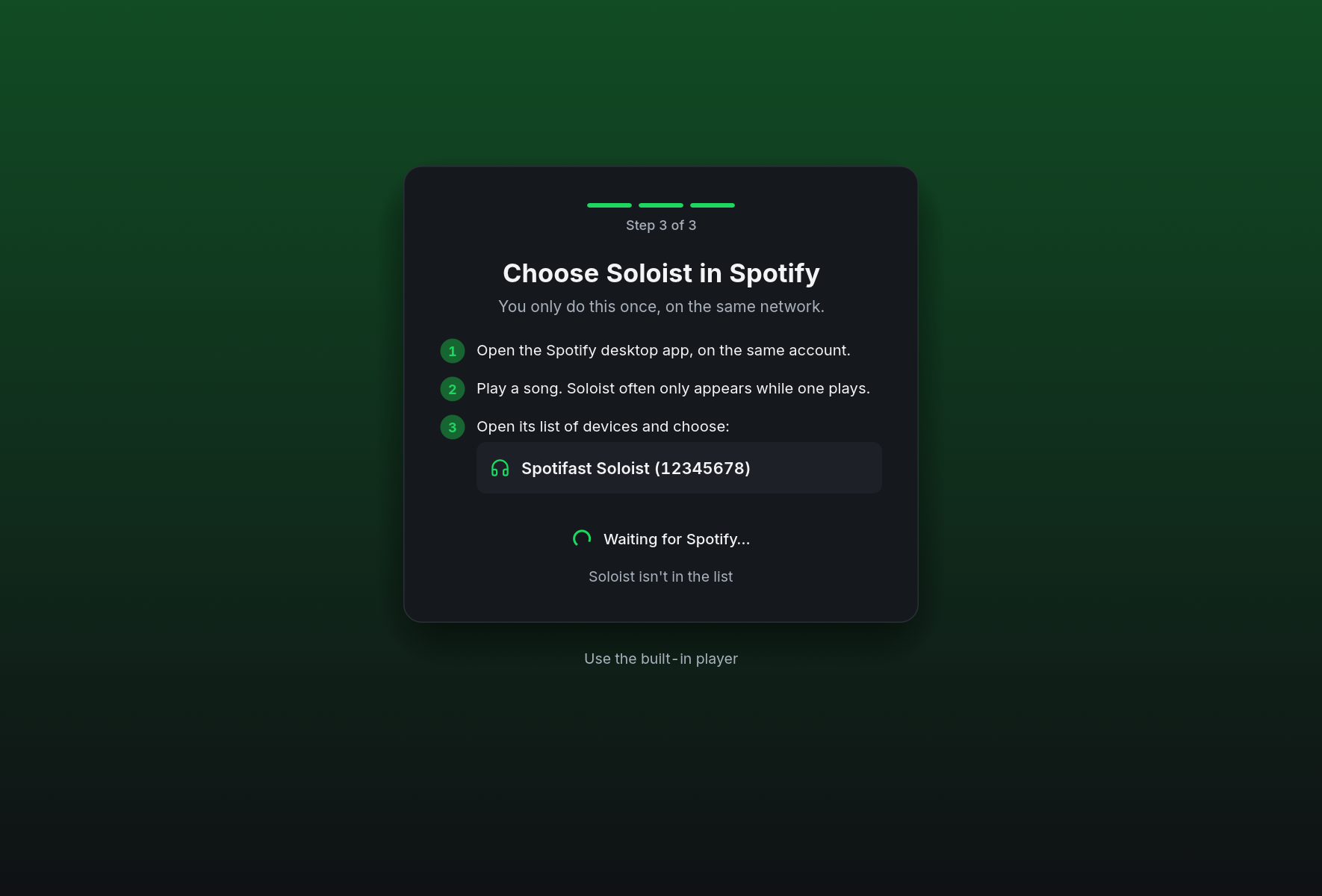
Spotifast can run Spotify Soloist as its first setup choice. New listeners and people updating see Set up Soloist after sign-in on supported platforms with a Premium account. Setup shows the key, download and pairing steps; this guide holds the details about privacy, updates and playback limitations. Use the built-in player skips Soloist and keeps librespot. The choice is remembered across launches and updates; existing Soloist listeners continue straight into the app. An interrupted setup resumes on the next launch. Soloist is Spotify’s separate software, downloaded from Spotify when you choose to enable it. It supports lossless playback; its current API does not report the audio format actually delivered, so Spotifast does not show a lossless indicator or offer an unsupported quality selector.
Setup
- Sign in to Spotify in Spotifast. Spotify Premium is required.
- Choose Set up Soloist, and follow the three steps. You can also start from Settings → Spotify Soloist later.
- Copy your personal key from Spotify’s Soloist page. It is separate from the Client ID of your Web API app. Paste it and choose Download Soloist. Spotifast saves the key in the system credential store and downloads Spotify’s build for this computer, showing its progress. No administrator account is needed.
- Open the Spotify desktop app on the same network, signed into the same account, and play a song. Choose the exact Spotifast Soloist (…) name shown in setup from Spotify’s list of devices. Spotifast checks that this player appears in your signed-in account’s device list before controlling it. Choose Start listening once setup confirms the account.
If the device does not appear, Soloist isn’t in the list in setup opens the
same advice as this section, and it opens by itself after a while. Try the
Spotify desktop app first, with a song playing: the device often appears only
then, and some people find that the phone and web apps do not list it until it
has been chosen once. A firewall, VPN or guest Wi-Fi can also hide it, because
Spotify’s apps find Soloist over the local network. On Linux with UFW, allow
Soloist’s TCP port (sudo ss -tlnp | grep soloist shows it) from your local
network. On a network that keeps devices apart, join this computer to your
phone’s hotspot and pair once there: only the first pairing needs local
discovery. Restarting the computer has also helped some people.
You can choose Use the built-in player at any setup step, including after
a failed download or while waiting for pairing. This stops Soloist if setup
started it. The built-in player’s separate browser approval is requested only
if it is not already connected. Setup does not stop existing playback merely
because its screen is shown. It does not download Soloist until you supply a key.
The remembered setup step lives in session.json, separately from playback
preferences. The headphones badge is Spotifast’s playback icon, not a Soloist
brand mark.
Pairing is normally needed only once. Soloist restores its own saved session when Spotifast starts. You can still choose another Spotify Connect device. Spotifast shows its managed player as This computer, with a small Soloist label in the device picker. It does not show a remote-playback badge for it. Once Soloist is ready, the inactive built-in player’s duplicate entry is hidden. Choose Turn off Soloist in Settings to stop it and restore the built-in player’s entry and settings. Saved built-in preferences are kept. While Soloist is enabled, built-in playback preferences are hidden. On Linux with PipeWire, EQ and visualization settings appear once the private Soloist audio route is established, even while paused. This is automatic and separate from account verification. Shared controls for the tray, startup and Spotifast updates remain under Application. Settings → Spotify Soloist holds its rows: status, with the one action that helps when it needs you, version and expiry, audio quality, Spotify access and Turn off Soloist, with a link to this guide. Setup itself stays in setup: with Soloist off, Set up Soloist there tries your saved key first and asks for one only if it has none. At launch, starting and account verification use the same loading screen as Spotify sign-in, with Starting Soloist… or Verifying Soloist… as its status, for a few seconds at most. If it takes longer, the app opens and a banner carries on. Playback commands, including shortcuts, are unavailable until the device is verified; they never start the built-in player as a fallback.
Setup is for setting up. Once you have finished it, nothing Soloist does takes the app away, and it is never reopened except by your own choice. If Soloist stops while you listen, your library stays open and a banner says so. Spotifast starts it again by itself, up to three times, after 2, 10 and 30 seconds, and picks up what was playing unless something else is playing by then. A song you choose meanwhile waits and starts when Soloist is back. After that, or for a problem restarting cannot fix, such as a locked credential store, the banner says what happened and offers Try again and Use the built-in player. If Spotify signs Soloist out or stops listing it for longer than about 20 seconds, Connect in Spotify opens the pairing step. During setup a failure is shown straight away with Try again, except that a sign-in Spotify has not finished verifying is retried by itself. One short device list from Spotify does not unbind a running, signed-in Soloist.
Use the built-in player stays available as a small link below each setup card. The saved key and pairing are retained for next time; signing out of Spotifast removes them. Closing Spotifast completely stops the child player. Closing to the tray leaves both running. If an earlier Spotifast left its player running, the next start stops that player first, so it cannot block the new one.
Spotify publishes Linux x86_64, ARM64 and ARM32 builds, Apple Silicon builds for macOS 13 or newer, and Windows x86_64 builds. Intel Macs and native Windows ARM builds are not currently available. Flatpak sandbox restrictions may prevent the downloaded program from running or reaching the audio service.
Updates
Soloist builds expire 90 days after their build date, rather than after installation. Spotifast reads the build date from the executable. During its last 30 days it checks daily, while running, for a fresh download. It stages the replacement without interrupting music, then applies it when the player is inactive or Spotifast restarts. A paused active session also waits, to preserve its queue. If Spotify has not published a usable replacement, the error is shown in the banner and in Settings; the built-in player remains available.
Downloads come directly from soloist-builds.spotifycdn.com over HTTPS.
Spotifast does not bundle or mirror Spotify’s executable. Archive extraction
is bounded and rejects links and unsafe paths. A local SHA-256 digest detects
changes to an installed build; it is not a Spotify signature. Spotify does
not currently publish a checksum manifest for independent verification.
Playback and current limits
Volume, shuffle and repeat use the normal player controls. Soloist’s public API does not currently expose preferences for quality, normalization, autoplay, gapless playback or crossfade. Its startup options include a cache-size limit and a PipeWire output on Linux; Spotifast does not yet expose those as Soloist preferences.
Library browsing, search and playlist management keep using Spotifast’s existing Spotify connections. Soloist’s loopback API handles basic playback controls, state and queue reads. If its event connection drops while Soloist is still available, Spotifast reconnects it. A second drop within 30 seconds restarts the player, as described under Setup. Starting a collection at a chosen row goes through the existing Spotify playback request, retaining its context and position; it does not skip through earlier songs or shorten the playlist.
Lyrics also keep their existing sources. Spotify’s own lyrics are tried when the separate librespot session is signed in, even while Soloist plays. Soloist does not supply lyrics through its API or replace that session’s login. Without it, cached Spotify lyrics remain usable and LRCLIB provides the fallback. If these features are missing, choose Settings → Spotify Soloist → Spotify access → Authorize. This separate browser approval enables Made for you, listening activity and Spotify lyrics while keeping Soloist selected. The listening activity panel also offers this approval when its connection is missing. Temporary LRCLIB overloads are retried, then search is tried if the exact lookup is still unavailable. Previously cached lyrics remain available during an outage; a failed request is never saved as “no lyrics”.
Soloist exposes queue additions and reads, but no public command to remove, reorder, clear or insert at the front of its queue. Those editing controls remain available with the built-in player. Spotifast does not pretend to edit a Soloist queue by replacing the playing playlist. Spotify’s Connect queue-write mechanisms may offer a future route, but have not been verified for Soloist’s queue identities and concurrent updates.
On Linux with PipeWire, Spotifast routes its own Soloist process through a
private audio input, using Soloist’s documented --pipewire-device option.
The existing equalizer, spectrum, oscilloscope and MilkDrop work on this route.
The equalizer runs at the output’s negotiated sample rate; the visualization
copy is converted to 44.1 kHz. Visualizers receive audio after EQ and before
volume, so zero volume still animates. Spotify’s reported volume controls the
final output gain, including changes made from another Spotify client. A slider
moved in Spotifast or a skin is heard at once, and Soloist is told behind it.
The route holds about 60 ms of audio, or two graph cycles if those are longer,
so a late wake-up in Soloist doesn’t become a dropout. When that margin runs
low it is rebuilt by playing up to 0.5% slow, too little to hear, and repeated
dropouts raise it to at most 250 ms until things stay clean again. The clock
and lyrics follow the delay as it changes. While Soloist plays, Spotifast asks rtkit, or failing
that the system’s nice limit, to raise the priority of its audio threads to
nice -11. Anything that goes wrong on the route is counted and goes to
spotifast.log at most every 10 seconds.
The route uses native PipeWire streams and the system’s default output. It needs no extra command-line tools, virtual audio driver, or persistent audio configuration. The private input is not a default device or a system-wide filter. No microphone or system mix is captured, and samples are never saved to disk. Pausing clears buffered samples; closing Soloist removes the route. If PipeWire is unavailable at startup, Soloist uses its ordinary output and EQ and visualizer controls stay hidden. A route that fails during playback does not stop the player: Spotifast rebuilds the route up to three times while Soloist keeps running, and restarts the player as described under Setup only if that does not work. Only Soloist’s own audio reaches the EQ, the visualizers and the output: if PipeWire links anything else into the private input, Spotifast removes the link, and the input is silent until it has gone.
Linux without PipeWire keeps Soloist’s direct output, without EQ or visualizers. The Mac and Windows routes are described below. Local files and full queue editing still require the built-in player on every platform. The Soloist API itself provides no PCM stream. OS audio processing does not establish which Spotify format was delivered, and is not advertised as bit-perfect or as a DRM workaround.
Native audio
Regular builds include native process capture on macOS 14.2 or newer and Windows build 20348 or newer (including Windows 11). On Mac, allow System Audio Recording for Spotifast, then play a song: a private Core Audio tap passes only Spotifast’s Soloist child through its EQ, limiter and visualizers, including MilkDrop. Until capture receives audio, Soloist’s ordinary output continues. Denying permission leaves ordinary playback available. Once routed, an output-device or sample-rate change stops the player, and Spotifast restarts it.
On Windows, WASAPI captures only the owned Soloist process and its children for the spectrum, oscilloscope and MilkDrop. It does not change the audio output, so Soloist EQ remains unavailable. Capture failure leaves playback running. No virtual driver is installed on either platform and no captured audio is saved. The Mac playback path keeps the tap’s sample rate; only the visualization copy is resampled.
On Mac, once capture is ready and Soloist’s direct output is muted, Spotifast sets Soloist’s source volume to 100%. Spotifast’s slider controls the redirected output after EQ and the visualizers. Zero in Spotifast keeps the visualizers moving. Its output level is remembered in the session file and defaults to 100%, so a low source level no longer limits the slider’s maximum.
A volume-change event from Spotify or your phone updates Spotifast’s output level, then Spotifast restores Soloist to 100%. Spotify’s volume indicator therefore returns to 100%; it does not show the listening level. Moving a control already at 100% may produce no change event, so use Spotifast’s slider for predictable control, including restoring full volume. A phone change can briefly affect capture before Soloist accepts the reset. Confirmations and repeated events from that reset never turn the output up or unmute it.
Before capture is ready, including briefly after reconnecting, Soloist keeps its ordinary output and source volume. Spotifast raises the source only after its private Mac route has taken over the audible output. If Soloist does not confirm the full source level within five seconds, the player stops, and Spotifast restarts it.
Spotify’s player starts at a level of its own every launch, so Spotifast keeps the level you left it at and gives it back once the player is signed in. This is saved in the session file.
Windows capture comes after Soloist’s volume, so Spotifast undoes Soloist’s volume curve for the visualizers: they keep their level as the volume falls. A muted source sends no signal, so zero still stops the visualizers. Lowering Soloist in the Windows volume mixer also shrinks them, because Soloist does not report that level. The tested WASAPI session and stream controls affect capture too, so they cannot supply a separate output fader. Windows 11’s pre-volume loopback option refers to endpoint volume, which affects other apps as well. Spotifast leaves that system control alone.
Spotify lists capabilities such as Smart Shuffle, Jam and crossfade for its player. Spotifast only offers controls exposed by the documented Soloist API; those names alone do not establish an integration.
Credentials, privacy and terms
What Soloist prints goes to soloist-output.log in its private folder for your
account, with your key removed, and each start replaces the file. It is not
part of spotifast.log. Read it before sharing it: it comes from Spotify’s
program, and Spotifast cannot say what else it contains.
The key belongs to your Spotify account and is stored with Spotifast’s other
protected credentials. Soloist currently accepts it only as a command-line
argument, so software permitted to inspect your processes can read it while
Soloist runs. Spotifast never logs the key, command line or child output.
Soloist’s pairing state and cache live under the private soloist/accounts/
folder in Spotifast’s state directory. Its binaries and notices live under
soloist/builds/; the soloist_enabled setting contains no key.
The local control socket binds only to 127.0.0.1, on an operating-system
assigned port. Spotify’s socket has no client authentication or browser
origin protection. Do not forward its port or expose it to a network.
Soloist makes its own Spotify connections and follows Spotify’s privacy policy. Spotifast’s proxy setting applies to the download and Spotifast’s requests, but does not configure Soloist’s streaming connections. Spotify’s binary can have different diagnostics and reporting behaviour from librespot. Spotifast adds no telemetry of its own.
Soloist remains subject to Spotify’s terms and Developer Policy. Availability of this optional integration is not a claim of Spotify endorsement or permission to redistribute its binaries. Spotifast downloads them for the listener from Spotify’s server instead of redistributing them. This integration does not bypass Spotify’s authentication, subscription checks, expiry or DRM.