
The Winamp Mini Player
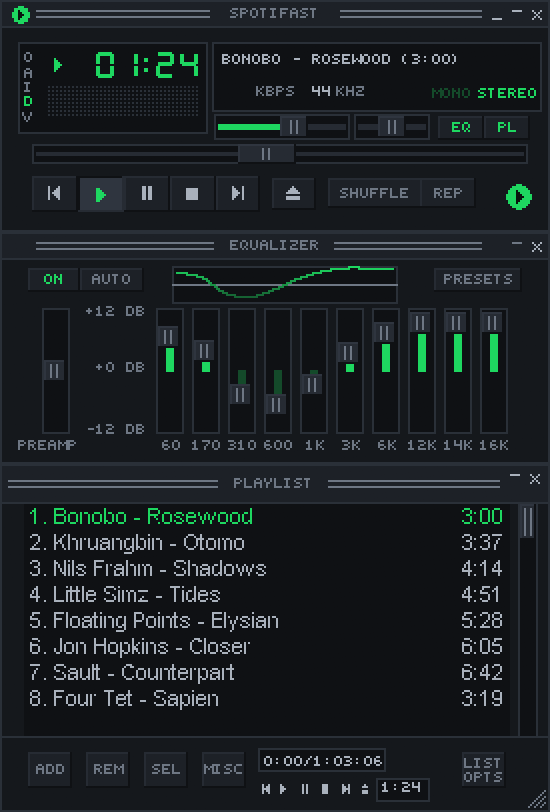
Open the mini player with Ctrl+M (Cmd+Shift+M on macOS), the shrink button, or
Switch to it in Settings. It supports classic Winamp 2 .wsz skins. Find
skins at the Winamp Skin Museum.
Only one player window is open at a time. Click the skin logo or Eject, or use the shortcut again, to return to the main window.
Skins and window size
Drop a .wsz file on either window to install and use it. Settings shows each
installed skin as a card with a picture of it, and can open the skins folder.
Click a card to wear that skin. The first time you scroll to them, the pictures
are drawn in the background, one skin at a time, and kept for next time. A skin
that cannot be drawn shows its name instead. It can still be worn.
Choose Random, first in that list, to get a different skin each time you switch to the mini player, never the same one twice in a row. Settings says which skin it picked, and choosing a skin yourself turns Random off.
You can also use an unpacked skin folder. Spotifast finds skin files inside its subfolders, up to eight folders deep, so you do not need to move them all into one folder.
Right-click the title bar, or click O, to choose a size from 1x to 4x. Each size keeps the classic pixels sharp. The same menu can keep the player above other windows. D steps through the sizes, 1x to 4x, and A toggles always-on-top. Spotifast remembers the window position where your desktop allows it.
Skins can have transparent areas and shapes other than rectangles. Modern Winamp 3 and 5 skin formats are not supported; choose classic Winamp 2 skins.
MilkDrop, opened from a classic skin’s mini player, is a panel of the player,
under the equalizer and the playlist. It wears the skin’s generic window frame
from gen.bmp; a skin without one borrows the built-in skin’s. Drag its bottom
right corner to make it taller, and the window grows with it. It stays as wide
as the player. It moves with the
player, and the skin’s double size applies to it.
The button beside its close button, a double click on the picture, or F takes MilkDrop to full screen. A Windows Media Player skin’s visualisation area does the same with a double click, or the button that shows when you point at it. Full screen is the lyrics view, with MilkDrop behind the words in place of the cover’s art; leaving it brings the skin back as it was.
Windows Media Player skins
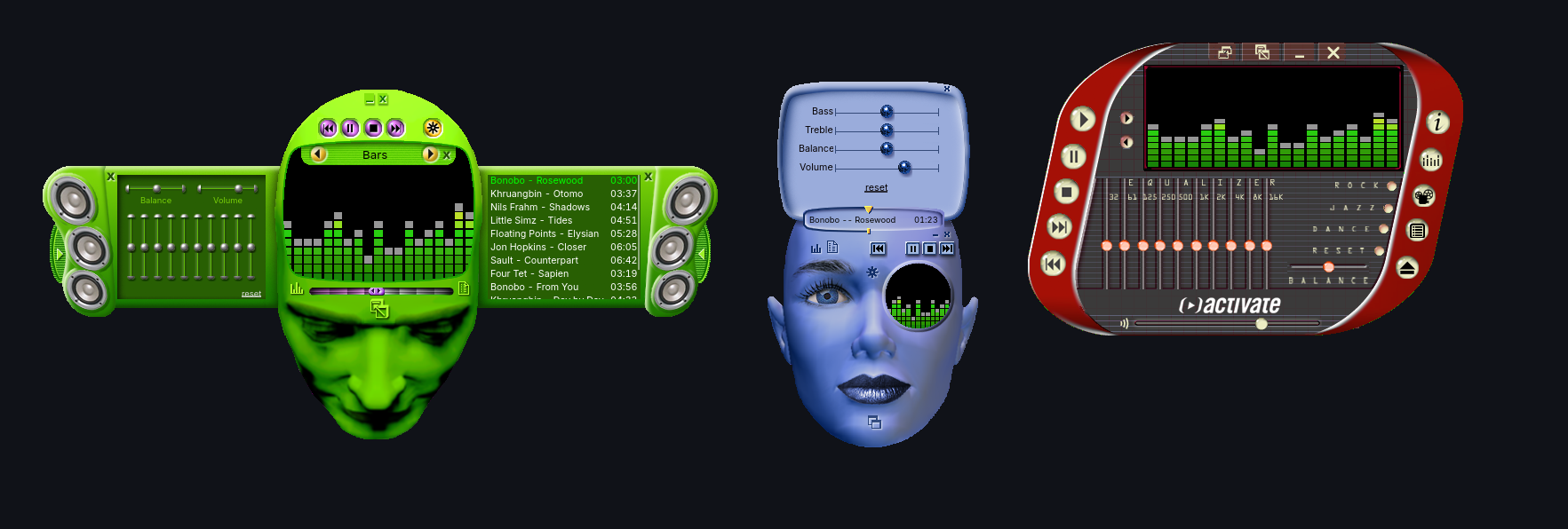
The mini player also wears Windows Media Player skins. Drop a .wmz file (or
an unpacked skin folder with a .wms file in it) on either window, exactly as
with a Winamp skin, and pick it in Settings. The Internet Archive’s
Windows Media Player Skins Collection
has over 170 of them.
Spotifast comes with two of its own, listed first under Windows Media Player in Settings. Spotifast Tall is small enough to keep at the side of your screen: a white ceramic ribbon round a smoked-glass core. It opens with a thread of green light tracing its outline, and that light burns under the arch while the music plays. Click the square, or the small button below it, to switch between the album art and the visualizer. The dots at the top of the glass change its page, from Now Playing to the equalizer to the queue, where a click plays a song. It remembers what you chose. Spotifast Wide, listed after it, is the same object laid on its side, with the ribbon arching over the right of a long glass core, for the top or bottom of a screen. It works the same way and remembers its own choices.
A skin runs as it did in Windows Media Player. Its own scripts run, in a sandbox with no access to your files, the network or other programs, so its intro animations, drawers, shutters and hidden panels work. Every view it defines works: a skin that opens separate windows for its playlist, equalizer or visualisation opens real windows here too. Windows take the skin’s shape. A skin’s preferences, such as which panels were open, are kept for next time. The picture on a skin’s card comes from running it the same way, with a song partway through and still bars in place of the visualisation.
Skins work with what Spotifast has:
- Playback controls, seek, volume, mute, shuffle and repeat are real. Fast forward and rewind jump ten seconds, and Stop pauses and rewinds.
- Playlist panels show the playing song and the queue. Double-click a row to play it.
- Equalizer panels change Spotifast’s equalizer, and balance changes the balance. Moving a band turns the equalizer on. Skins with settings Spotifast has no match for, such as SRS WOW or crossfade, show them without effect.
- Visualisation areas show MilkDrop, moving and scaling with the skin. A skin’s next and previous visualisation buttons change the preset. Until the picture arrives, and whenever there are no presets or the graphics card cannot draw it, they show the same bars or sound wave as the Winamp display. Either way the picture comes from the sound after the equalizer and before the volume. Open MilkDrop once to download its presets.
- Video areas show the song’s cover. Spotify audio has no video, so a skin that waits for video to open its video view does not open it.
- File, CD, library and web buttons do nothing: a skin plays what Spotifast plays, and it cannot open files or web pages.
Sounds a skin plays for itself are not played. A few skins use pictures or text built into Windows Media Player; those parts stay blank. Many skins have bugs in their own scripts that Windows Media Player ignored, and Spotifast ignores them as well.
A Windows Media Player skin is drawn at one pixel per screen pixel unless you choose a size, either in Settings under Mini player or from the right-click menu. Both kinds of skin share that one size. Drag anywhere that is not a control to move the window, and press Ctrl+M (Cmd+Shift+M on macOS) to go back to the big window. A skin’s own Close and Return buttons do the same.
In Settings, the Mini player section lists Winamp skins and Windows Media
Player skins under their own titles. A .zip file is listed under the kind of
skin it holds. Open folder opens the one folder both kinds are kept in.
Main controls
Most controls match Winamp. As in Winamp, Play on a song that is already playing starts it again from the beginning; Pause pauses. These work differently:
- Stop pauses and rewinds.
- I opens the playing album in the main window.
- Repeat is either on or off.
- The X button and both logos return to the main window.
Click the time to switch between elapsed and remaining time. The balance and MONO/STEREO controls affect playback on this computer. Quit from the right-click menu or with Ctrl+Q.
The shade button, or a double-click on the title bar, rolls the player up. Its tiny spectrum analyser or oscilloscope keeps moving in the collapsed bar; click the display to cycle through bars, waveform and off, just like the full player. The playlist and equalizer have their own shade buttons.
Switching to the main window and back keeps the shade modes and restores the mini player’s own position. It does not inherit the main window’s fullscreen or maximized state. On Linux desktops using Wayland, the desktop chooses where windows appear and may ignore the saved position.
The left display shows bars that react to the sound (a spectrum analyser). Click it to switch to a moving sound wave (an oscilloscope), then off. You can also use the V menu. Changes to the equalizer affect the picture; turning down the volume does not, even at zero. The display reacts only to music playing on this computer.
Playlist
PL opens the playlist below the player. It shows the playing song followed by the queue. Double-click a song to play it, Ctrl-click to select several, and drag the lower-right corner to resize the window. Use X or PL to close it.
- ADD opens search or Liked Songs.
- SEL selects rows.
- MISC opens song, artist, and album pages.
- LIST OPTS starts one of your playlists or saves the queue as a new one.
- REM → Remove selected takes the selected songs you queued out of the queue, and REM → Remove all clears every song you queued. Both work when this computer is playing. Songs from the playing album or playlist stay.
Notices from the main window scroll through the mini player’s text display. The skin’s capital-letter font folds accented Latin letters, including Turkish letters, to its available shapes. Other scripts use a fallback font.
Equalizer
EQ opens the ten-band equalizer. It affects playback on this computer, not other Spotify Connect devices. The preamp ranges from -12 to 12 dB. AUTO resets all bands. The same controls and presets are in Settings.
To keep your own curve, such as a headphone correction, type a name under the presets in Settings → Equalizer and choose Save preset. It stores the preamp and the ten bands, and appears after the built-in presets in Settings and in the mini player’s PRESETS menu. Saving under a name you already used replaces that preset. While a saved preset is in use, Delete beside Save preset removes it; the sound stays as it is.