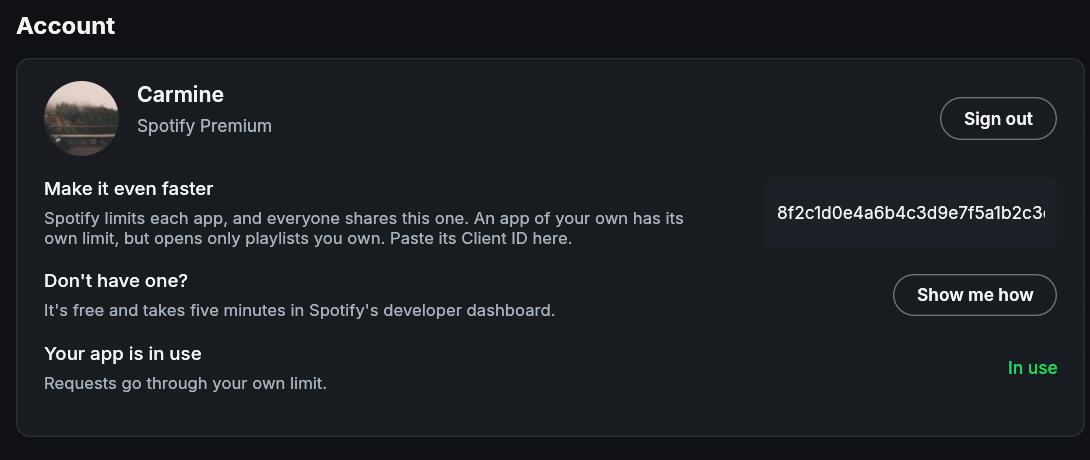
Make It Even Faster
Scrolling and large libraries
The sidebar is drawn alongside every page, so its sorting work can affect scrolling elsewhere in the window. Library ordering now looks up each row’s position once per sort instead of repeatedly searching the full saved order. This reduces the work each frame needs for large libraries while preserving your chosen sort, pins, and folders.
The main window draws as needed and uses the platform’s frame pacing. The player bar and mini player visualizers draw at the Frame rate chosen in Settings > Appearance, 60 by default; a lower rate uses less power. The MilkDrop frame-rate setting applies to its separate visualizer window.
API rate limits
If you got here from “Spotify is being slow on the shared app”, the short version is in Spotify is being slow.
Spotify limits how often an app can ask for information. Your own Spotify app, the one you sign in with, has an allowance that is yours alone. If you create several apps, they share your account’s allowance, following Spotify’s July 2026 quota update. When it runs out for a while, Spotify asks Spotifast to wait. The top bar shows a spinner while you wait; hover over it to see whether Spotifast is updating your library, checking for updates, or waiting for Spotify. Your playlists and Home show what they showed last time until the update arrives.
Setting up playback on this computer spends less of that allowance. Spotifast then reads your playlist list, other people’s playlists, popular songs and related artists through its music connection, which uses none of it, and which can read the playlists Spotify keeps from apps like yours, its own among them. How it connects explains which connection each feature uses.
Spotify allows an app like yours ten search results at a time for each type.
If you signed in before 0.14.2
Earlier versions signed everyone in through one shared app, which the ncspot project registered. It stopped taking new sign-ins in October 2026 (#1057), and Spotify no longer gives a project like this one an app that everyone can share. Spotify’s own client, which playback uses, can’t stand in either: Spotify turns its requests for your library and the catalogue away as too many.
If you were signed in that way, you stay signed in until Spotify stops accepting it. Then the sign-in screen tells you so and shows how to make your own app. You can switch sooner in Settings, under Personal Spotify app: paste your app’s Client ID and choose Authorize. With Premium, Spotifast suggests this once, and again with a banner when Spotify slows the shared app down, at most once a day and not again after you close it three times.
While both are signed in, your own app answers what it can, and the shared app still lists your playlists and finds playlists in a search, which Spotify keeps from apps like yours.
Make a Spotify app
The steps are in Getting Started.