
Everyday Use
Middle-click autoscroll
On Windows, since 0.8.0, and on Linux once turned on, middle-click anywhere in a scrolling list, then move the pointer away from the starting point. That list follows the pointer, faster as the distance grows, and the pointer shows the direction it is scrolling. Speed and dead zone match Chromium’s autoscroll. Moving across another pane keeps the original list in control. A small dead zone prevents an ordinary middle-click from moving the view. You can also hold the middle button while moving and release it to stop. Otherwise click again, press Esc, turn the wheel, or switch to another window to stop. Text fields keep middle-click paste, and sliders and scroll bars keep their own dragging.
This works automatically on Windows, with no setting to enable. On Linux, turn on Middle-click autoscroll under Settings > Appearance. It is off by default, because Linux desktops usually paste the primary selection on middle click. macOS retains its existing middle-click behavior.
Scrolling shelves
The tiles at the top of Home show what you played most recently, as Spotify’s Home does: the playlists, albums, artists and podcasts you played from, Liked Songs, and songs you played on their own, newest first. A tile opens its page, and its play button starts it again; a song’s tile plays the song and opens its album. Until Spotify’s play history arrives, or when it holds fewer than eight, Liked Songs and the first playlists in your Library fill the rest.
Made for you shows the personalized playlist cards Spotify returns for your account, in Spotify’s order, when local playback and a current Web API Home grant for that playback account are available. If local playback is unavailable, the session read fails, or the grant check fails, the same shelf shows approximate matches found through a Web API playlist search, which can be rate-limited. If a refresh fails, cards already on screen remain available; Retry is shown when the first load fails. Spotify DJ is left out because Spotifast cannot play its special context.
Your top mixes follows Made for you with the artist, genre and decade mixes Spotify builds from your listening, in Spotify’s order. It comes from the same personalized read and has no fallback: the shelf appears once local playback has read it, and stays hidden for accounts Spotify gives no top mixes. If a refresh fails, the mixes already on screen remain.
New releases shows the latest albums, EPs and singles from the artists you follow, newest first. A card opens its release. The shelf’s title opens the New releases page, which lists every song of those releases, newest release first, with Play and Shuffle as on a playlist. The releases come from the feed behind the bell in Spotify’s own apps when local playback is set up; reading it there does not mark anything as seen in Spotify. Without local playback, or when that feed cannot be read, the shelf asks the Web API for the newest albums and singles of up to 50 of the artists you follow instead. The shelf stays hidden when there are no releases.
In Discover Weekly and Spotify’s other playlists, a song’s menu offers Hide in this playlist, as Spotify’s apps do. A hidden song stays in the list, greyed out, and is skipped when the playlist plays; Show in this playlist brings it back. Spotify keeps the choice, so it carries over to its other apps. This needs local playback.
Point at a horizontal shelf, such as Made for you or Recently played on
Home, and hold Shift while turning the mouse wheel. The shelf moves while
the surrounding page stays put. Release Shift to scroll the page normally.
Podcasts on Home
Since 0.10.0, Home has a Your podcasts shelf below Recently played. It lists episodes you have started and not finished, with the time left, followed by each podcast’s newest episode if it came out in the last 30 days and you have not started it, marked New. It covers the eight podcasts you saved most recently and the five newest episodes of each. Audiobooks are left out. The shelf is hidden when there is nothing to show. Click a card to open the podcast, or use its play button to play the episode. An episode you have started continues from where you left it. The same is true of Play on a podcast page, a saved episode, or a search result.
Dragging beyond the visible list
Since 0.8.0, hold a dragged song near the top or bottom of an editable playlist’s visible area to scroll. Scrolling gets faster closer to the edge and stops when you move away or release the mouse. This lets you move a song from the end to the beginning without dropping it along the way. Clear filters and sorting before reordering playlist songs.
Since 0.8.0, drag a song from the player bar, the queue, or another list into an open editable playlist. The line between rows marks its insertion position. Dropping below the last row appends; the blank area of an empty playlist accepts its first song. The source song stays in its list or queue, and playback continues unchanged. Dragging a row within the same playlist still moves that row.
Since 0.8.0, select several songs with Ctrl-click (Cmd-click
on macOS) or Shift-click, then drag any selected row. The whole selection
travels together in its displayed order, even if you selected the rows in
a different order. The preview names the first song and counts the rest.
Drop it on a sidebar playlist to append, between rows of another editable
playlist to insert, or on Liked Songs to save every selected song.
Selected rows have a translucent neutral highlight. Keyboard focus uses
the row highlight without an extra outline.
Dragging an unselected row copies just that song. Reordering within a playlist still moves one song at a time. Several selected songs dropped back between the rows of their own open playlist stay where they are. Dropped on that playlist in the sidebar, they ask before being added again.
Copying and pasting songs
Since 0.10.0, press Ctrl+A (Cmd+A on macOS) in a playlist,
album or Liked Songs to select every song the list shows. A
filter narrows the selection to the matching songs. In a long playlist that
is still loading, it selects the songs loaded so far.
Ctrl+C (Cmd+C) copies the selected songs’ open.spotify.com links, one
per line, ready to paste into another playlist, a message, or Spotify’s own
apps. Ctrl+V (Cmd+V) in a playlist you can edit adds every song link on
the clipboard to its end. Links copied from Spotifast add their rows at
once; links from elsewhere appear as soon as Spotify names the songs. Songs
already in the playlist ask before being added twice, and links that are
not songs, such as albums, are skipped.
Ctrl+X (Cmd+X) in a playlist you can edit copies the selected songs’
links the same way and removes the songs from the playlist, so Ctrl+V in
another playlist moves them there.
These keys edit the text instead while a search, filter or other text field has focus.
Clear any playlist filter or sort before placing songs between rows, so the visible positions match Spotify’s order. A duplicate confirmation keeps the chosen position when you select Add anyway. Dragging near the top or bottom of the playlist scrolls to positions beyond the visible rows.
The Library sidebar also scrolls near its edges when you drag a song toward a playlist or reorder its entries. Only the list under the pointer scrolls.
Starting a playlist and resuming
Since 0.8.0, with Shuffle off and the playlist in its original order, its Play button explicitly starts at the first available song. The selected song appears in the player immediately, including while local playback reconnects. The full playlist remains the playback source, even when only its first page is loaded.
Double-click a song to start at that row. Sorting the table plays its chosen
order when Shuffle is off. Shuffle chooses a random starting song unless you
choose a specific row. To resume the current song at its paused position,
use Play in the bottom player bar or press Space.
To hear a song immediately after the current one, right-click it and choose Play next. A selection of songs is inserted in displayed order, ahead of the songs already queued. This works while playing or paused on this computer; the option is disabled when controlling another device. Add to queue puts songs after those already queued. See The Queue’s Rules.
The Shuffle button beside Play selects the playback order without starting the playlist. Select Shuffle first, then press Play.
When you start a song from a sorted playlist or Liked Songs, it appears in the player bar straight away while playback connects. Sorting changes the order you hear without rearranging the playlist saved on Spotify.
Local songs show readable titles, artists, and albums, including spaces and accented characters. Names saved in older playlist caches are corrected automatically when the cache is read.
Sorted and filtered views omit unavailable songs and local files from playback. The rows stay visible, and selecting a repeated song starts that occurrence. Filtering a playlist or Liked Songs plays only the matching songs, including repeated entries. Play is disabled when the view has no playable songs; it never falls back to the unfiltered playlist in that case. Clearing the filter restores the original view. Existing Shuffle behavior is unchanged.
Right-clicking a song in an editable playlist offers Remove from this playlist even when the list is sorted or filtered, since removal does not depend on position. Move up, Move down, and drag-reorder stay on the default order, where the rows on screen match the order saved on Spotify. Right-clicking the playing song in the player bar offers the same removal while it plays from a playlist you can edit.
Viewing cover artwork
Click the cover at the top of a playlist, album, artist, or podcast page to
see it enlarged, at the largest size Spotify has. Click anywhere or press
Esc to return to the page.
Release dates
Hover over the year at the top of an album, single or EP page to see its full release date, like “Oct 5, 2026”. Spotify knows some releases only to the year, for those, hovering will just show the year.
Refreshing a playlist
Since 0.8.0, choose Refresh in a playlist’s … menu to reload its details and songs, including changes made in another Spotify client. The menu item reads Refreshing… and is disabled while loading. Current songs, filtering and sorting stay visible. Spotifast finishes saving your edits before loading changes from Spotify. If loading fails, your songs stay visible and you can choose Retry.
A podcast’s … menu has the same Refresh. It asks Spotify for the podcast again instead of reusing the episodes loaded earlier, so new episodes appear without restarting Spotifast. The episodes already shown stay until the new list arrives.
Playing from the sidebar
Double-click a playlist, Liked Songs, album, artist, or podcast row in the Library sidebar to start playing it. A single click still opens the row’s page. Pointing at a row’s cover art also shows a play button, but only when the sidebar is not in compact mode.
Playing a song from search
A song picked from the search results plays on its own, and, with Autoplay on, Spotify continues with songs it suggests after it, as in the Spotify apps. The other results are not queued after it.
Search from a launcher
In development, not included in 0.8.0: a Spotify search link opens Search and fills the box without starting playback. To try it in a development build, set a launcher or keyboard shortcut to run:
spotifast 'https://open.spotify.com/search/here%20comes%20the%20sun'
This starts the app if needed or opens its existing window. When signed out,
the latest search link waits for sign-in. Use https://open.spotify.com/search
without a query to open an empty, focused search box.
On Linux, playerctl --player=spotifast open accepts the same search link
when the app is running. Links to songs, albums, and playlists still start
playback as before.
Finding a setting
The Settings page has its own search field under the title. Type to narrow the page to matching rows; sections without matches disappear. Clear the field to see everything again.
Keyboard and screen readers
Right-click a search, filter, settings or playlist-editing text field for Cut, Copy, Paste and Select all. Cut and Copy require a text selection. The usual keyboard shortcuts, including Undo, still work. Since 0.8.0, Ctrl, Cmd and Alt arrow keys move the caret while a text field has focus. Playback and navigation shortcuts on those keys remain available from song rows and other controls.
The main window provides screen-reader names for playback controls, library
and song rows, menus, sliders, and settings switches. Tab and Shift+Tab
move keyboard focus, shown by an outline. Enter activates the
focused control; on a song row, it plays that song. The row’s More button
opens its menu from the keyboard too.
In a playlist, album or Liked Songs, focus a song row and use the up and down
arrows to move between whole rows in the displayed order. Rows scroll into
view as you move; Enter plays the focused song. Tab still reaches artist
links and each row’s Like and More controls.
Arrow navigation selects only the destination song. Hold Shift with up or
down to extend or shrink the selection from its anchor. Press Delete to
remove selected songs from a playlist you can edit, just like Remove from
this playlist. On macOS, both Delete and Fn+Delete work. Text fields,
dialogs and open menus keep Delete from acting on the list.
Press and hold the player bar’s volume slider to update local volume without moving the pointer. Remote volume is sent on release and keeps your chosen level while Spotify updates, including during rate limits. Fresh updates can confirm the level or show a change made on another device. If the volume request fails, an error appears and the slider returns to the reported level. The seek slider previews on press and seeks on release.
The default local output smooths volume and mute changes over 30 ms. Explicit track changes and play/pause/stop use nominal 50 ms fades. Stopping can shorten the fade to the queued audio. Natural track transitions remain gapless.
Left and right arrows adjust a focused volume slider by five percentage
points, or the seek slider by one percent of the song. Screen readers can
also read and set these sliders’ values. Ctrl+F (Cmd+F on macOS) focuses
search. Since 0.9.0, Space plays or pauses the current song even
when a song row or control has focus. Text fields keep Space for typing.
Unmodified letter shortcuts still yield to the focused control.
This is the first part of screen-reader support. Windows testing with NVDA remains tracked in #262. Winamp skins do not yet have equivalent accessibility coverage.
Keyboard shortcuts
| Shortcut | What it does |
|---|---|
Space |
Play or pause |
Ctrl+← / Ctrl+→ |
Previous or next |
Shift+← / Shift+→ |
Seek 10 seconds |
Ctrl+↑ / Ctrl+↓ |
Volume |
M |
Mute |
B |
Like or unlike the playing song |
S / R |
Shuffle / cycle repeat |
Q |
Queue panel, or the queue column in full screen |
F |
Enter or leave full screen lyrics |
Ctrl+F or / |
Search |
Ctrl+B |
Show or hide the sidebar |
Alt+← / Alt+→ |
Back or forward |
Page Up / Page Down |
Scroll the main page one page |
Home / End |
Top or bottom of the main page |
Ctrl+H / Ctrl+L |
Home / Liked Songs |
Ctrl+Shift+A / Ctrl+Shift+B |
Playing artist / album |
Ctrl+A |
Select every song in a playlist, album or Liked Songs |
Ctrl+C / Ctrl+V |
Copy the selected songs’ links / add copied song links to your playlist |
Ctrl+X |
Copy the selected songs’ links and remove the songs from your playlist |
Ctrl+M |
Winamp mini player |
Ctrl+Shift+K |
MilkDrop |
Ctrl+, |
Settings |
Ctrl+/ or ? |
All shortcuts |
Ctrl+Q |
Quit |
On macOS, Cmd replaces Ctrl. A focused text field keeps its usual keys
for its own text.
Repeat cycles through off, the whole list, and one song. As in Spotify’s own apps, choosing another song while one song repeats (Next, Previous, or playing a song) turns Repeat One back into repeating the whole list. Previous that restarts the song keeps it repeating.
Controlling it from the command line
The spotifast command controls the copy already running, on every
platform. Each verb prints nothing on success:
spotifast play-pause          spotifast volume 40
spotifast play                spotifast volume-up [percent]
spotifast pause               spotifast volume-down [percent]
spotifast next                spotifast mute
spotifast previous            spotifast shuffle [on|off]
spotifast seek 15             spotifast repeat [off|context|track]
spotifast seek -- -15         spotifast like
spotifast seek-to 90          spotifast play-uri spotify:playlist:37i9…
spotifast show                spotifast transfer <device-id>
spotifast now-playing [--raw] spotifast devices [--raw]
spotifast play-search <words> spotifast play-search --kind artist <name>
shuffle and repeat toggle when used without an argument. Pass a state to
set it directly. like adds or removes the playing track from your library.
play-search searches Spotify and plays the best match: a song, or with
--kind album, artist, or playlist, one of those from the start. It shows
a message instead when nothing matches.
now-playing prints one readable line. --raw prints tab-separated fields:
state, title, artists, album, position_ms, duration_ms, volume, shuffle,
repeat, art_url, saved, and device. saved is yes, no, or unknown while
loading. New fields are appended to keep older scripts working.
devices lists Spotify Connect devices with the ID first and the active one
marked with *. --raw prints JSON. The command refreshes the device list,
so the first call after startup may be empty. Run it again if needed.
A verb exits non-zero when Spotifast is not running.
spotifast <link> opens a Spotify link, a spotify: URI or an
open.spotify.com address, in the running app, or starts the app on it.
This is what the desktop runs when a link is clicked. On Linux, Spotifast is
also an MPRIS player, so playerctl --player=spotifast play-pause and media
keys work too.
Launchers such as Raycast or Alfred, and the Stream Deck plugin, can use these commands. They reach Spotifast through a private channel only your user can open (on Windows, a loopback port that answers only requests carrying a random token). Use the command rather than the channel itself.
Updates
The Windows installer, Mac app, AppImage, and portable Windows and Linux downloads update from inside Spotifast. Click the green update button to download a release, then choose when to restart and install it. Settings can enable automatic background downloads; restarting always waits for your click. Closing the update window keeps a download running. You can also check for a new release from Settings, or on macOS from the application menu. Release notes in Settings > About opens the GitHub release page of the version you are running, to read what changed.
Spotifast checks each download before installing it. An interrupted or damaged download leaves the running app alone, and a failed startup restores the previous installation. Updates keep your settings and sign-ins. On macOS, move Spotifast to Applications before updating it.
Package-managed installations update through their package manager,
including Homebrew, Flatpak, apt, dnf, pacman, Nix, and Cargo. Other
installations use the Download page. Portable archives
identify themselves with spotifast-portable.txt. On Windows, a portable
copy keeps its settings, state and caches in the spotifast-data folder
next to it, which updates leave as it is (see
portable copies). The AppImage
updates itself when you own it and can write to its folder, such as
~/Applications; one in a system folder or someone else’s says so and
links to the release instead. AppImage updaters such as AppImageUpdate and
Gear Lever work as well, from the update information inside it.
Library order
Select By You under Playlists to show only playlists owned by your signed-in account, alongside Liked Songs. Followed playlists and collaborative playlists owned by someone else are hidden, including pinned ones. Search and the selected sort still apply. Matching playlists appear in a flat list, including those in collapsed folders. Turn By You off to restore the full list and folder view. The choice is remembered on this computer and only affects the Playlists shelf. It uses the ownership information already loaded with your library and makes no additional Spotify requests.
Since 0.8.0, the menu below the Library filters selects an order for each section. Name and Recently played are available throughout. Albums and podcasts also offer Recently added, using their actual save dates. Spotify does not supply equivalent dates for followed playlists or artists, so those sections do not offer that choice. Entries with missing save dates come last.
Name keeps your Spotify playlist folders, as Spotify does: playlists sort by name inside each folder, and folders sort by name among the playlists beside them. A search or By You still lists matching playlists flat.
Spotify custom order follows your playlist order and folders from Spotify. Set up playback on this computer to load that order. Your playlists stay visible while it loads, and Spotifast remembers the last order for your account. When you rearrange your library in another Spotify app, Spotifast picks up the new order when you switch back to it. Items you pin in Spotifast remain at the top, including items from a closed folder. Sorting or dragging Library items changes their order only in Spotifast; it does not rearrange your Spotify library.
Drag playlists to choose Local custom order. New playlists appear below the pinned group. Selecting Name, Recently played or Spotify custom order keeps the saved arrangement, so selecting Local custom order restores it. The playlist context menu’s Sort by recently played also preserves it.
Upgrading keeps the previous default: a saved local playlist arrangement wins; otherwise available Spotify folders keep their order, and a flat playlist list uses recent plays. Other sections keep their supplied Library order until you select a sort. Choosing a sort loads the rest of that Library section in the background. If loading fails, choose the order again to retry.
Liked Songs starts pinned at the top. Drag it between pins to choose its position, or below the pin block to unpin it and put it in Local custom order. Other pins can sit above it. Its right-click menu also offers Unpin and Pin to top; pinning adds it after your existing pins. The arrangement survives restarting Spotifast and switching sort choices.
When unpinned, Liked Songs follows Name or Recently played like the other rows. In Spotify custom order, it appears after the playlists because it has no place in Spotify’s playlist tree. Returning to Local custom order restores its saved position. Dragging a song onto Liked Songs still saves that song, wherever the row sits.
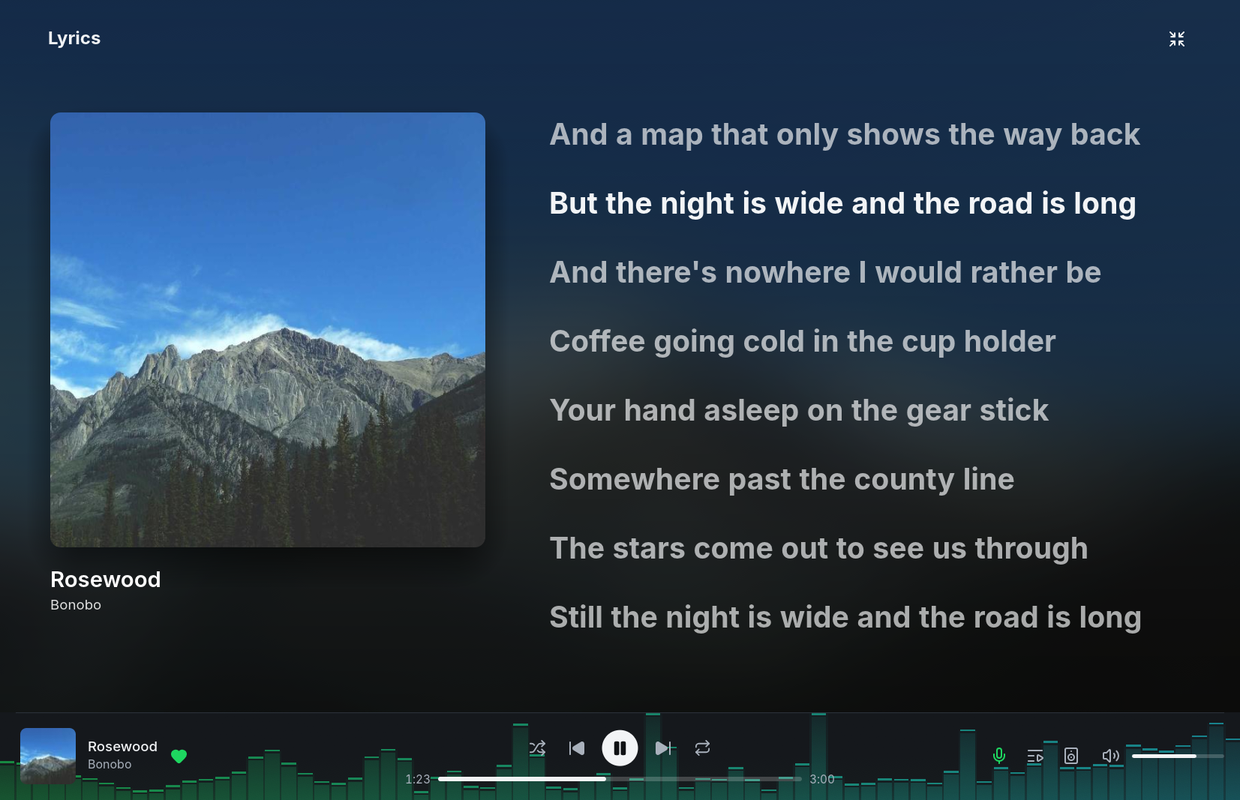
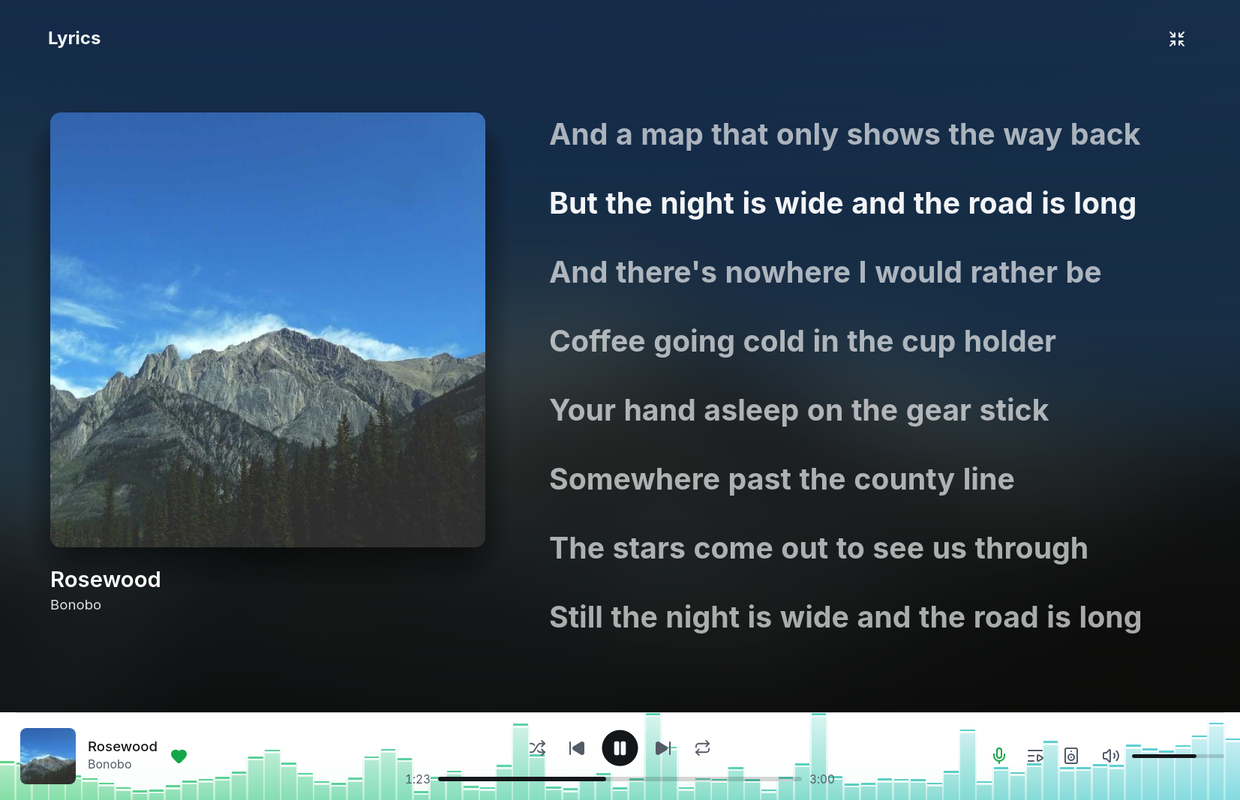
Player bar visualizer in Settings > Appearance shows the song moving behind the player bar’s controls: Spectrum draws glowing bars from bass to treble with peaks that hang and fall, and Waveform draws the sound’s wave as a glowing line. With Colour from album art on, both sweep from bass to treble across up to four colours read from the cover, its hues first and its greys after, so a black and white cover moves in grey; with it off, they take the accent colour. It follows the equalizer, not the volume, and moves only while the song plays on this computer. It is off by default. Clicking the player bar’s empty space switches it, as Winamp’s visualizer did: off, then Spectrum, then Waveform, then off again. Frame rate in Settings > Appearance sets how often it and the mini player’s analyser draw: 30, 60 (the default), the rate of the screen showing the window, or Uncapped, which follows the display. They draw at half that rate while Spotifast’s window is out of focus, at most 30 frames a second while the system saves energy, and not at all while nobody can see the window: minimised, in the tray, with the display off or the screen locked. MilkDrop has its own frame rate. Disable Click player bar to change visualizer in Settings > Appearance to prevent accidental changes.
Spotifast follows the system when it asks for less motion: Animation effects turned off in Windows, Reduce motion on macOS, or GNOME’s Animations turned off. Its animations then show where they end at once: the player bar’s colour changes without fading, lyrics jump to the sung line, and a new theme replaces the old one without the reveal. Spinners still turn.
In Settings > Appearance, Compact track list puts each song on one line. In narrow lists, the added date follows the artist credits with a spaced bullet; each artist name remains a separate link.
Starting with your computer
Settings > Playback on this computer > Start with your computer opens Spotifast when you log in. With the window opens it as you would; In the tray starts it without a window, ready for media keys and the tray icon; on macOS it reads In the menu bar. Off leaves your login alone.
The setting is your system’s own list of what starts at login, read back each time Settings opens, so turning Spotifast off there (System Settings on macOS, Task Manager’s Startup apps on Windows, your desktop’s autostart settings on Linux) shows here too.
- In the tray needs Keep music playing when the window closes: without it nothing could bring a hidden window back, so the window opens instead and the row says so. The window also opens when no panel shows the tray icon within 30 seconds of logging in.
- macOS asks you to allow it in System Settings > General > Login Items when it holds the item for approval; the row says so until then. It needs macOS 13 or later and the app from the disk image or Homebrew.
- Flatpak asks the desktop’s background portal, which may ask you first. A change made later in the desktop’s own settings is not seen by Spotifast.
- If Spotifast is already running when the login entry runs, nothing happens: it stays where it is.
Windows taskbar controls
Since 0.8.0, hovering Spotifast’s taskbar button offers Previous, Play/Pause, and Next beneath its window preview. They control the same playing device as the player bar, update immediately, and are disabled when there is no song or the device refuses controls. The icons follow the system appearance and display scaling.
Since 0.8.0, clicking or double-clicking the Windows tray icon shows and raises Spotifast. Use Show or hide Spotifast in the tray menu to hide it again.
Closing to the tray removes the window and its preview. Reopening the main window or switching to the Winamp window creates its controls again. Media keys and the system’s now-playing controls continue working while the window is closed.
For the Winamp mini player, turn off Show in taskbar under Settings > Winamp skins, or Show in taskbar in its options menu. The choice survives restarts. The mini player stays visible; the tray icon, Ctrl+M, the skin logo, and launching Spotifast again remain ways to reach the app. Returning to the main window always restores its taskbar button. Changing the option while the mini player is open replaces that window while playback continues. This setting is available on Windows and in Linux X11 sessions, where it hides the mini player from panels and task switchers that follow the window manager’s skip-taskbar state. Wayland has no standard way for an app to leave the taskbar, so the option is not offered there; use your desktop’s window rules instead. It does not change the macOS Dock.
A window saved on a display that is no longer connected opens on the primary display instead: on Windows and X11 it moves to the middle of the primary monitor as it opens, and on macOS a position whose title bar would be on no screen is not used. Positions on connected secondary displays still restore. Reinstalling preserves settings; it is not needed to recover a position left on an unplugged display.
macOS menu bar and Dock menu
Click Spotifast’s menu-bar icon to open its menu. From there you can show or hide the window, control playback, or quit Spotifast. The menu opens from either a primary or secondary click, as other macOS menu-bar items do. It stays available with the main window open, with the Winamp mini player, and after closing the window to the menu bar.
Spotifast also shows its Dock icon when run directly through Cargo, without an installed app bundle.
Right-click or Control-click Spotifast’s Dock icon for Play (or Pause while music plays), Next, and Previous, above the standard Dock items. They control the same playing device as the player bar and keep working while the window is closed to the menu bar.
Menu bar only
Turn off Show in Dock under Settings > Playback on this computer to run Spotifast from the menu bar alone. The Dock icon goes at once, without a restart, and the window stays open in front. Spotifast then also leaves the Cmd+Tab switcher and shows no menu bar of its own while you use it, as other menu-bar apps do. Its keyboard shortcuts, including Cmd+Q, Cmd+comma and copy and paste, keep working in the window.
The menu-bar icon stays: it is how you show the window again after closing it, and how you quit while the window is closed. Opening Spotifast again from Finder or Launchpad also brings the window back. Turn the setting on to put Spotifast back in the Dock. The choice survives restarts, and Spotifast starts without the Dock icon; the Dock may show it for a moment as the app launches. This option is only on macOS.
Keeping the mini player above other windows
Always on top works on Windows, macOS and X11. On Wayland the app’s controls are unavailable, because your desktop manages which windows stay above others. Use your desktop’s window rule or shortcut instead. In KDE Plasma, configure Keep Window Above Others under Settings > Keyboard > Shortcuts > Window Management. Your saved preference remains available when you use Spotifast on Windows, macOS, or X11 again.
Since 0.8.0, the top bar reserves room for the device and update badges beside Search. In narrow windows those badges show only their icons. The bar stays above the page. Library, Queue and Lyrics keep their full height. When the window narrows, Library, Queue and Lyrics give up width before the top bar runs out of room, and return to the widths you chose once it widens. With Queue or Lyrics open, the window cannot be made narrower than the room they need beside the page. Hover to read the device name or available version; click to open the device picker or update window.
MacBook notch widget
On macOS machines equipped with a display notch, Spotifast displays an interactive Now Playing floating island under the notch when the main window is minimized, in the background, or closed to the tray.
Hovering over the notch expands the widget with album artwork, title, artist, elapsed and remaining time, a seek bar matching the player bar, and playback controls (shuffle, previous, play/pause disc, next, repeat, save to library, and Spotify Connect device). Scrubbing the seek bar seeks within the playing track.
When music is paused, hovering still reveals the controls so you can resume playback directly from the notch.
To turn on the notch overlay, check MacBook notch widget in Settings under Playback on this computer.
Where the music is playing from
Above the current song, the queue panel says what it is playing from: the playlist, album, artist or other page. Click the name to open that page. A radio has no page, so its name is plain text.
Recent
The queue panel’s second tab combines Spotify’s history with tracks played through Spotifast, which Spotify does not record.
Since 0.8.0, choosing any Recent row starts that song on its own, and the player bar shows the selection immediately while playback starts.
A song is added after about 30 seconds, or halfway through a shorter song. Paused time and seeking do not count.
Since 0.8.0, each repeat remains a separate play, including songs shorter than a minute. A newly loaded local repeat earns its own listening time; pausing or seeking the current play does not create another entry. The same play reported both locally and by Spotify appears once.
The local list is stored in history.json and is never uploaded. Settings →
Storage shows its location and has a Clear history button.
On Windows, the main window’s minimize, maximize, and close buttons share the top bar with Spotifast’s controls. Drag an empty part of that bar to move or snap the window, and drag a window edge or corner to resize it.
When Spotify won’t play a song here
If a song shows up as playing but nothing plays, and a banner says Spotify won’t let this computer play this song right now, see Spotify refused the audio key.
Choosing the audio output
Audio output, at the bottom of the device picker, chooses where music
played on this computer goes: the system’s default output, or a sound card,
headset, HDMI output, or virtual device such as VoiceMeeter. Click it to list
this computer’s outputs, then pick one; local playback restarts on it at the
same place in the song. System default follows the system again, and moves
with it when the default output changes. The choice is saved as audio_device
in settings.json, by the device’s own id, so it survives renames and
reordering. While a saved output is unplugged, music plays through the system
default, and the output stays listed so you can see and change the choice.
On Linux, Spotifast plays through PipeWire when it is running, otherwise through a PulseAudio server, and otherwise straight to ALSA. The picker lists that sound system’s outputs. Spotifast 0.13.3 and earlier saved an output by its name: a name an output still has is kept, and saved by its id the next time music plays there. One that no output has any more, such as ALSA’s PipeWire Sound Server, plays through the system default until you choose again.
Volume mixers show the stream as Spotifast, with its icon, playing Spotify playback, on PipeWire and PulseAudio. The mixer remembers its volume for Spotifast alone.
Listening activity
The people button in the player bar, beside Queue and Lyrics, opens what the people you follow on Spotify are listening to. It takes the place of the Queue or Lyrics panel on the right, and they take its place in turn. While it is open it refreshes every 15 seconds.
A blue dot on the avatar and bars in place of the time mean the person is listening right now. Pointing at an avatar shows a play button: click it to play their song, or to pause it when that song is already playing here. The song’s title opens its album, the artist opens their page, and the line below opens the playlist, album or artist it plays from.
The panel needs playback on this computer, since only that session can read it. In a very narrow window the people button gives way so the playback controls keep their room; widen the window to bring it back.
Sleep while playing
While music plays on this computer, Spotifast keeps it from going to sleep on its own, so a long playlist is not cut off by the idle timer. The display still turns off and the screen still locks as usual, and you can still put the computer to sleep yourself or close the lid. Pausing or stopping, or playing on another device, lets the computer sleep again. On Linux this asks the desktop (through the desktop portal, or else systemd-logind), so it depends on the desktop honouring the request; GNOME and KDE do.
Google Cast playback
Google Cast speakers and speaker groups appear in the device picker. Enable local playback first, then select the speaker. Since 0.13.1, Spotifast first checks that the speaker is a genuine Google Cast device, as Chrome does (0.13.0 did not), then starts Spotify on it, and the speaker plays like any other Spotify Connect device. A device that fails the check gets nothing, and Spotifast says it could not prove it is genuine.
Radio
Since 0.10.0, Go to song radio in a song’s menu opens a page of songs Spotify picks to go with it, without starting playback. Playlist, album, and artist menus have Go to playlist radio, Go to album radio, and Go to artist radio.
A song radio starts its list with the song it is based on, once, followed by the rest of Spotify’s mix in its order. Shuffle still decides what plays first. If Spotify will not provide the seed song, the radio leaves it out.
Spotify mixes a radio afresh each time it is asked, so the page keeps the songs it shows: Play, Shuffle, and a double-clicked row play those songs, and the queue names the radio. Choose Refresh in the page’s … menu for a new mix. Save as playlist creates a private playlist named after the radio with the songs on the page.
Radio comes from Spotify’s playback service, so it needs playback on this computer to be set up; the page can then play on any device.
Play counts
Album pages have a Plays column, and an artist’s popular songs show how often each was played, as Spotify counts them. The counts come from Spotify’s playback service, so they need playback on this computer to be set up. Without it, or when Spotify does not answer, the lists leave the counts out. The column needs a window wide enough for it.
Upcoming albums
Open a spotify:prerelease: URI or an open.spotify.com/prerelease/ link
with Spotifast to see the artwork, release countdown and track-list preview.
This requires local playback authorization. Pre-save adds the resolved album
to your Spotify library and confirms its saved state. Unavailable preview
tracks cannot start playback.
The browser’s Open in app action uses the registered spotify: handler.
Pasting an HTTPS address into the browser opens Spotify’s website; Spotifast
does not take over HTTP or HTTPS associations.
Playlist covers
In development, not included in 0.8.0: open a playlist you own and choose Edit details → Change cover. Select a JPEG or PNG, check the preview, then choose Upload cover. Cancelling the picker leaves your previous selection intact. An upload error keeps the preview so you can try again. Uploading the cover is separate from Save, which saves the playlist name, description, and visibility. Spotify doesn’t let apps remove a description, so clearing the field keeps the current one. You can replace it with other text instead.
If Spotify refuses permission, sign in again and approve image uploads. If you use a personal Spotify app, reconnect it in Settings as well.
Lyrics
Choose the microphone button in the player bar, or press L, to open lyrics.
A local file from a playlist shows the words in a .lrc file of the same name
beside it, or in its own tags, and the cover in its tags; otherwise lyrics come
from LRCLIB by its artist, title, album and length.
Synced lyrics follow the playing line automatically. Scroll to pause following,
choose Follow to resume it, or choose a line to jump to that part of the song.
The expand button, or F when no text field has focus, opens lyrics in full screen. Press F or Esc, or choose the shrink button, to return to your previous window size. Full-screen lyrics scroll smoothly and highlight the playing line automatically. Scrolling by hand pauses following; choose Follow to resume. Since 0.11.0, a wide window shows the song’s cover beside the lyrics, the two centred together, and a song without words, such as an instrumental, shows just its cover in the middle of the screen. Since 0.10.0, quitting while lyrics are full screen no longer leaves the next launch stuck in full screen: the window returns to its previous size.
| Dark theme | Light theme |
|---|---|
 |
 |