
The Winamp Mini Player
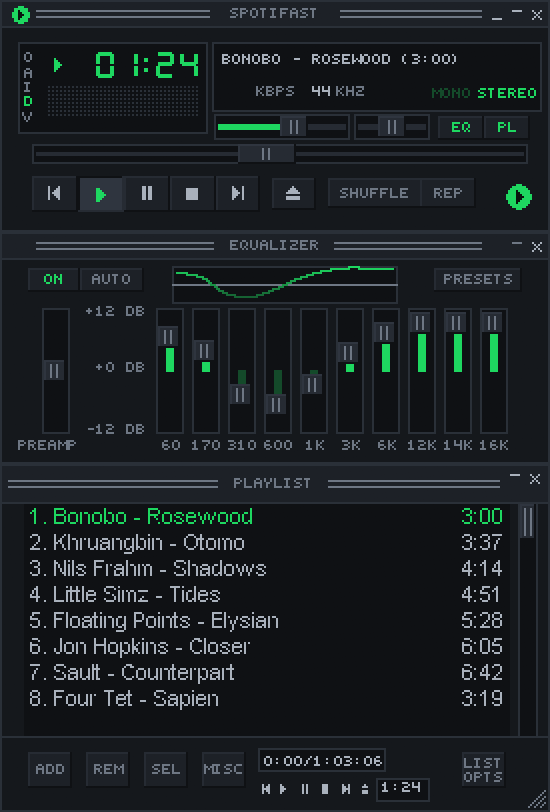
Open the mini player with Ctrl+M (Cmd+Shift+M on macOS), the shrink button, or
Switch to it in Settings. It supports classic Winamp 2 .wsz skins. Find
skins at the Winamp Skin Museum.
Only one player window is open at a time. Click the skin logo or Eject, or use the shortcut again, to return to the main window.
Skins and window size
Drop a .wsz file on either window to install and use it. Settings lists the
installed skins and can open the skins folder.
Choose Random, first in that list, to get a different skin each time you switch to the mini player, never the same one twice in a row. Settings says which skin it picked, and choosing a skin yourself turns Random off.
You can also use an unpacked skin folder. Spotifast finds skin files inside its subfolders, up to eight folders deep, so you do not need to move them all into one folder.
Right-click the title bar, or click O, to choose a size from 1x to 4x. Each size keeps the classic pixels sharp. The same menu can keep the player above other windows. D steps through the sizes, 1x to 4x, and A toggles always-on-top. Spotifast remembers the window position where your desktop allows it.
Skins can have transparent areas and shapes other than rectangles. Modern Winamp 3 and 5 skin formats are not supported; choose classic Winamp 2 skins.
Main controls
Most controls match Winamp. As in Winamp, Play on a song that is already playing starts it again from the beginning; Pause pauses. These work differently:
- Stop pauses and rewinds.
- I opens the playing album in the main window.
- Repeat is either on or off.
- The X button and both logos return to the main window.
Click the time to switch between elapsed and remaining time. The balance and MONO/STEREO controls affect playback on this computer. Quit from the right-click menu or with Ctrl+Q.
The shade button, or a double-click on the title bar, rolls the player up. Its tiny spectrum analyser or oscilloscope keeps moving in the collapsed bar; click the display to cycle through bars, waveform and off, just like the full player. The playlist and equalizer have their own shade buttons.
Switching to the main window and back keeps the shade modes and restores the mini player’s own position. It does not inherit the main window’s fullscreen or maximized state. On Linux desktops using Wayland, the desktop chooses where windows appear and may ignore the saved position.
The left display shows bars that react to the sound (a spectrum analyser). Click it to switch to a moving sound wave (an oscilloscope), then off. You can also use the V menu. Changes to the equalizer affect the picture; turning down the volume does not, even at zero. The display reacts only to music playing on this computer.
Playlist
PL opens the playlist below the player. It shows the playing song followed by the queue. Double-click a song to play it, Ctrl-click to select several, and drag the lower-right corner to resize the window. Use X or PL to close it.
- ADD opens search or Liked Songs.
- SEL selects rows.
- MISC opens song, artist, and album pages.
- LIST OPTS starts one of your playlists or saves the queue as a new one.
- REM → Remove selected takes the selected songs you queued out of the queue, and REM → Remove all clears every song you queued. Both work when this computer is playing. Songs from the playing album or playlist stay.
Notices from the main window scroll through the mini player’s text display.
Equalizer
EQ opens the ten-band equalizer. It affects playback on this computer, not other Spotify Connect devices. The preamp ranges from -12 to 12 dB. AUTO resets all bands. The same controls and presets are in Settings.
To keep your own curve, such as a headphone correction, type a name under the presets in Settings → Equalizer and choose Save preset. It stores the preamp and the ten bands, and appears after the built-in presets in Settings and in the mini player’s PRESETS menu. Saving under a name you already used replaces that preset. While a saved preset is in use, Delete beside Save preset removes it; the sound stays as it is.